Appearance
Source:
docs/admin-guide/README.md. Edit it there; this page is generated at build time.
Admin Guide
A walkthrough of every screen in the admin panel at /admin — what each section is for, and what every field on it does.
Terms used here (Product, Review, Merchant, Affiliate Link…) are defined once in CONTEXT.md. This guide explains the screens; CONTEXT.md explains the concepts.
Screenshots are generated from real pages by
npm run docs:screenshots. If a screen changes, rerun it rather than editing images by hand.
Printable version:
admin-guide.pdfis this same guide as one self-contained manual — hand that to anyone who needs to operate the panel. Rebuild it withnpm run docs:pdfafter editing this file. It carries the copy across verbatim, minus the parts that only mean something to a reader in the repo: these notes, the Contents list below (it generates its own, numbered) and the Related documentation section at the end.
Contents
- Signing in
- The dashboard
- How the sidebar is organised
- Catalog
- Content
- Site
- Administration
- Conventions that apply everywhere
Signing in
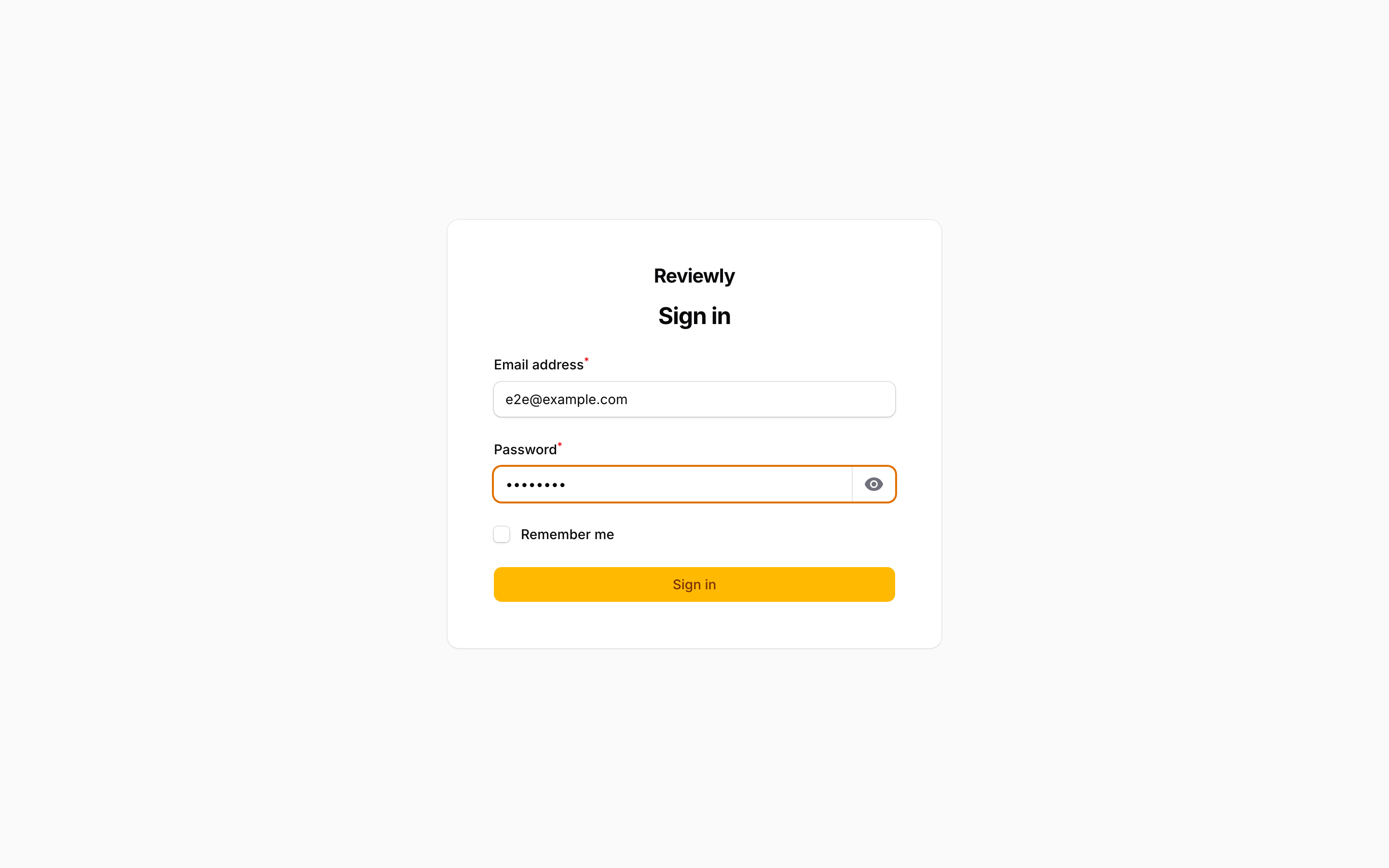
The panel lives at /admin. Visiting any admin URL while signed out sends you here.
| Field | What it does |
|---|---|
| Email address | Your admin login — the email on a User record. This is not the same thing as the public byline readers see; that is an Author. |
| Password | Set when the account was created, or changed later from the Users screen. |
| Remember me | Keeps you signed in on this browser after the session would normally expire. |
Two-factor authentication. Accounts holding the super_admin role are required to set up an authenticator app on first sign-in, and are prompted to do so before the panel opens. Recovery codes are issued at the same time — store them somewhere safe, because they are the only way back in if you lose the device. Other roles are not prompted.
The dashboard
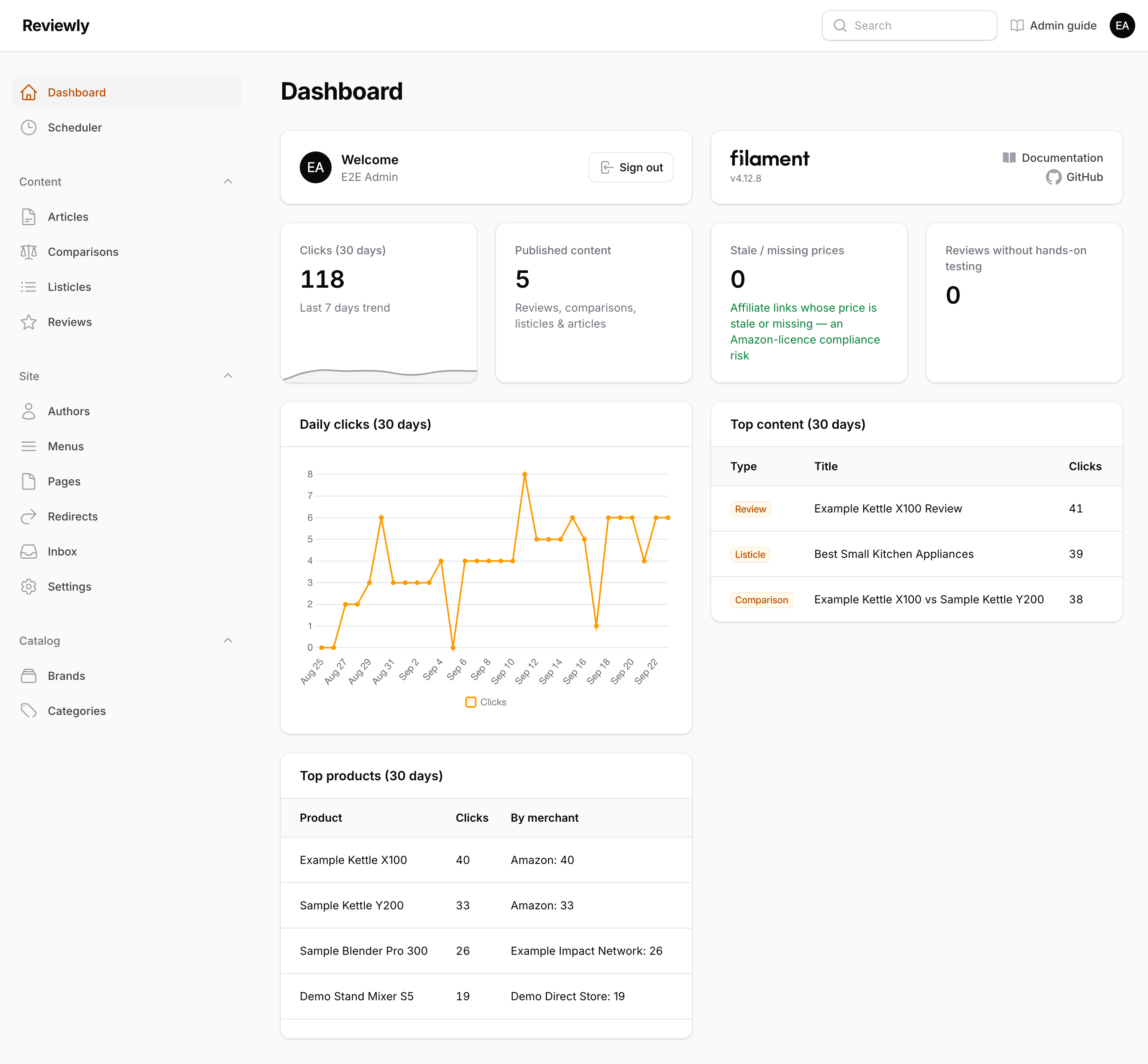
The landing page after sign-in. Everything on it is derived from Clicks, so a brand-new site shows zeros until traffic arrives.
This guide is one click away. The Admin guide link in the top bar, between the search box and your initials, opens this manual on the docs site in a new tab, from any screen. The docs site asks you to sign in with GitHub first, and only approved accounts get through.
The four stat tiles

| Tile | What it counts | Why you'd look at it |
|---|---|---|
| Clicks (30 days) | Every affiliate-link click in the last 30 days, with a 7-day sparkline underneath. | The headline traffic-to-revenue number. |
| Published content | Reviews + Comparisons + Listicles + Articles currently in published status. | How much of the site is actually live, as opposed to sitting in draft. |
| Stale / missing prices | Affiliate links whose price is older than its Merchant's staleness limit, or has no price at all. | A compliance risk. Amazon's operating agreement forbids showing a price older than 24 hours. Anything above zero here means prices need refreshing. The tile turns amber when it is non-zero. |
| Reviews without hands-on testing | Reviews where We physically tested this unit is off. | These reviews cannot claim first-hand testing, and are weaker for Google's reviews system. |
Daily clicks
A 30-day line chart of click volume, one point per day. Useful for spotting the traffic effect of publishing something, or a sudden drop that means a broken link.
Top products
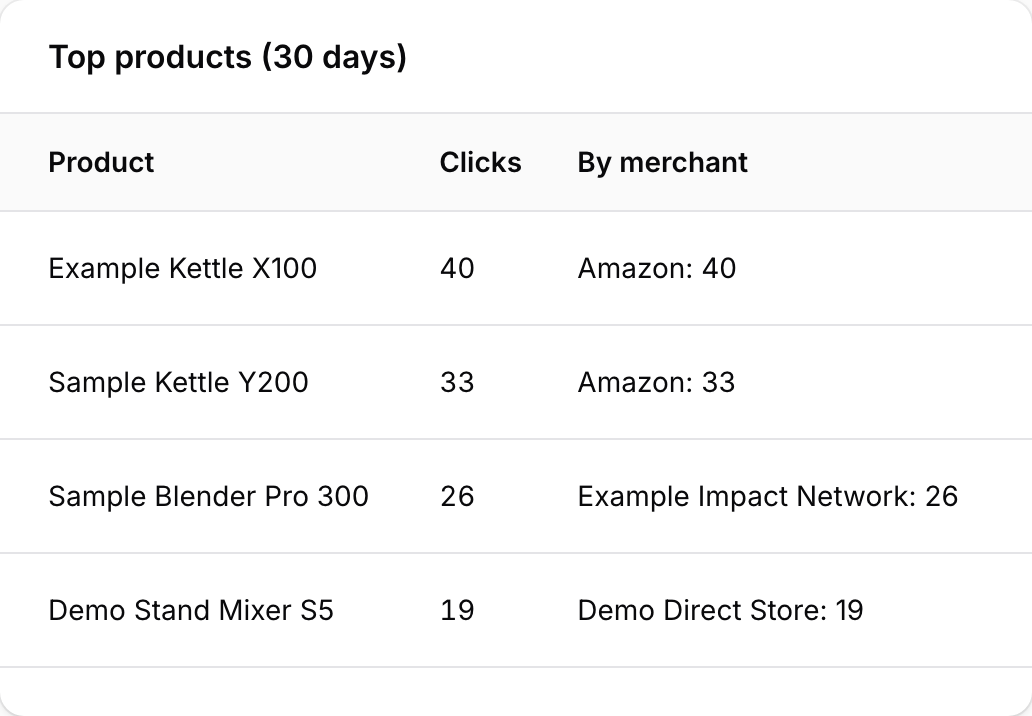
The ten most-clicked Products of the last 30 days. The By merchant column splits each product's clicks across the merchants it links to — so you can see that a product earns most of its clicks through one network rather than another.
Top content
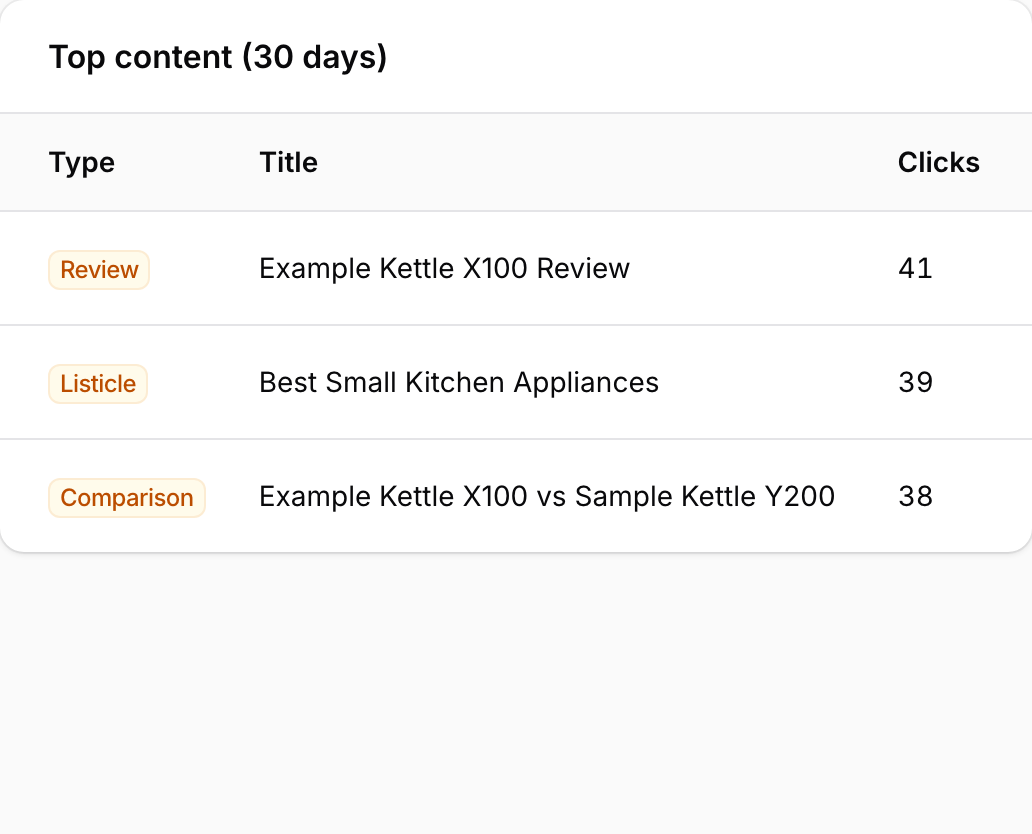
The ten pieces of content that generated the most affiliate clicks, with a badge for the content type. This answers "which article is actually earning?", which the per-product view cannot: one product may be clicked from a dozen different pages.
How the sidebar is organised
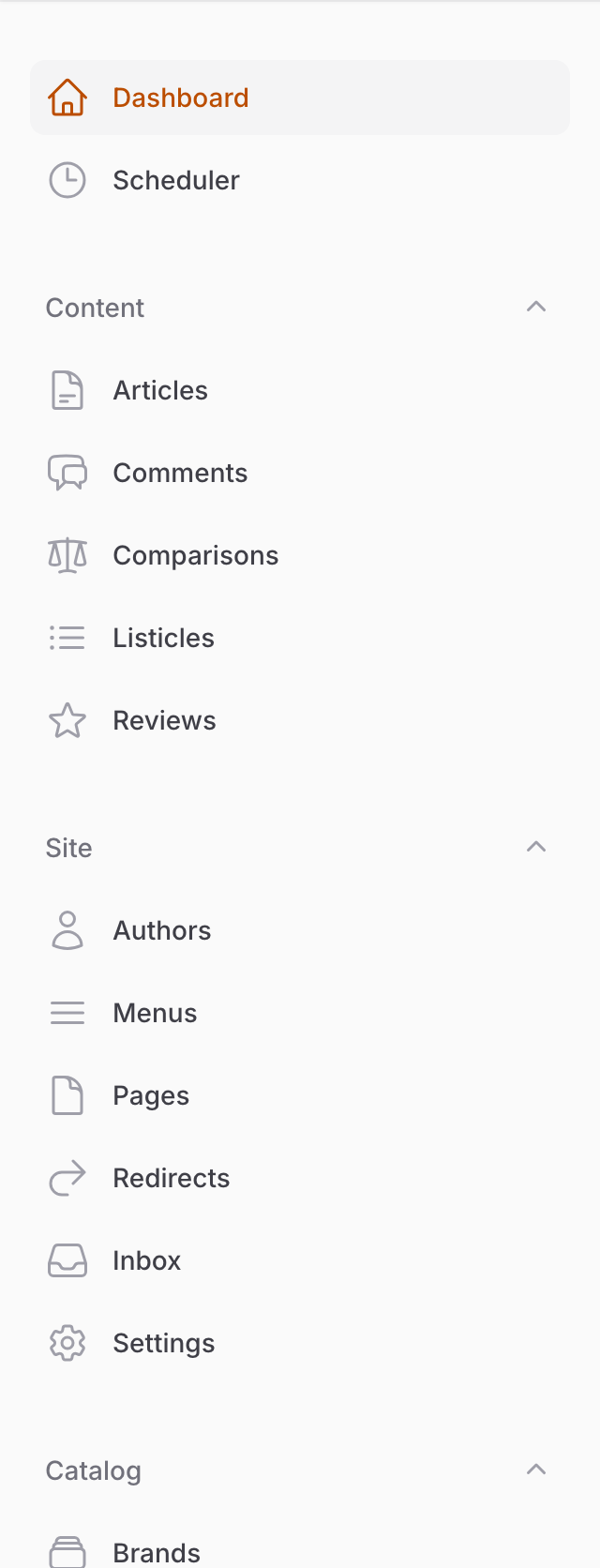
Four groups, in the order work usually flows:
| Group | Contains | Think of it as |
|---|---|---|
| Catalog | Brands, Categories, Merchants, Products | The reusable facts. Maintained once, referenced by every piece of content. |
| Content | Articles, Comments, Comparisons, Listicles, Reviews | The pages readers actually land on, and what readers say under the articles. |
| Site | Authors, Menus, Pages, Redirects, Inbox, Settings | The furniture around the content — bylines, navigation, policy pages, where old addresses now lead, messages from readers, and the site's name and defaults. |
| Administration | Clicks, Users, Roles | Who can get in, and what happened. |
Scheduler sits on its own above the groups — see Scheduler. It is the one screen that reports on the site running itself rather than on anything you have typed.
If a section is missing from your sidebar, you do not have permission to view it. Filament hides a resource entirely rather than showing a locked link. See Roles.
Catalog
The catalog is shared data. A Product edited here changes everywhere it appears — that is the point of having it, and the reason not to duplicate product details inside individual articles.
Brands
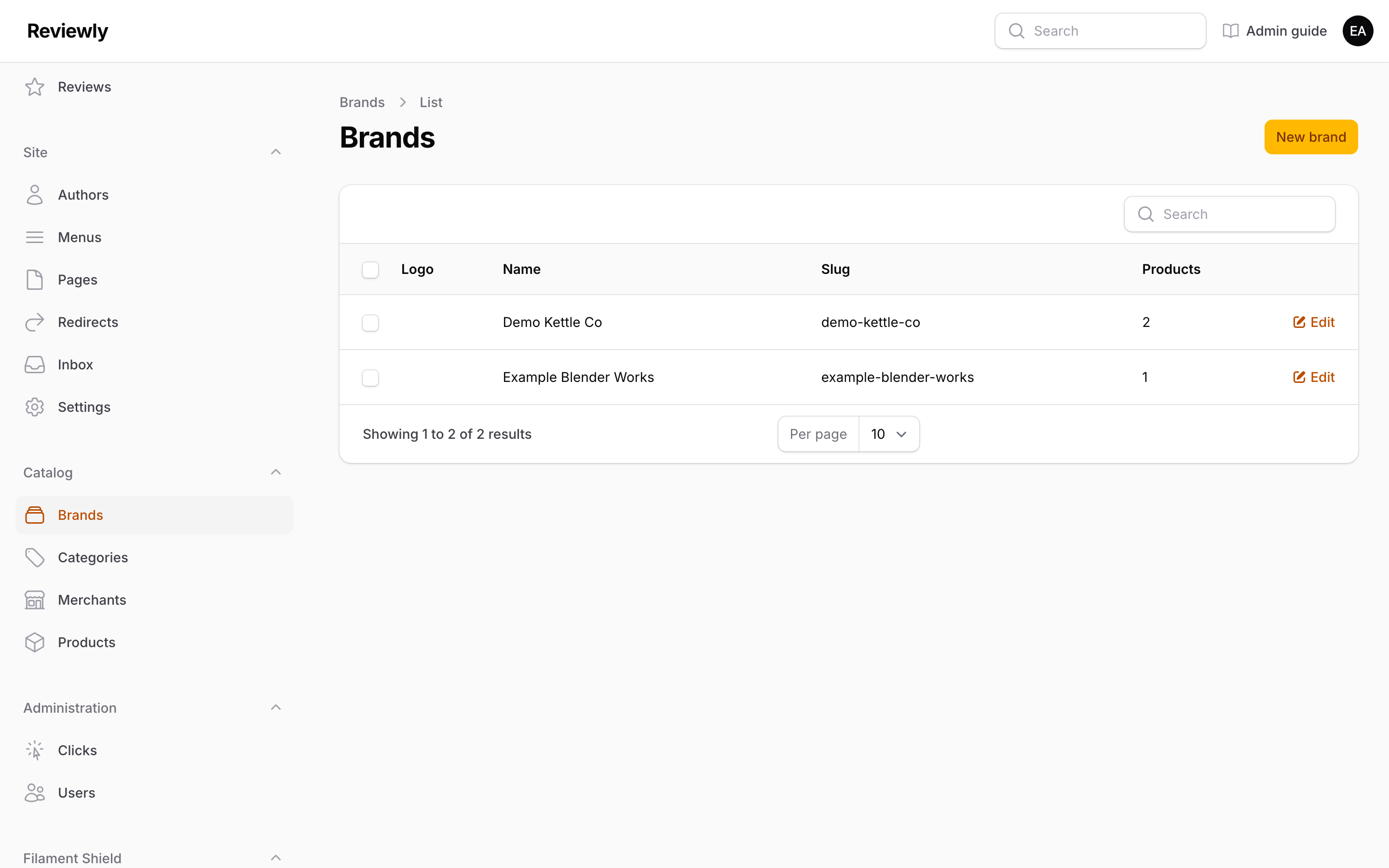
The manufacturer or maker a Product belongs to. The index shows the logo, name, slug, and a Products count so you can see which brands are actually in use.
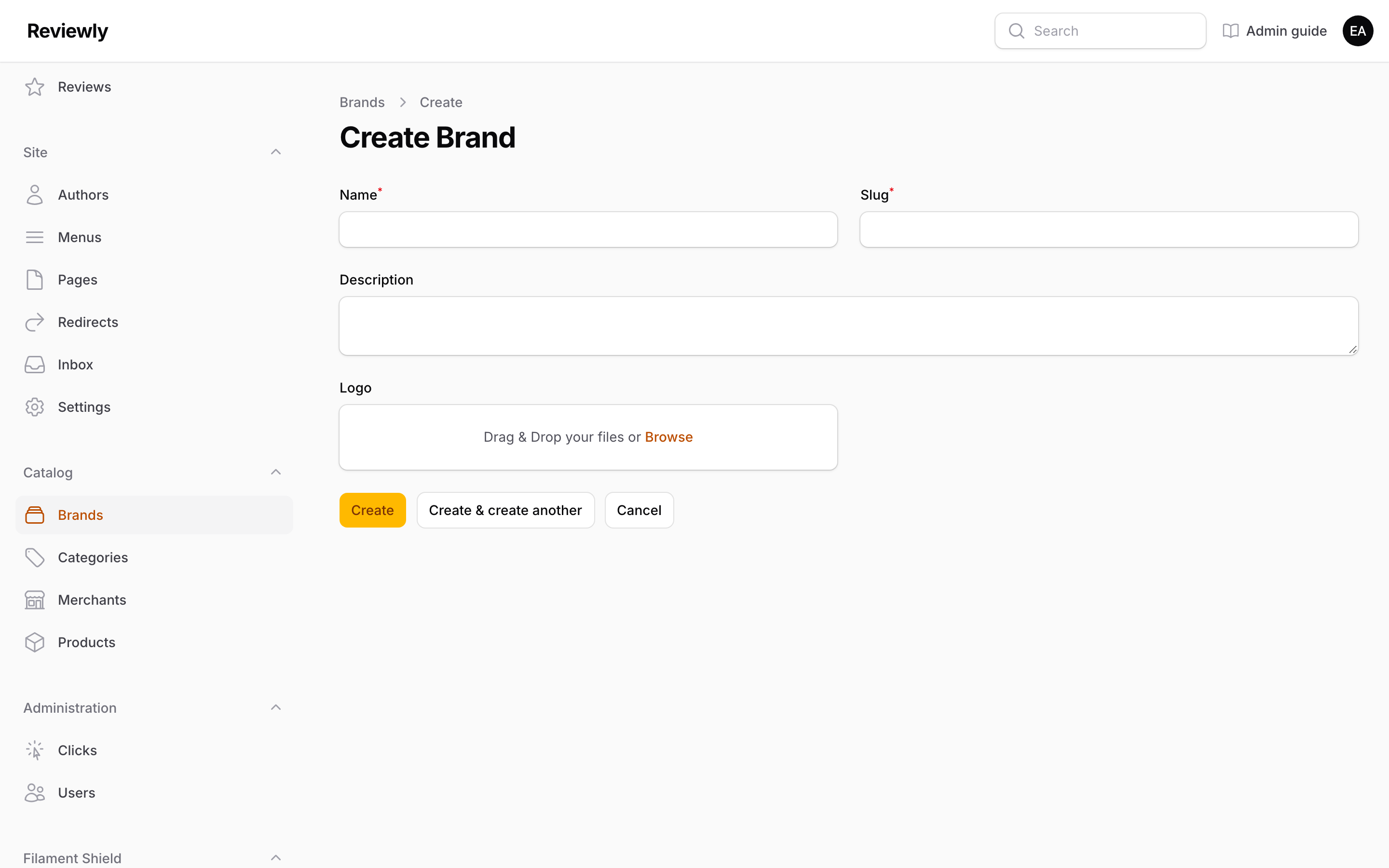
| Field | What it does |
|---|---|
| Name | The brand's display name. Typing here auto-fills the slug when you move to the next field. |
| Slug | The URL segment for the brand. Must be unique. Auto-generated from the name, but you can overwrite it — avoid changing it after publishing, because old links will break. |
| Description | Optional copy shown on brand pages. |
| Logo | A single image. Drag-and-drop or click to upload. |
Categories
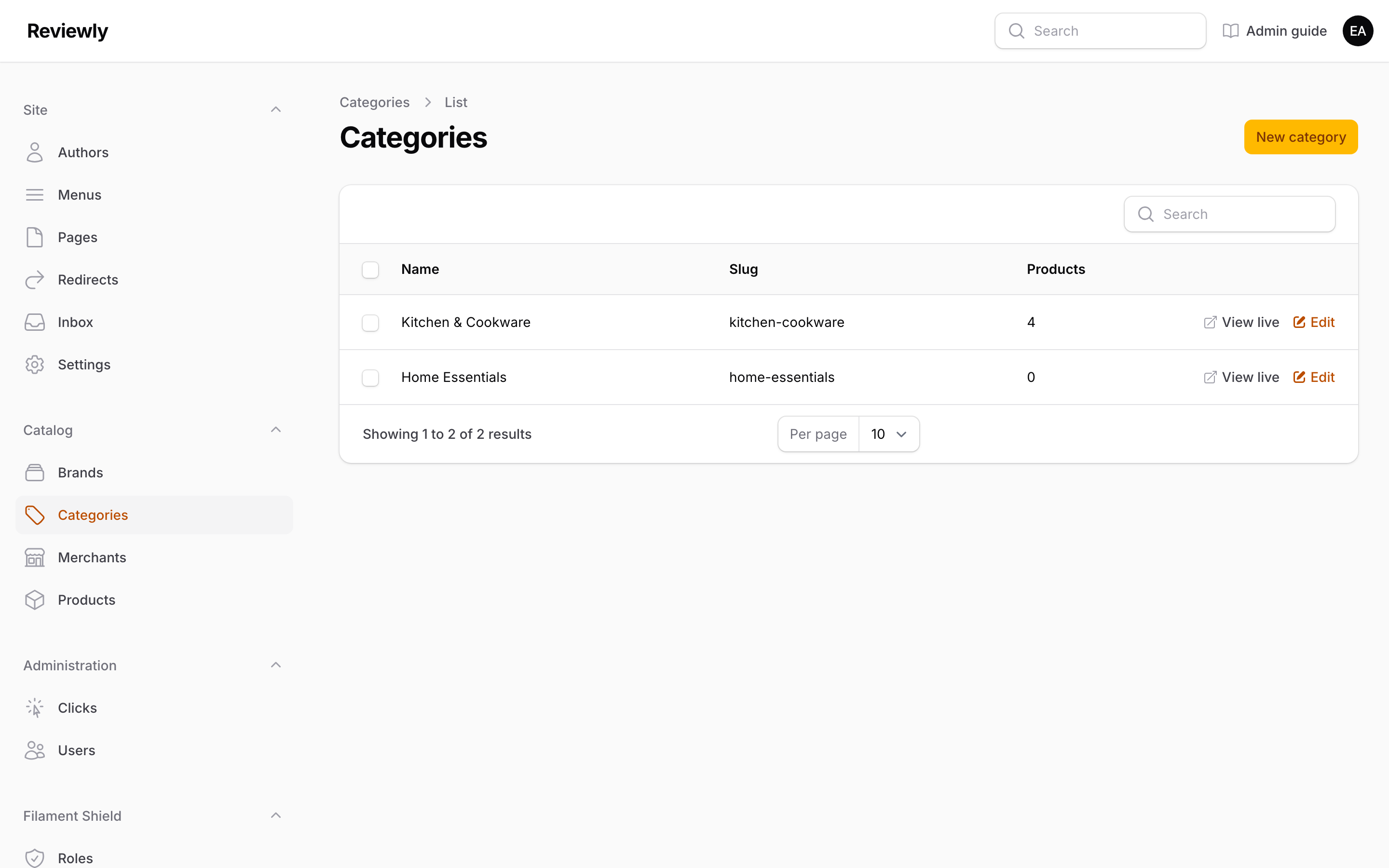
A flat grouping — there is no nesting. Categories are assigned independently to content and to Products: an article picks the category that decides which hub page it appears on, and a Product picks its own for catalog filtering. The two do not have to match.
| Field | What it does |
|---|---|
| Name | Display name, used in navigation and on hub pages. |
| Slug | URL segment; must be unique. |
| Description | Intro copy for the category's hub page. |
Merchants
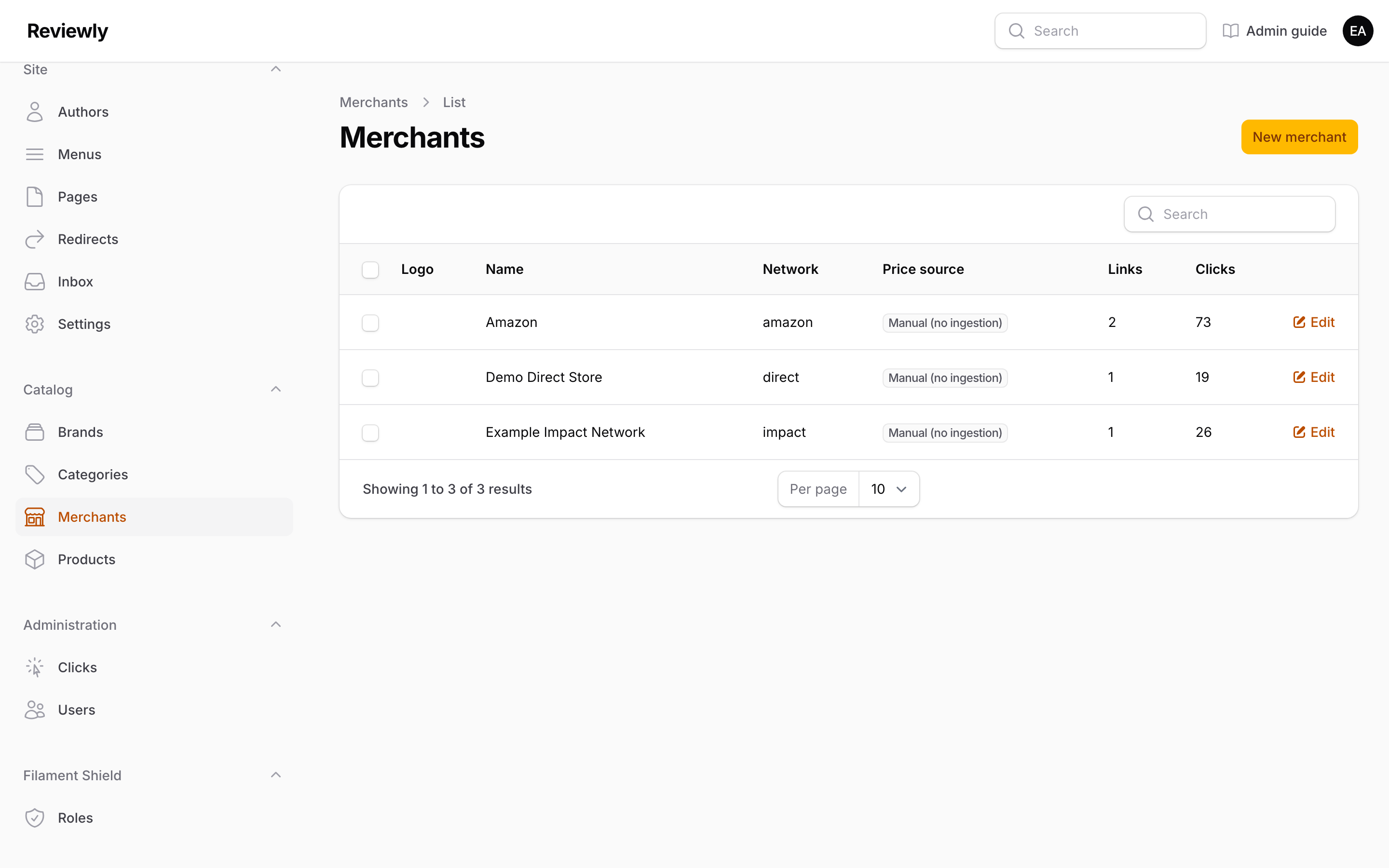
The store or affiliate network an affiliate link points to — Amazon, an network like Impact, or a direct relationship. Merchants exist as records rather than free text because each one carries its own licence rules, and those rules decide what the front end is allowed to display.
The index shows a Price source badge, a Links count (how many affiliate links use this merchant) and a Clicks count. The badge is grey for a merchant whose prices are typed in by hand and green for one whose prices arrive automatically.
A merchant with an automatic price source also gets a Refresh prices action on its row. See Automatic price updates.
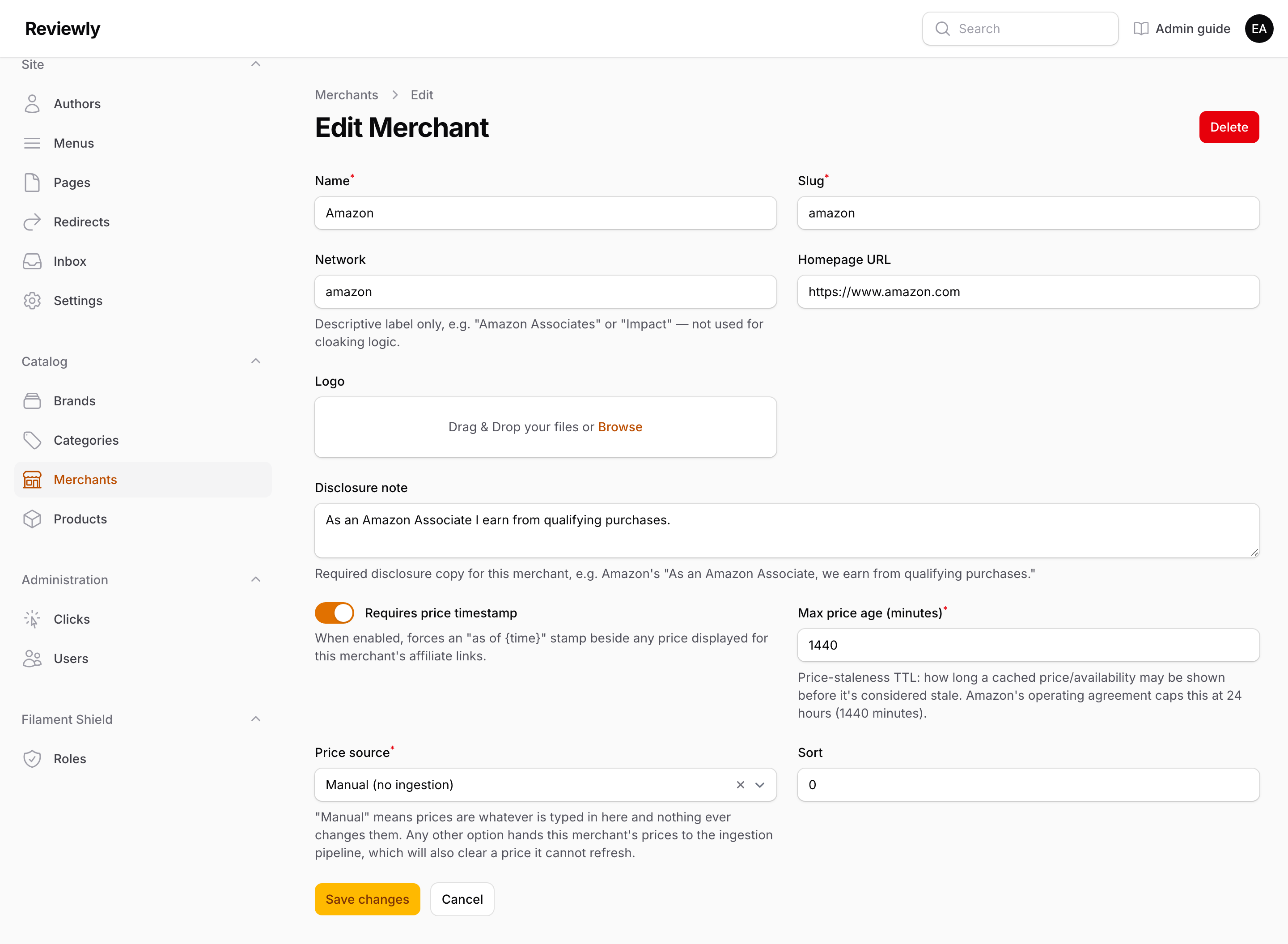
| Field | What it does |
|---|---|
| Name | Display name, e.g. "Amazon". |
| Slug | Unique identifier used in URLs. |
| Network | A descriptive label only, e.g. "Amazon Associates" or "Impact". Nothing keys off this — it is for humans reading the list. |
| Homepage URL | The merchant's own site. Optional. |
| Logo | Optional image shown beside buy buttons. |
| Disclosure note | The required disclosure copy for this merchant, e.g. Amazon's "As an Amazon Associate, we earn from qualifying purchases." This text is rendered on any page carrying a link to this merchant. Leaving it blank on a merchant that requires one is a compliance failure. |
| Requires price timestamp | When on, any displayed price for this merchant is shown with an "as of {time}" stamp. Amazon requires this. |
| Max price age (minutes) | How long a stored price may still be shown before it counts as stale. A stale price is never displayed — the front end hides it rather than showing an old number. Amazon's operating agreement caps this at 24 hours, so the default is 1440. |
| Price source | Where this merchant's prices come from. Manual means prices are whatever you type in and nothing ever changes them — that is the default, and every merchant starts there. Any other option hands the merchant's prices to the automatic pipeline, which will also clear a price it cannot refresh. See Automatic price updates. |
| Sort | Controls the order merchants appear in. Lower numbers first. |
Products
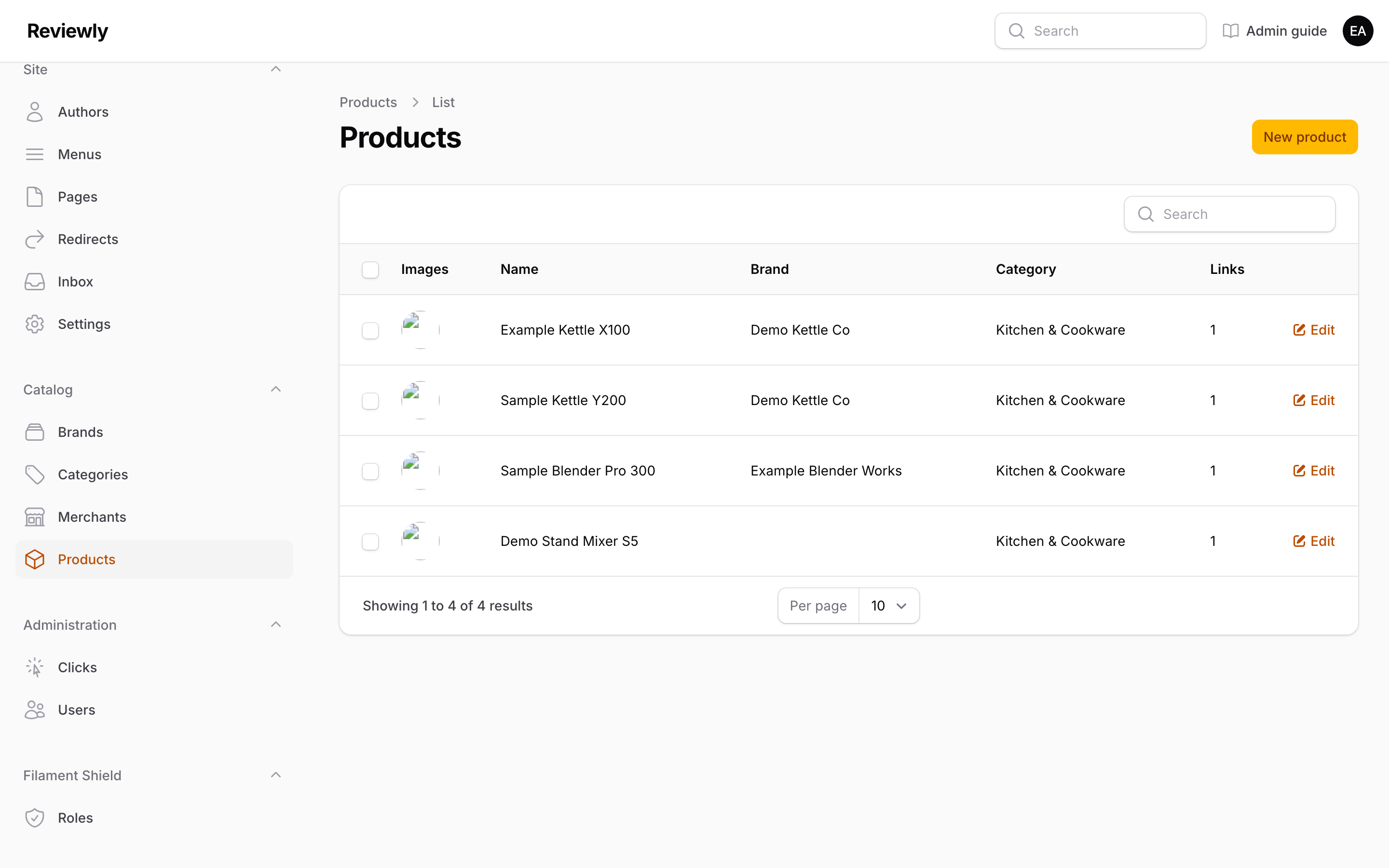
A catalog entry for a real-world item. The index lists the image, name, brand, category, and how many affiliate Links each product has — a product with zero links cannot earn anything.
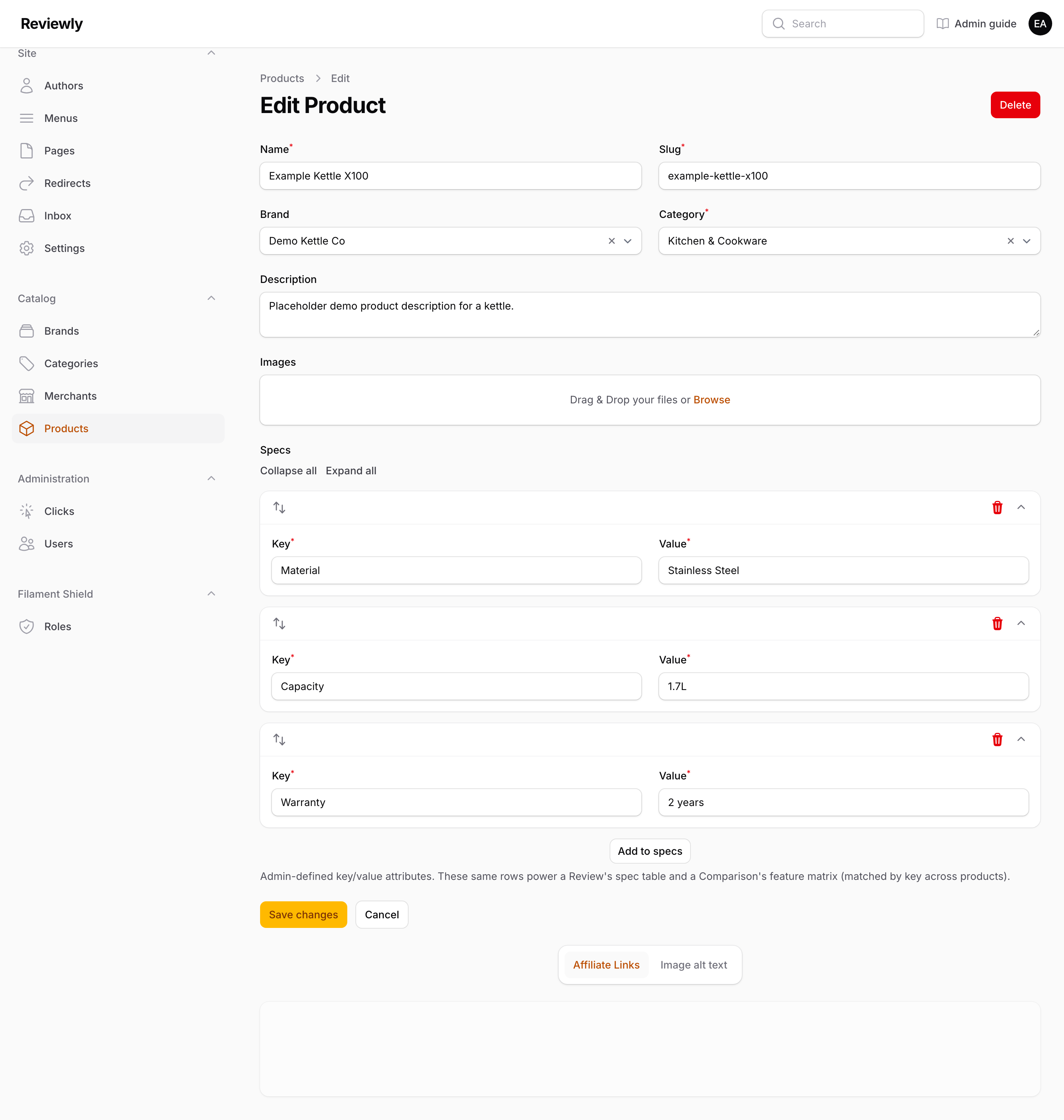
| Field | What it does |
|---|---|
| Name | Product name. Auto-fills the slug. |
| Slug | Unique URL segment. |
| Brand | Optional. Searchable dropdown of Brands. |
| Category | Required. Drives catalog filtering. |
| Description | Short catalog copy. This is not the review — reviews live in Reviews. |
| Images | Multiple images, drag to reorder. The first is used as the main catalog image. Describe each one under Image alt text (see Image alt text). |
| Specs | Repeatable key / value rows, e.g. Material / Stainless Steel. There is no fixed schema — you define the keys. |
Why specs matter beyond the product page: the same rows power a Review's spec table and a Comparison's feature matrix. A Comparison lines products up by matching spec keys, so using the same key spelling across products ("Weight" everywhere, not "Weight" on one and "Item weight" on another) is what makes the comparison table line up.
Use the drag handle to reorder rows, and the collapse control to fold long spec lists while editing.
Affiliate links
Affiliate links are managed on the product's edit page, at the bottom — not as their own sidebar section, because a link only means something in the context of its product.
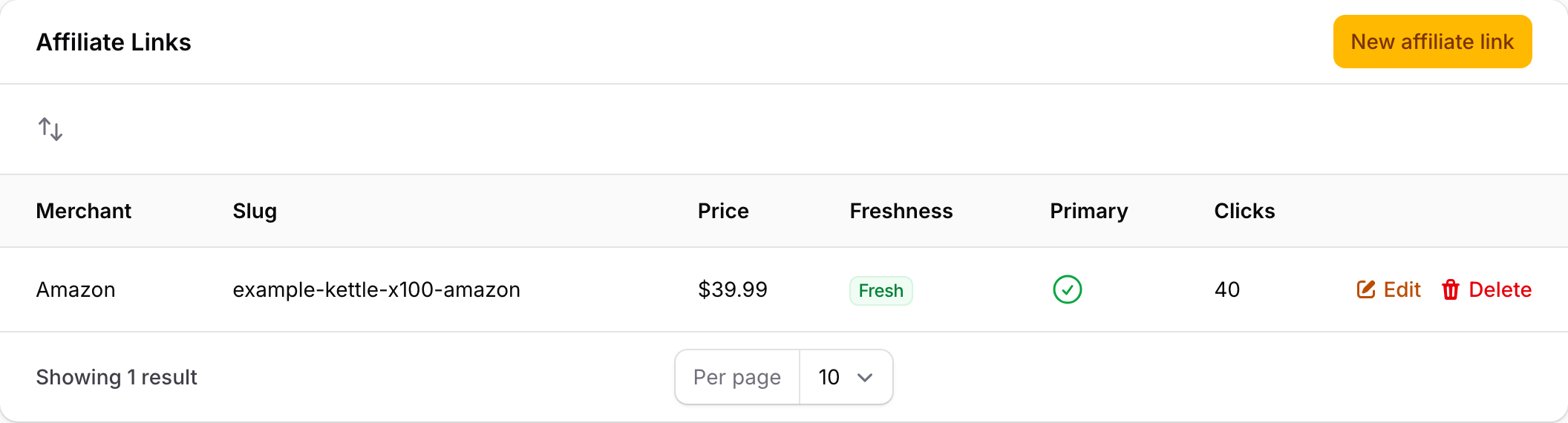
The table shows each link's merchant, redirect slug, current price, a Freshness badge, whether it is the primary link, and its click count. Freshness is the at-a-glance compliance check: Fresh (green) means the price may be displayed; Stale (amber) means it will be hidden until updated.
Drag rows to reorder them. Use New affiliate link to add one. A link belonging to a merchant with an automatic price source also carries a small circular-arrows button, which queues a refresh for that one link.
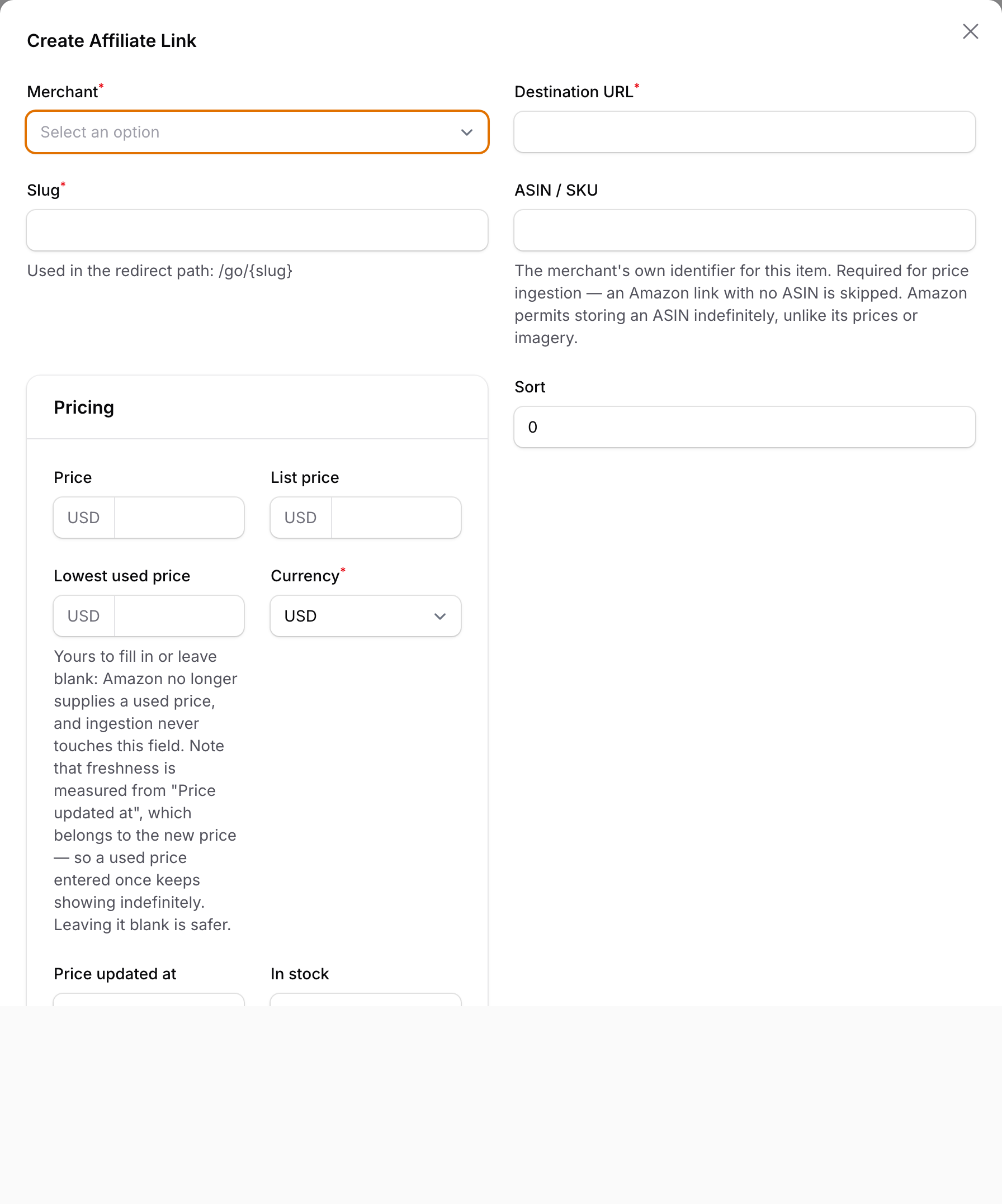
| Field | What it does |
|---|---|
| Merchant | Required. Which Merchant this link points at — this is what pulls in the disclosure copy and the staleness rules. |
| Destination URL | The real affiliate/merchant URL, with your tracking parameters. Readers never see this. |
| Slug | The cloaked path readers actually click: /go/{slug}. Must be unique. Auto-generated if you leave it blank. |
| ASIN / SKU | The merchant's own identifier for this item — an ASIN for Amazon. Required for automatic price updates: a link with no identifier is skipped, silently and by design. Amazon permits storing an ASIN indefinitely, which is what makes it the durable link between our record and theirs; its prices and images are not storable that way. |
| Price | The current price. Shown only while fresh. |
| List price | The RRP, used to display a discount. |
| Lowest used price | The lowest second-hand price, shown beside the new price. Amazon no longer supplies this, so on an Amazon link it is yours to fill in or leave blank, and automatic updates deliberately never touch it. Note the catch if you do fill it in: freshness is measured from Price updated at, which belongs to the new price — so a used price typed in once will keep showing indefinitely. Leaving it blank is the safer choice. |
| Currency | USD / GBP / EUR / AUD / CAD. Sets the prefix on the price fields above. |
| Price updated at | When the price was last confirmed. Freshness is measured from this timestamp against the merchant's Max price age. If you change a price, update this too, or the price will read as stale and disappear from the site. |
| In stock | In stock / Out of stock, or left blank for Unknown. |
| Primary link | Marks the main buy button for this product when several merchants are listed. |
| Sort | Display order among this product's links. |
Automatic price updates
Prices can either be typed in by hand or fetched automatically. Which one applies is set per merchant, by the Price source field, and every merchant starts on Manual — so nothing about this happens to a merchant until someone deliberately switches it on. Switching it on is a technical step (it needs credentials in the server's configuration): the main README has the three-step version for whoever administers the server.
Once a merchant is switched on, its prices are checked roughly every hour, and the affiliate link's Price updated at stamp moves on its own.
The thing to understand before anything else: a price can disappear, and that is the system working. Four things can happen to a link on a refresh:
| What happened | What you'll see |
|---|---|
| The merchant gave us a price | The price and Price updated at both change. |
| The merchant has nothing to sell — out of stock, item withdrawn, or a price Amazon itself is suppressing | The price is emptied. Not hidden — removed. The buy button becomes "Check {merchant}". |
| We couldn't reach the merchant, or were being rate-limited | Nothing changes yet. The existing price is kept while it is still inside the merchant's Max price age, and removed once it passes it. |
| The link has no ASIN / SKU, or its merchant is on Manual | Nothing at all. The link is skipped, and your typed-in price is safe. |
The second and third rows are the ones that surprise people. We are not allowed to show a price we can no longer confirm — so when the choice is between an old number and no number, the system always takes no number. A blank price is never a bug on its own.
The two buttons
| Where | Button | What it does |
|---|---|---|
| Catalog → Merchants, on a row | Refresh prices | Queues a refresh for every link on that merchant, ignoring the usual hourly window. Asks for confirmation first, because it can clear prices. |
| Catalog → Products → Edit, in the affiliate links table | the circular-arrows icon | Queues a refresh for that one link. |
Both only appear on a merchant that has an automatic price source — on a Manual merchant there would be nothing for them to do, and a button that does nothing reads as a broken button.
Neither one updates the price while you watch. They put the job in a queue, and the price changes when the queue is processed. If prices never seem to update after using these, the Scheduler page will usually say so outright — it reports whether the queue is being processed at all.
What it will never do
- Keep a price history. No "was £X", no price chart, no drop alerts. Amazon's terms prohibit price tracking and price alerting outright, so the old value is overwritten and not recorded anywhere. If someone asks for a price-history graph, the answer is that this site cannot have one.
- Invent a lowest used price. Amazon stopped supplying it. See the field note under Affiliate links.
- Reorder anything. Rankings and ordering never take price, commission or revenue into account — that is a standing rule of the site, not a setting.
Content
Four content types, each a separate section because each has genuinely different fields. All four share the same publishing controls, described below; all four credit their Author and fact-checker the same way; and all four can drop the same ready-made content blocks into their body copy.
Reviews
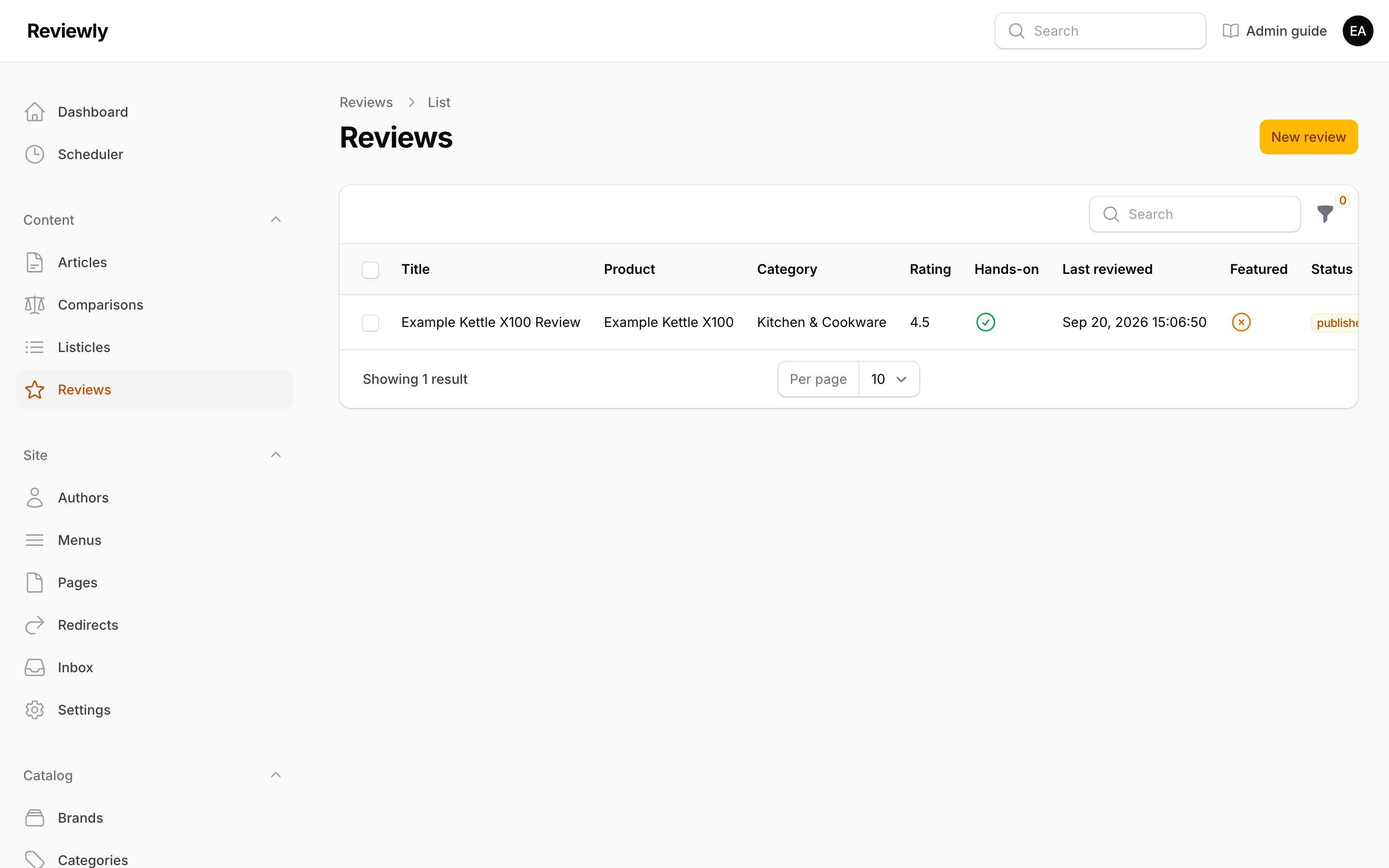
A full evaluation of a single Product. The index shows the product, category, rating, a Hands-on tick, when it was last reviewed, and its status. Filter by status or by hands-on.
The form is split into five tabs.
Content tab
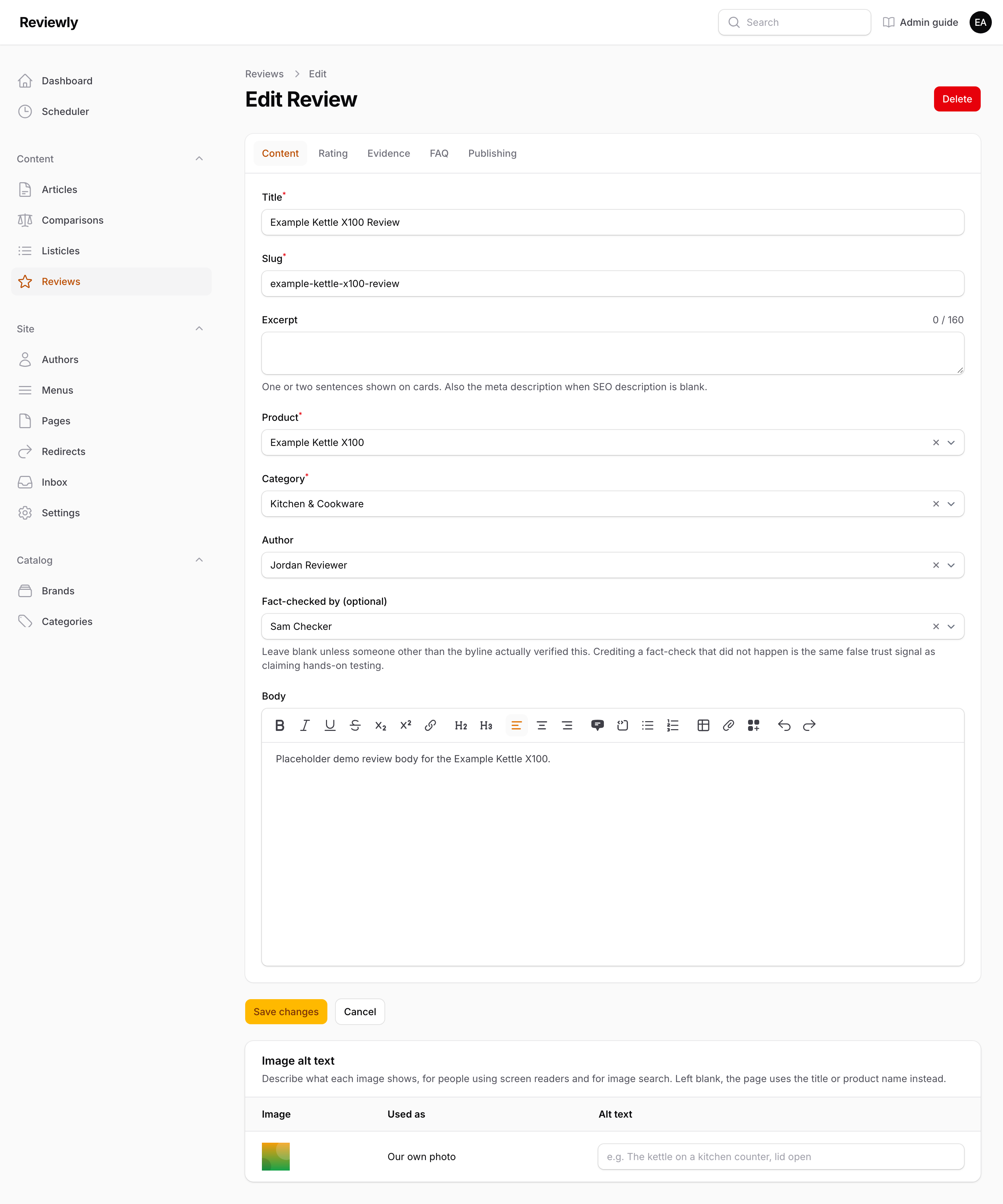
| Field | What it does |
|---|---|
| Title | Headline. Auto-fills the slug. |
| Slug | Unique URL segment. |
| Excerpt | One or two sentences that sell the click. Shown under the title on every card that links here — the homepage, index pages, category and author pages, the Related band — and used as the meta description when SEO description is blank. The counter by the label counts towards 160 characters, about as much as a search result shows; it is a target, not a limit (the box takes 300, and cards clip at three lines). Leave it blank and cards show no summary, as before. |
| Product | Required. The single product being reviewed. |
| Category | Required. Which hub page this appears on. |
| Author | The public byline. See Authors, and where the credits appear. |
| Fact-checked by (optional) | A second credit, for the person who checked the piece rather than wrote it. It appears in the author box at the foot of the page as "Fact-checked by {name}". |
| Body | The main review text, in the rich editor. It can also hold content blocks — a product card, a buy button, a table, an FAQ. |
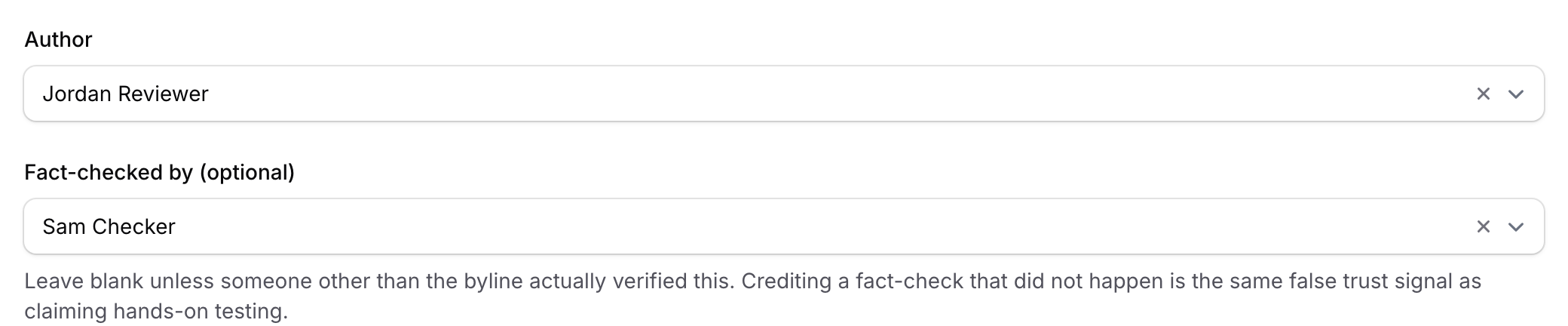
Only name someone who actually did it. A fact-check credit is a promise to the reader in the same way We physically tested this unit is, and it is worth exactly as much as its truthfulness. Leave the field blank rather than crediting a colleague who glanced at the draft. The same field exists on Comparisons, Listicles and Articles, and all four display it the same way.
Rating tab
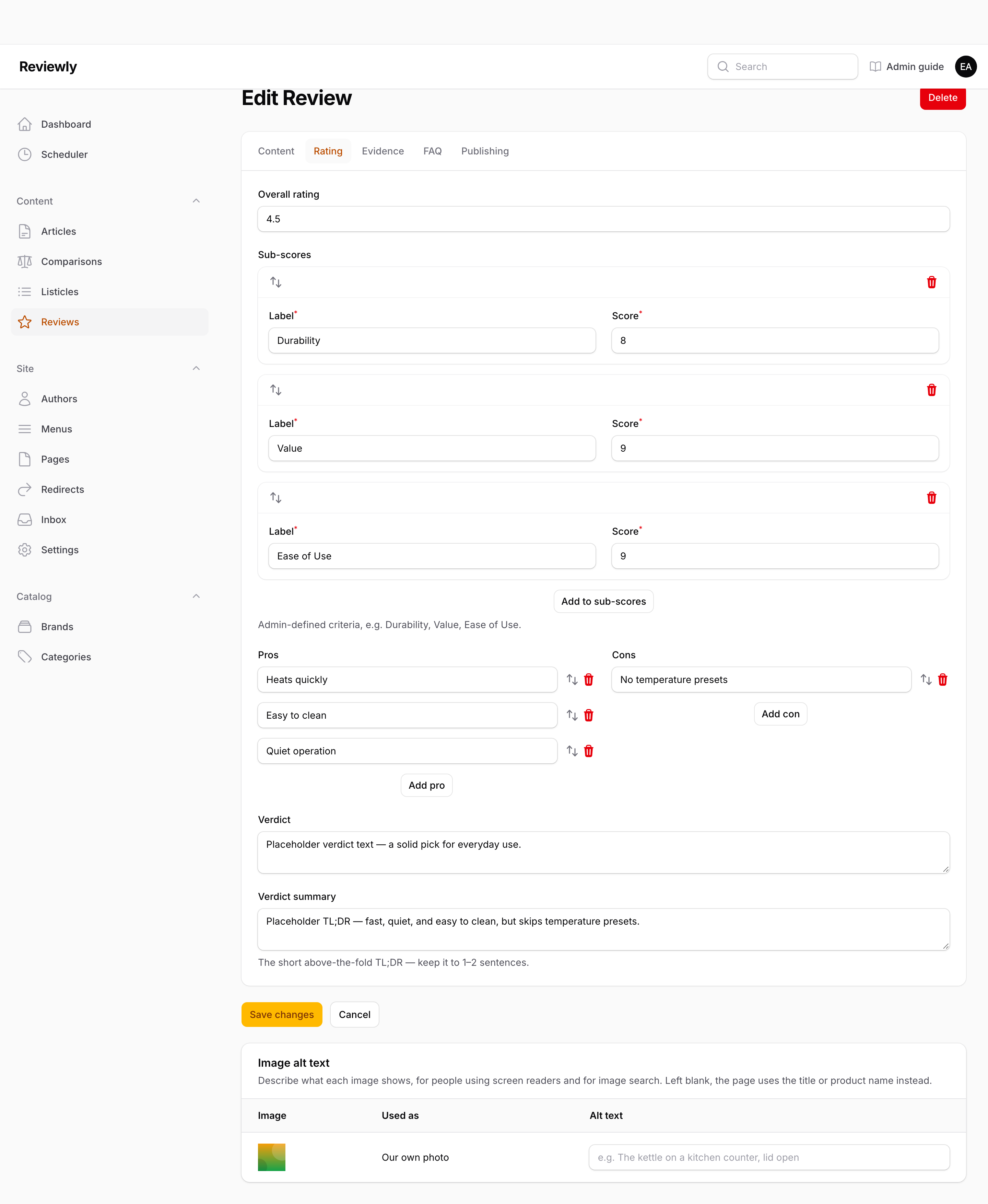
| Field | What it does |
|---|---|
| Overall rating | 0–5, in steps of 0.1. This is the number that appears in search results via structured data. |
| Sub-scores | Repeatable label / score rows, scored 0–10 — e.g. Durability 8, Value 6. You define the criteria; there is no fixed set. |
| Pros / Cons | Two simple repeatable lists. One short phrase per row. |
| Verdict | The long-form conclusion. |
| Verdict summary | The above-the-fold TL;DR. Keep to 1–2 sentences — it is shown before the reader scrolls. |
Evidence tab
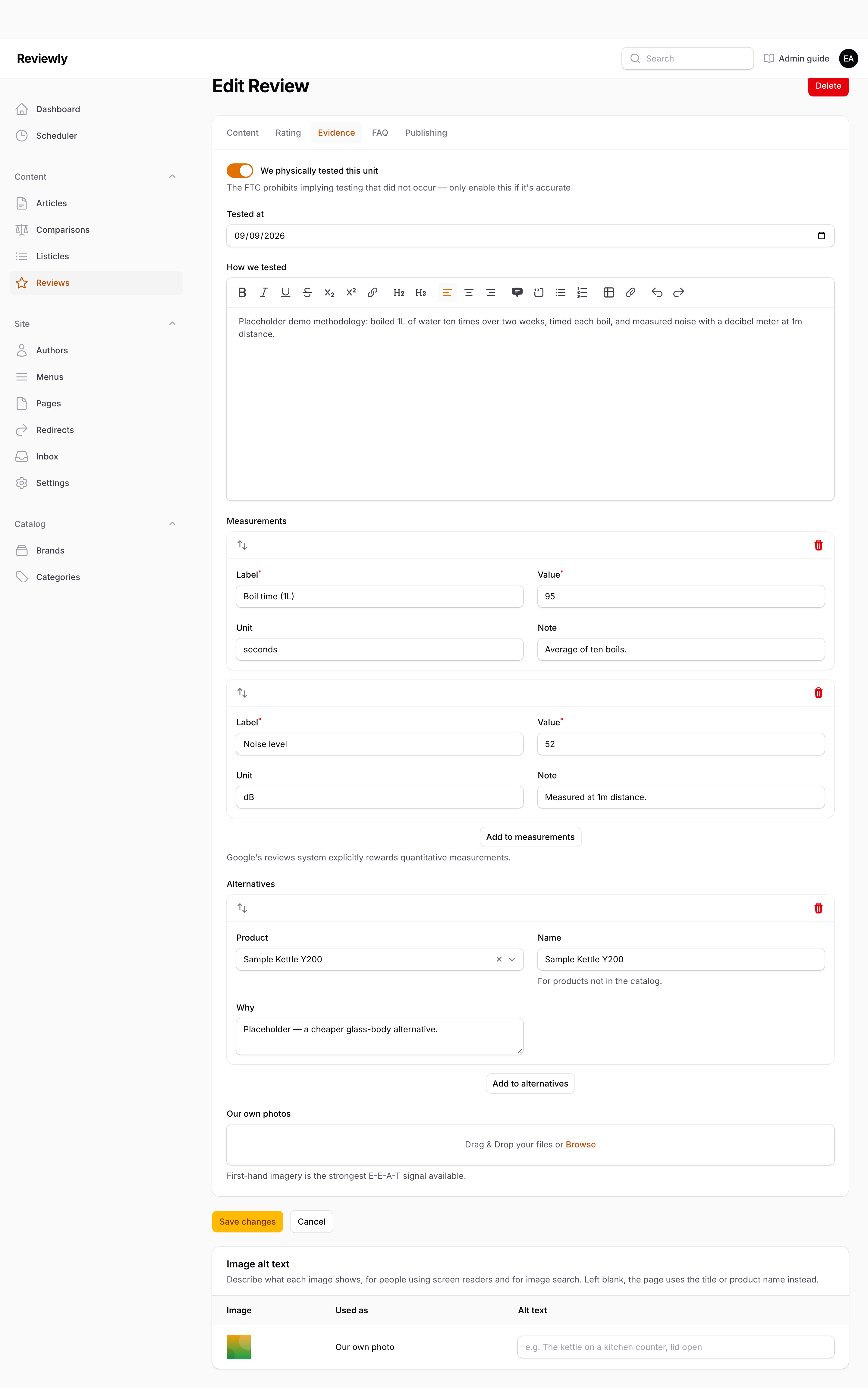
This tab is what separates a genuine review from a rewritten spec sheet, and it carries legal weight.
| Field | What it does |
|---|---|
| We physically tested this unit | Turn on only if it is true. The FTC prohibits implying testing that did not happen. Switching it on reveals the Tested at field. |
| Tested at | The date testing took place. Only visible when the toggle above is on. |
| How we tested | Your methodology, in the rich editor. |
| Measurements | Repeatable label / value / unit / note rows — e.g. "Boil time / 95 / seconds". These are things you measured, as opposed to Specs, which are what the manufacturer claims. Google's reviews system explicitly rewards this kind of quantitative data. |
| Alternatives | Other products worth considering. Pick a catalog Product, or type a Name for something not in the catalog, plus a Why. |
| Our own photos | First-hand imagery, separate from the Product's stock images. The single strongest trust signal available — stock photos do not demonstrate that you had the item. Describe each photo under Image alt text. |
FAQ tab
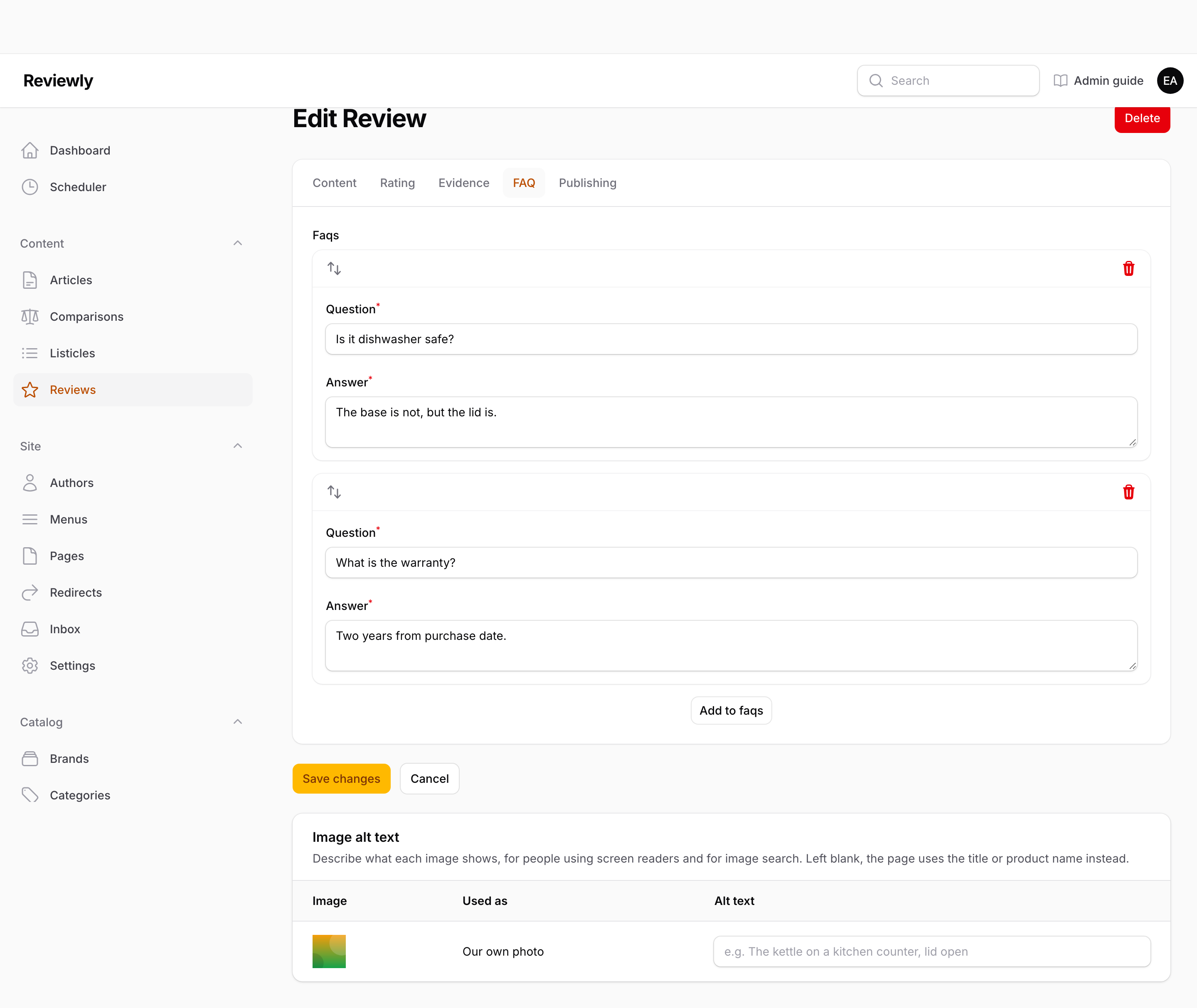
Repeatable question / answer pairs. These are emitted as FAQ structured data, so they can appear directly in search results.
Publishing tab
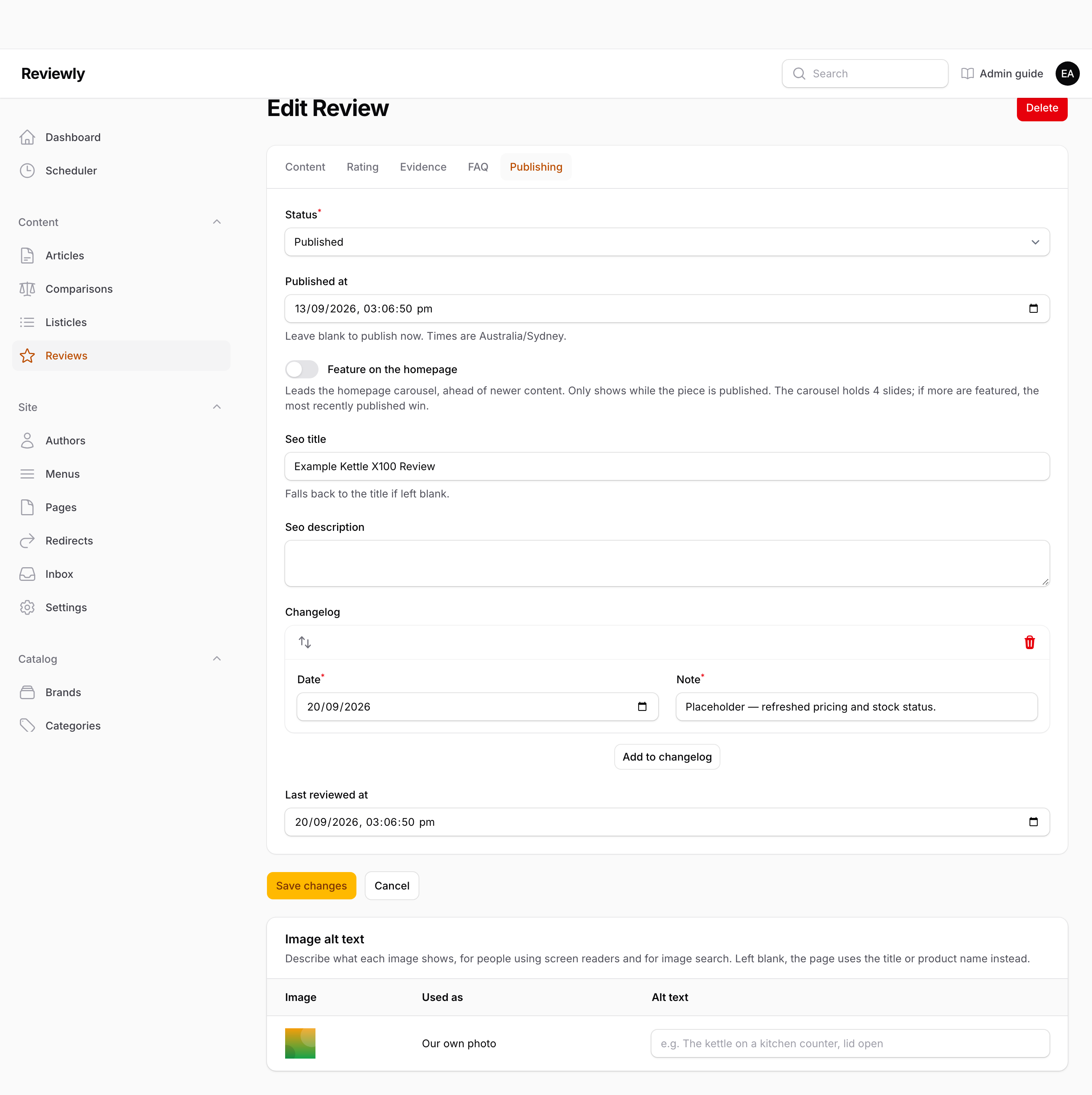
Status, publish date, SEO fields — all described under Publishing status — plus two fields specific to keeping a review trustworthy over time:
| Field | What it does |
|---|---|
| Changelog | Repeatable date / note rows recording what changed and when. Shows readers the review is maintained. |
| Last reviewed at | When the content was last checked for accuracy — distinct from when it was first published. |
Comparisons
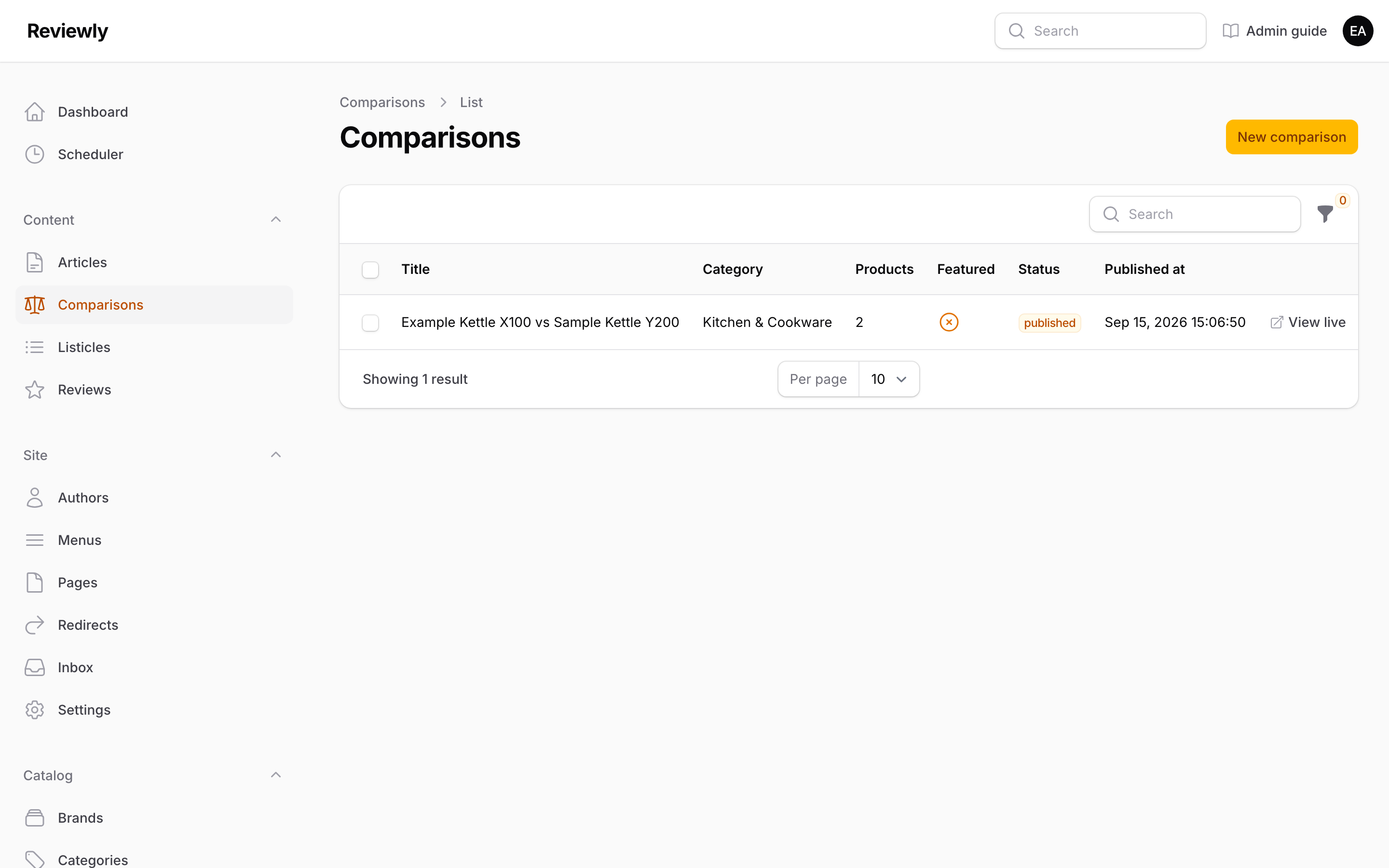
Two or more Products head-to-head. The index shows how many Products each comparison holds.
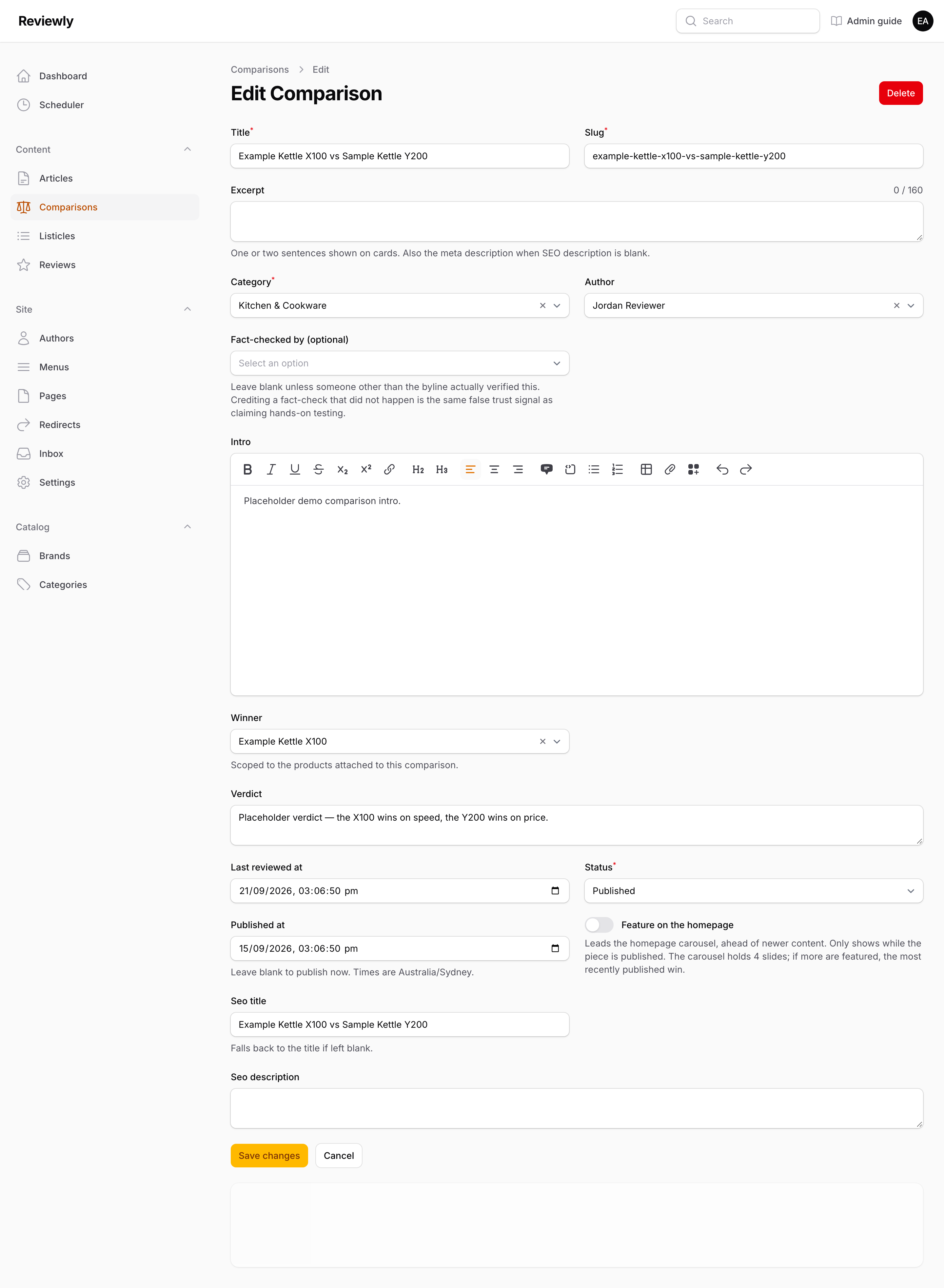
| Field | What it does |
|---|---|
| Title / Slug | As elsewhere. |
| Excerpt | The card and search-result summary, as on Reviews. |
| Category | Required. |
| Author | Public byline. Where the credits appear. |
| Fact-checked by (optional) | The verification credit described under Reviews. It appears in the author box as "Fact-checked by {name}". |
| Intro | Rich-text opening. Takes content blocks. |
| Winner | The product you're recommending. The dropdown only offers products already attached to this comparison — so attach them first (below), save, then pick the winner. |
| Verdict | Closing recommendation. |
| Last reviewed at | Accuracy check date. |
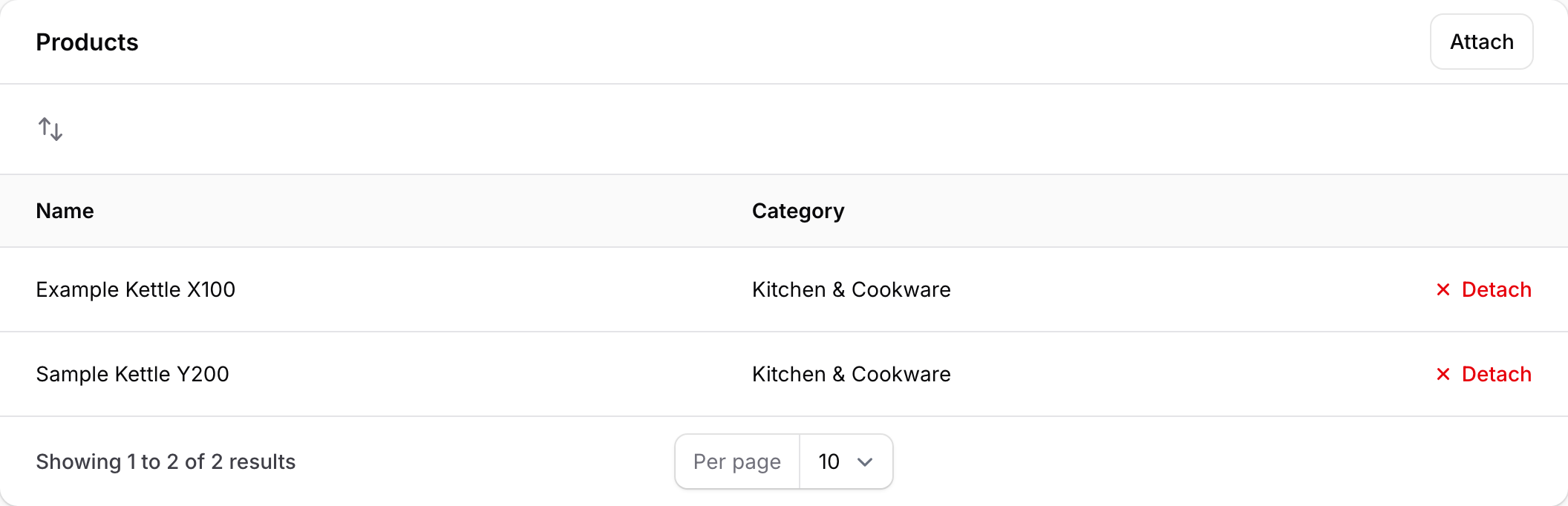
The Products table at the bottom is where you attach the products being compared. Use Attach to add one, drag rows to set the order they appear in the table, and Detach to remove one (this only removes it from the comparison — the Product itself is untouched).
The feature matrix on the published page is built automatically by lining up matching Spec keys across the attached products.
Listicles
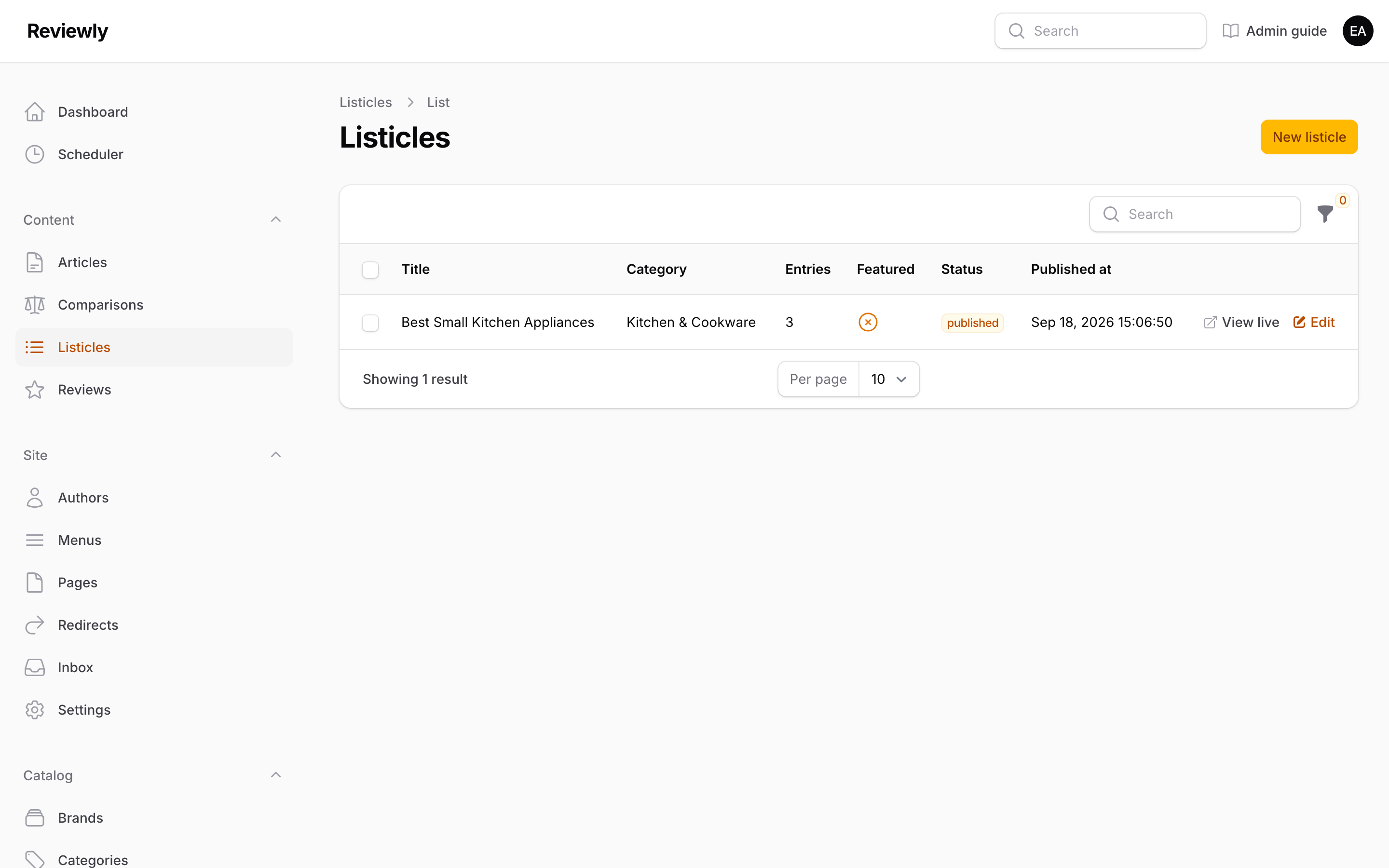
A ranked "best of" list. The index shows the number of Entries.
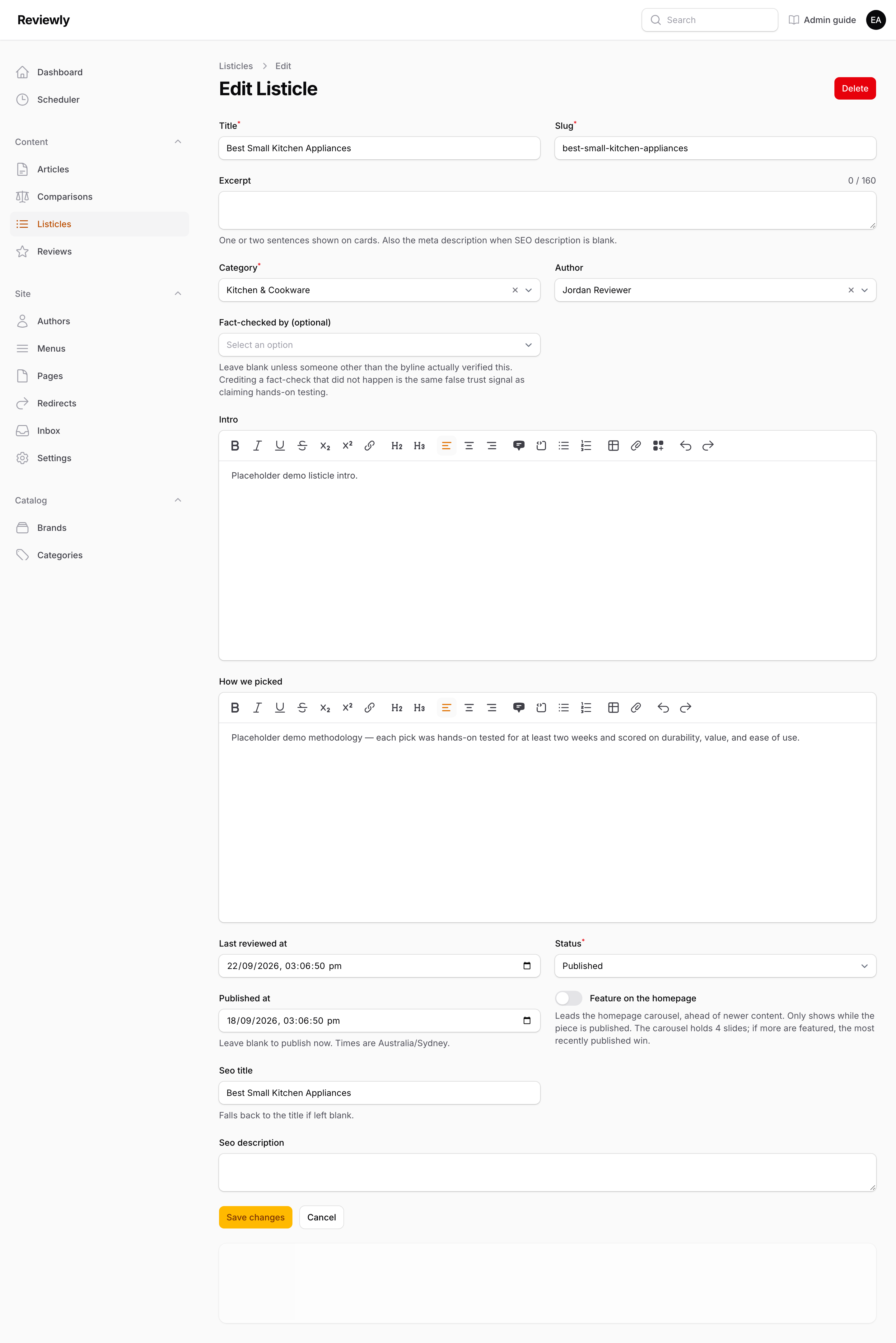
| Field | What it does |
|---|---|
| Title / Slug / Category / Author | As elsewhere. Where the credits appear. |
| Excerpt | The card and search-result summary, as on Reviews. |
| Fact-checked by (optional) | The verification credit described under Reviews. It appears in the author box as "Fact-checked by {name}". |
| Intro | Rich-text opening. Takes content blocks. |
| How we picked | Your selection methodology. Worth filling in — it is the difference between a credible list and an arbitrary one. Plain text and formatting only: content blocks are not offered here. |
| Last reviewed at | Accuracy check date. |
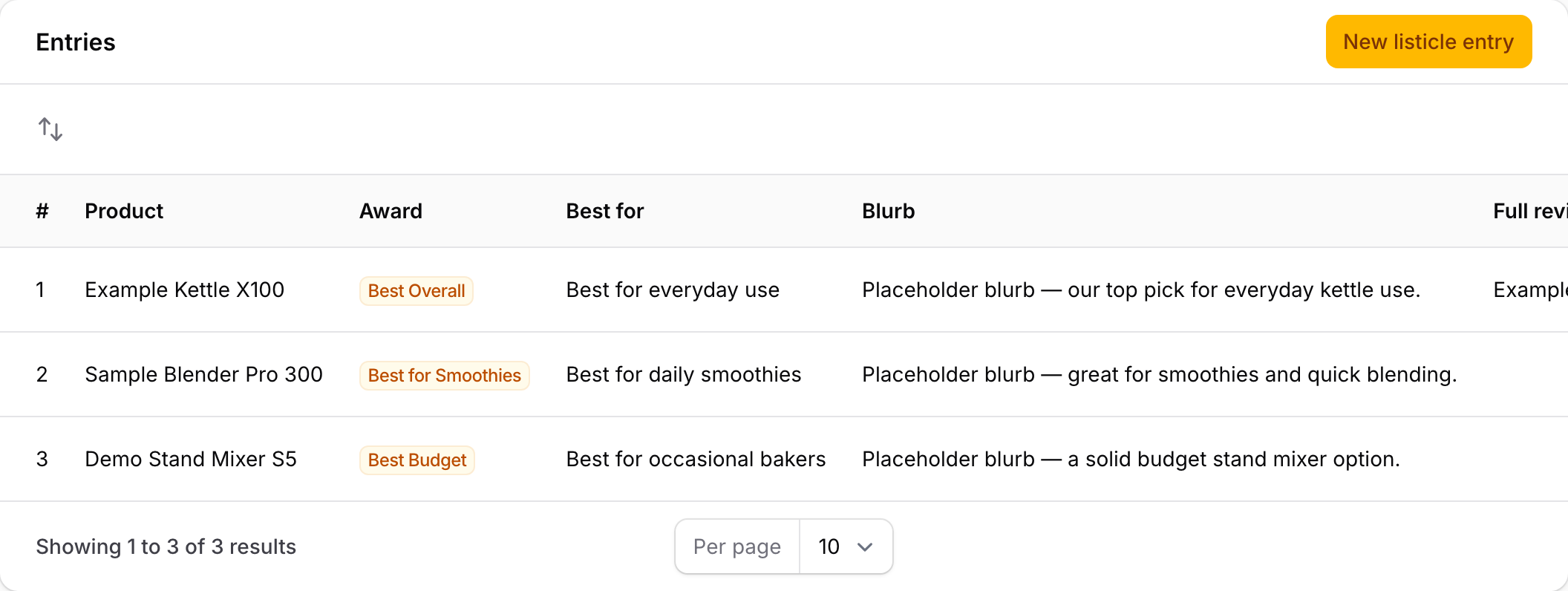
The Entries table holds the actual picks. Drag rows to set the ranking — the # column is the rank, and it follows the row order.
| Entry field | What it does |
|---|---|
| Product | Required. The pick. |
| Full review (optional) | Links this pick to a Review of the same product, if one exists — gives readers a "read the full review" path. |
| Award | An optional superlative for this pick: "Best Overall", "Best Budget", "Best for Beginners". The field suggests common values but accepts anything. The same product can win a different award in a different list, which is why this lives on the entry rather than on the Product. |
| Best for | A one-line superlative, e.g. "Best for public transport". |
| Blurb | Required. The written case for this pick. |
Articles
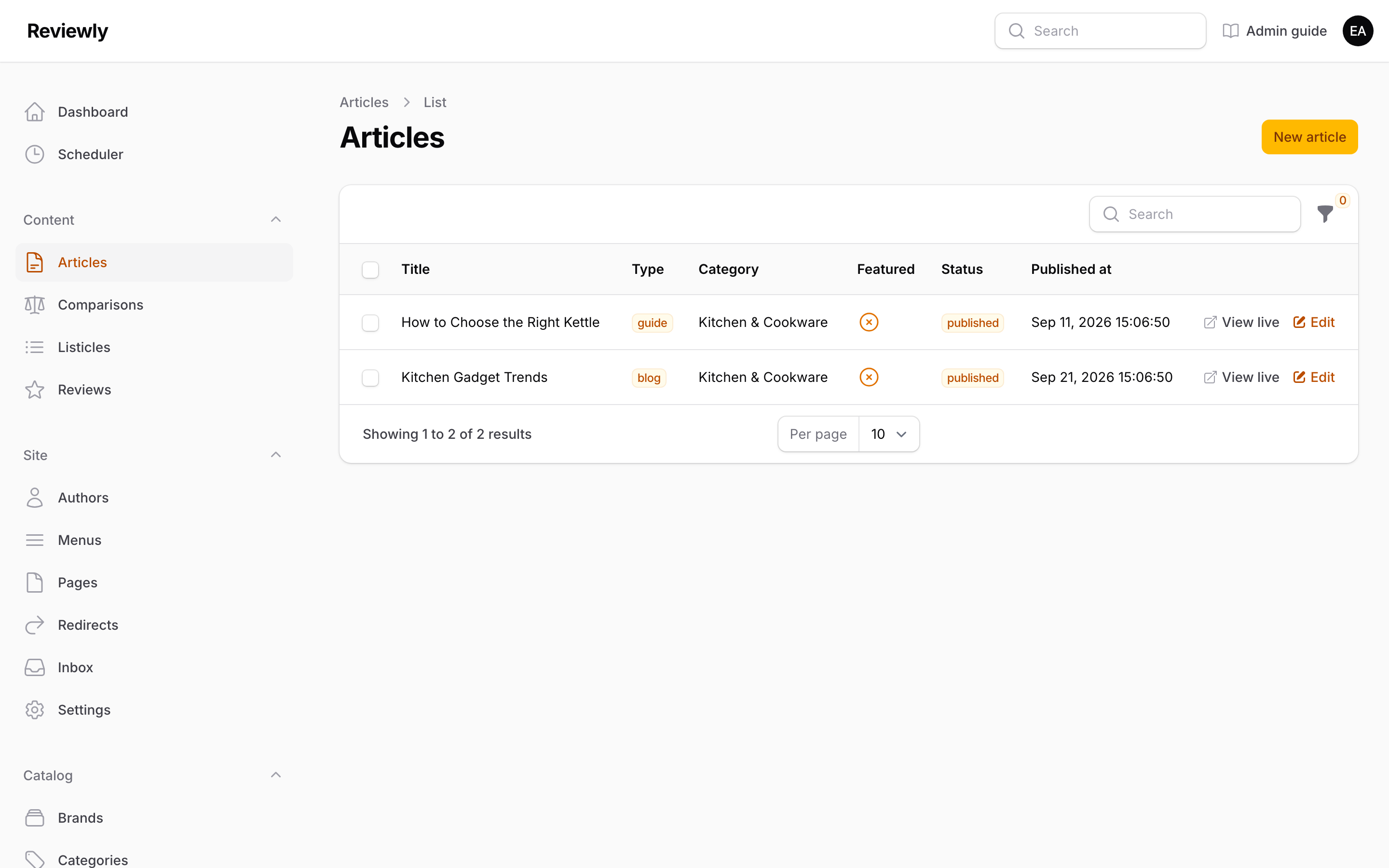
Content with no ratings and no attached products — buying advice, news, opinion.
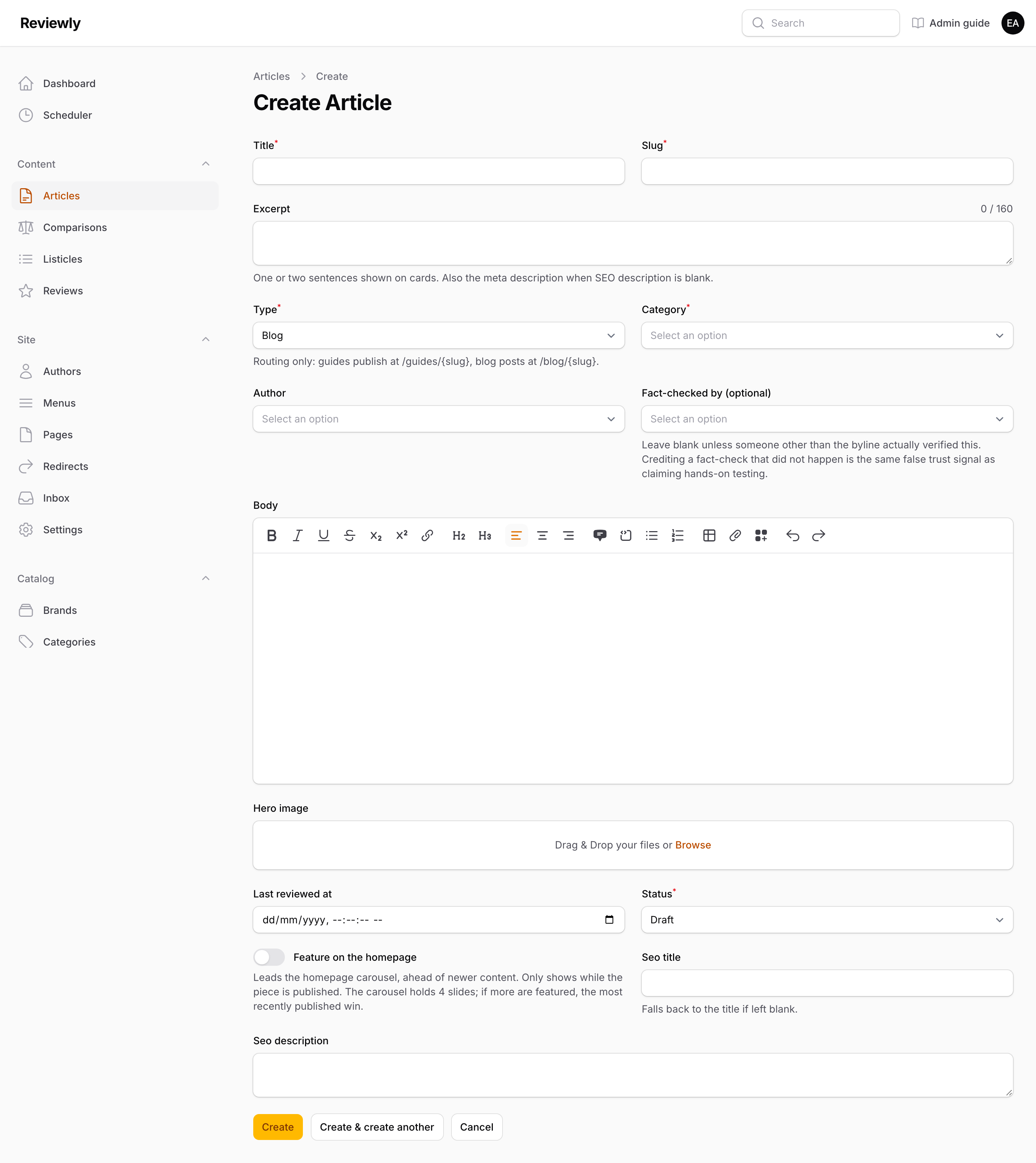
| Field | What it does |
|---|---|
| Title / Slug | As elsewhere. |
| Excerpt | The card and search-result summary, as on Reviews. |
| Type | Guide or Blog. This is routing only: guides publish at /guides/{slug}, blog posts at /blog/{slug}. The fields are otherwise identical. |
| Category | Required. |
| Author | Public byline. Where the credits appear. |
| Fact-checked by (optional) | The verification credit described under Reviews. It appears in the author box as "Fact-checked by {name}". |
| Body | The article, in the rich editor. Takes content blocks. |
| Hero image | A single lead image. Also the image the article shares with when it is posted to social media. Describe it under Image alt text. |
| Last reviewed at | Accuracy check date. |
The sidebar fills itself. Every published article, guide or blog post, has a sidebar beside it (below the author box on a phone). It holds, in order:
- Recent articles: the five newest other published articles, guides and blog posts together.
- A newsletter signup: the same one as in the footer. Like the footer's, it appears only once a developer has connected the newsletter provider.
- Browse categories: the categories with the most published articles, with how many each holds. A category with no published articles is left out.
- On this page: the table of contents, on long articles only. It follows the reader down the page. On a phone it sits above the article instead.
There is nothing to set. Publishing, unpublishing or re-categorising an article shows in every sidebar on the next page load.
Comments
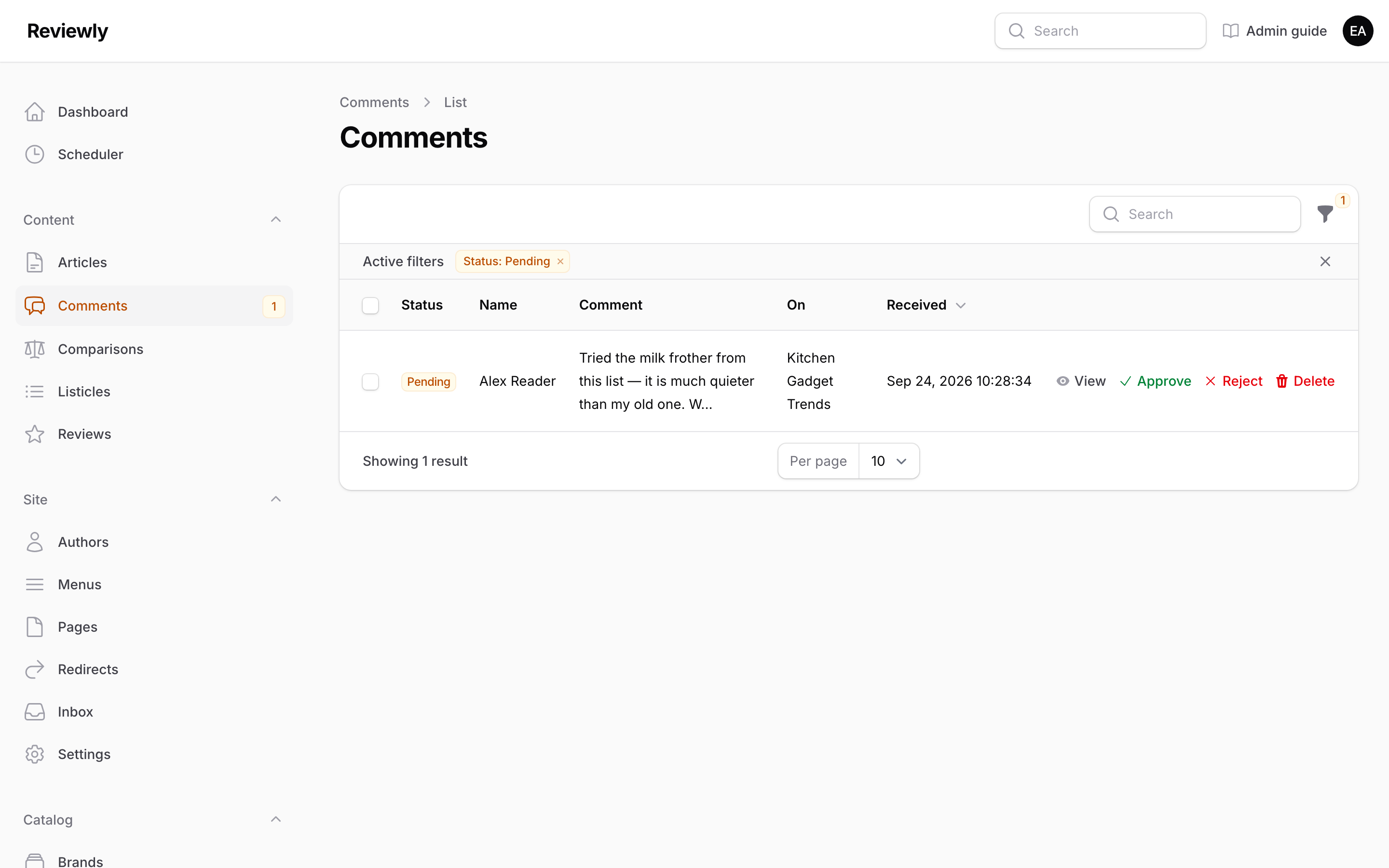
Readers can comment under every published article, guides and blog posts alike. Nothing a reader posts appears on the site until someone approves it here. Reviews, comparisons and listicles take no comments, on purpose: reader comments under a review read like customer reviews, right beside our disclosure and verdict, and that brings in the consumer-law rules on fake and paid-for reviews.
The sidebar shows how many comments are waiting — the number beside Comments — and the list opens on those, the Pending ones. Use the Status filter to see approved or rejected comments, or clear it to see everything.
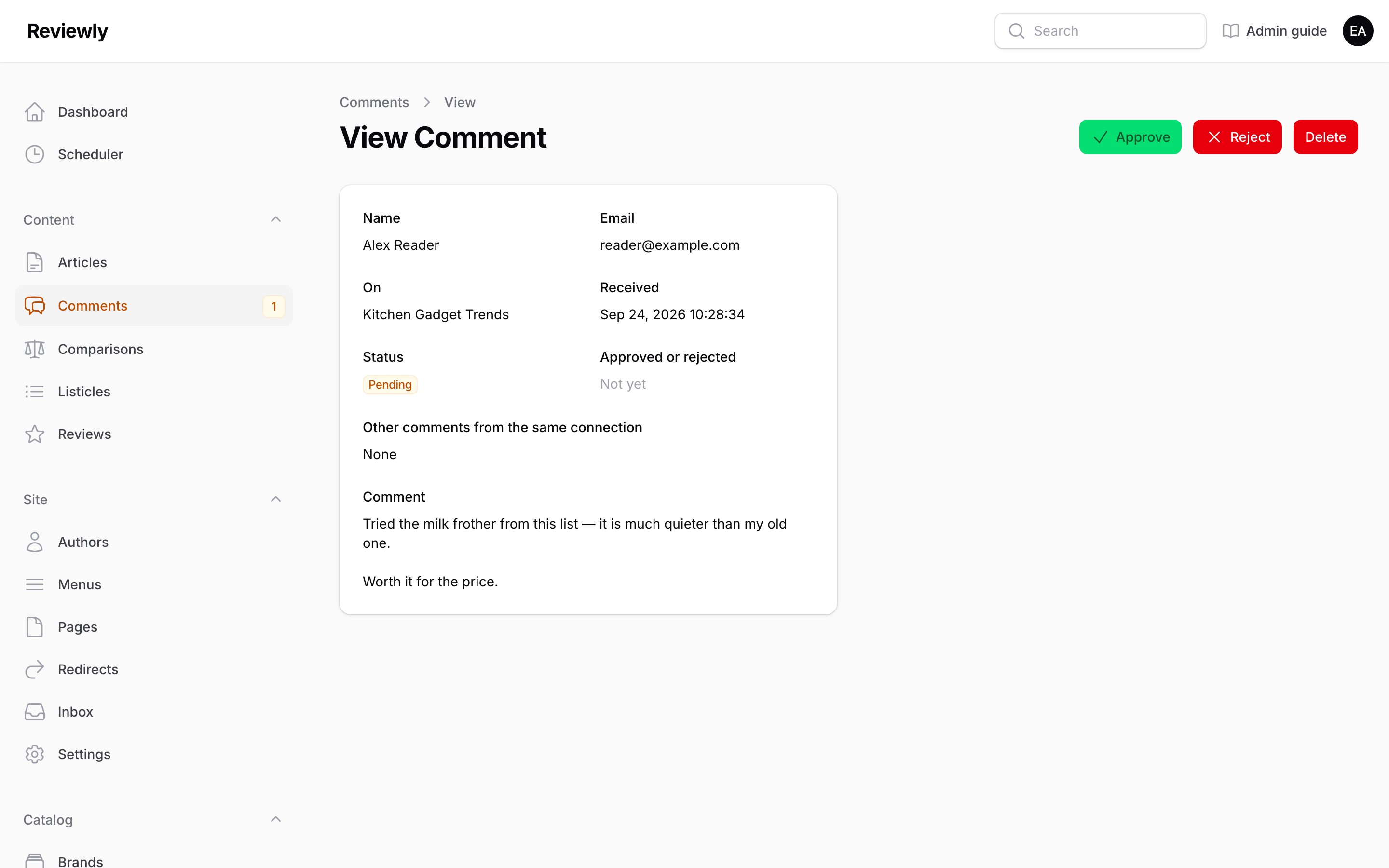
View opens a comment in full: who wrote it, their email, which article it is on (a link to the live page), when it arrived, and the comment itself, with the reader's line breaks kept.
- Approve puts the comment on the article, at the end of the list: comments show oldest first, with the count in the heading. It takes effect on the next page load.
- Reject takes it off the page, or keeps it off. Rejected comments are deleted automatically 30 days after they were rejected, so a mistaken rejection can still be undone by approving it.
- Delete removes it at once, for good, after asking you to confirm. It is on the comment and on its row. Use it for spam, and when someone asks for their comment to be removed.
- To act on several at once, tick them and use the bulk actions: Approve, Reject or Delete.
- Comments cannot be edited. They are a record of what the reader said. If one needs changing, reject it.
Other comments from the same connection counts what else was posted from the same internet connection, by status. Several rejected ones is a sign of a spammer. The site never stores the reader's IP address itself, only a scrambled code made from it, so this count is all it can tell you.
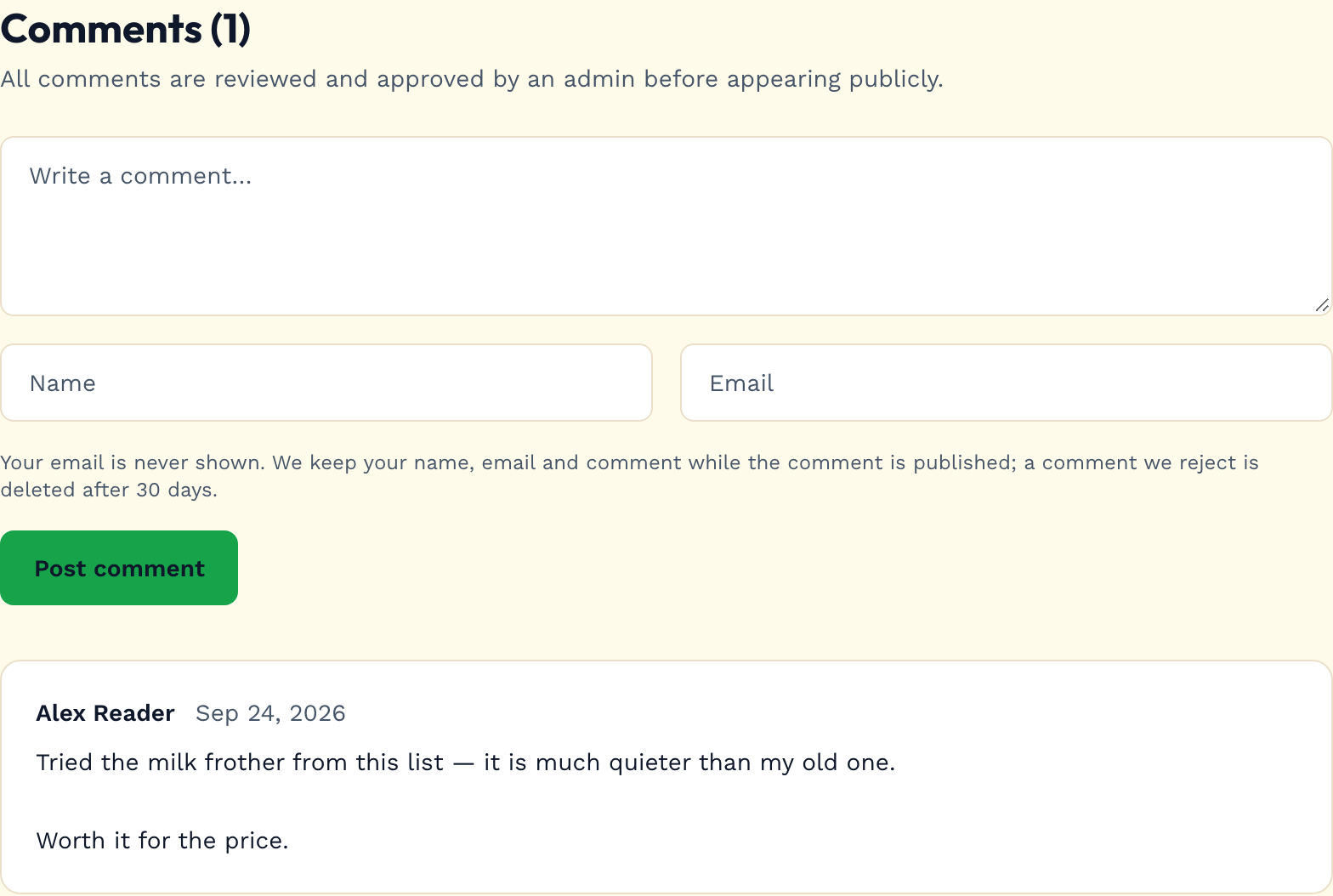
What readers see. A Comments (n) heading counting approved comments only, a note that every comment is approved before it appears, the form, and then the approved comments. With none approved yet, it says "No comments yet — be the first to share your thoughts." A reader who posts sees "Thanks — your comment is awaiting approval" and nothing else until you approve it.
Comments are plain text. Whatever a reader types is shown exactly as typed: no bold, no pictures, and web addresses are not turned into links. That keeps spam links off the site even if one is approved by mistake.
Email addresses are never shown on the site. Readers are asked for one so we can contact them about their comment if we need to. Each new comment is also emailed to the address in Settings (Send contact form messages to, or the contact email), with a link straight to it here.
Spam protection is the same as the contact form's: a hidden field that bots fill and people never see, and at most five comments an hour from each visitor. A bot's comment is thrown away, though it is shown the usual thank-you.
Bylines and credits (shared by all content)
Every content type carries the same two credits, and both appear in the same two places on the published page.
The Author is the public byline. It appears twice: as a "By {name}" line directly under the title, next to the publication date, and again in the author box at the foot of the page — a panel carrying the photo, job title, credentials, biography and external profile links from the Author record.
Fact-checked by appears in the author box only, beneath the author's details, as "Fact-checked by {name}". It is deliberately kept out of the header line: a second name up top competes with the byline, and the credit means more where the reader can already see who wrote the piece.
Leave the Author blank and the page publishes with no byline and no author box at all — nothing renders in place of a name. This is worth avoiding on anything commercial: "best X" and "X vs Y" pages are the ones search engines examine hardest for evidence that a real, identifiable person with relevant experience stands behind the recommendation.
Reviews, Comparisons, Listicles and Articles all behave identically here. This was not always true — before September 2026 the two credits were stored on Comparisons and Listicles but never shown to readers.
Content blocks (shared by all content)
Body copy is not limited to words and pictures. The rich editor can also place four ready-made blocks into the middle of a piece: a Product Card, a CTA Button, a Comparison Table and an FAQ. They exist so that the parts of a page which have to stay accurate — a price, a buy link, a spec — are assembled from the catalog each time the page is served, instead of being typed out once and quietly going out of date.
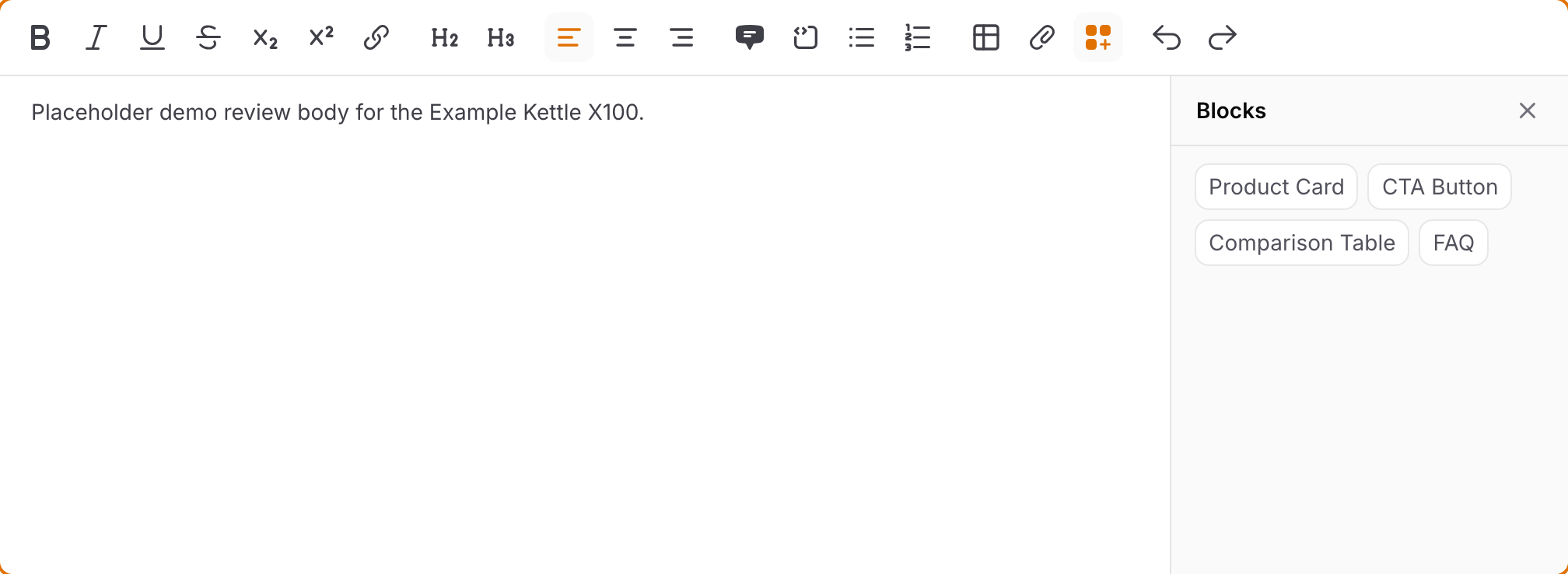
Open the Blocks panel with the four-squares button towards the right of the editor's toolbar, just before the undo and redo arrows. Click a block to drop it in where your cursor is; you can also drag one into place. The panel stays open afterwards, so several blocks can go in one after another.
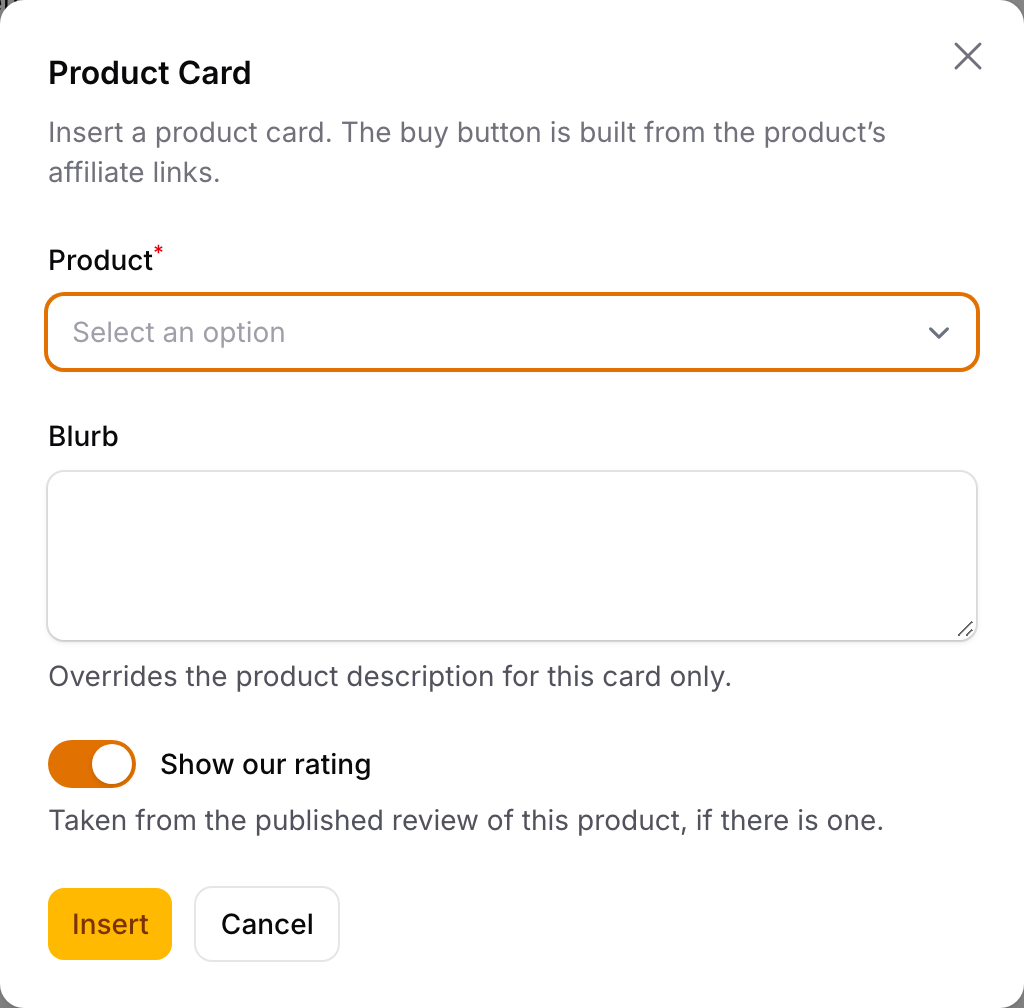
Each block asks for its settings in a small window, and Insert places it. Click a block that is already in the body to change its settings — the button then reads Save instead.
| Block | What you choose | What the reader gets |
|---|---|---|
| Product Card | A Product, an optional Blurb, and Show our rating. | The product's image and name, your blurb (or the product's own description when you leave it blank), our score if that product has a published review, and a buy button. |
| CTA Button | A Product, and optionally which Affiliate link to use. | One buy button. Leave the link blank and it follows that product's primary link, so changing merchant later fixes every article at once instead of one at a time. |
| Comparison Table | Two or more Products, a Caption, and Include a price row. | A table lining the products up on matching Spec keys, the same way a full Comparison page does. Use the same key spellings across products or the rows will not line up. |
| FAQ | A Heading and as many question / answer rows as you need. | A question-and-answer list at that exact point in the body — distinct from a Review's own FAQ tab, which always prints at the end of the page. |
Where blocks are offered: the Review body, the Article body, the Comparison intro and the Listicle intro. They are deliberately absent from Pages, and from a Review's How we tested and a Listicle's How we picked. Those three are policy and methodology copy: a privacy policy or a statement of how you chose something has no business carrying a buy button, so the option is not there to reach for. If you cannot find the Blocks button on one of those screens, that is why, not a fault.
Blocks point at catalog records, never at a pasted link. You pick a Product, not a URL. The name, the image, the price, the merchant, the required disclosure, the cloaked /go/… link and the click attribution behind it are all worked out when the page is served. That is what keeps a product's details maintained in one place: correct a price or swap a merchant on the product, and every article that mentions it is correct too, with nothing to hunt down. It also means a block whose product has been deleted from the catalog prints nothing at all — the editor's preview says so plainly, so you see it before you publish.
A price appears only while it is fresh. Blocks obey exactly the same rule as the rest of the site: a price is shown only while it is newer than its Merchant's Max price age, counted from the affiliate link's Price updated at. Once it is past that, the price is simply left out — a comparison row shows a dash, and a buy button that would have read "$89.99 at Amazon" reads "Check Amazon" instead. That is the licence terms working, not a broken block. The fix is to refresh the price on the affiliate link, never to type the number into the body text where nothing can age it out.
Image alt text (shared by all content)
Once a Product, Review or Article has images, its edit page gets an Image alt text table below the form, as a tab beside any other table there. It lists every image the record holds, with a box for what each one shows. Type the description and click away: it saves as soon as the box loses focus, with no Save button to press.
Alt text is read aloud by screen readers in place of the image, and it's what image search indexes. Describe what the image shows, not what the page is about: "The X100 kettle on a kitchen counter, lid open", not "Best kettle 2026".
Describe a product's catalog image once, and it is used everywhere. A Comparison or a Listicle has no image of its own: its cover is the catalog image of its first product, and so is its alt text.
Left blank, the page falls back to something sensible: the product's name for a catalog image, and the review's or article's title for its own photos and hero image. So a blank box is never an empty description, just a vaguer one.
Uploading, removing and reordering images still happen in the form above.
Publishing status (shared by all content)
Every content type carries the same publishing controls.
| Field | What it does |
|---|---|
| Status | Draft — invisible to readers, the default for new content. Scheduled — goes live automatically at Published at. Published — live now. Archived — taken down without deleting. |
| Published at | Only appears when status is Scheduled or Published. Times are Sydney time, the same as your clock. For Scheduled, this is the go-live moment and it can't be left blank. A background task runs every minute and flips anything whose time has arrived, so expect up to a minute's lag rather than instant publication. For Published, choosing the status fills in the current time, and a blank date means "now". A Published date in the future is refused, because the page would stay hidden until then: to publish later, choose Scheduled. |
| Feature on the homepage | Puts this piece at the front of the homepage carousel, ahead of newer content. See Featuring content below. |
| SEO title | The <title> tag. Falls back to the content title if blank, so only fill it in when you want them to differ. |
| SEO description | The meta description shown in search results. Leave it blank and the Excerpt is used instead. Leave both blank and a Review or Article uses the first 155 characters of its body, which often stops mid-sentence; a Comparison or Listicle sends none, and the search engine picks its own snippet. |
Share images need no setting up. When a page is posted to social media it uses its own imagery if it has any — a Review takes the first of its Our own photos, then the Product's catalog image; an Article takes its Hero image; a Comparison and a Listicle take the catalog image of their first product — and anything left with no image of its own shares as an automatically generated branded card rather than a blank rectangle. There is nothing to upload and nothing to configure.
Featuring content on the homepage
The homepage opens with a carousel of up to four slides. Left alone, it shows the newest review, best-of list, comparison and guide. Switch on Feature on the homepage and that piece jumps the queue: featured pieces fill the carousel first, and the newest-of-each-type slides fill whatever room is left.
- Several featured pieces are shown most recently published first. Feature more than four and only the four newest appear, so switch off the ones you are finished with rather than stacking them up.
- It only counts while the piece is live. A featured draft, scheduled or archived piece does not appear. You can switch it on ahead of time and it will lead the carousel from the moment it publishes.
- It changes the carousel only. The Latest reviews, Best-of lists and other rows below it stay newest first.
Every content table has a Featured column and filter, so Featured: Yes shows exactly what is on the carousel's shortlist.
Site
Authors
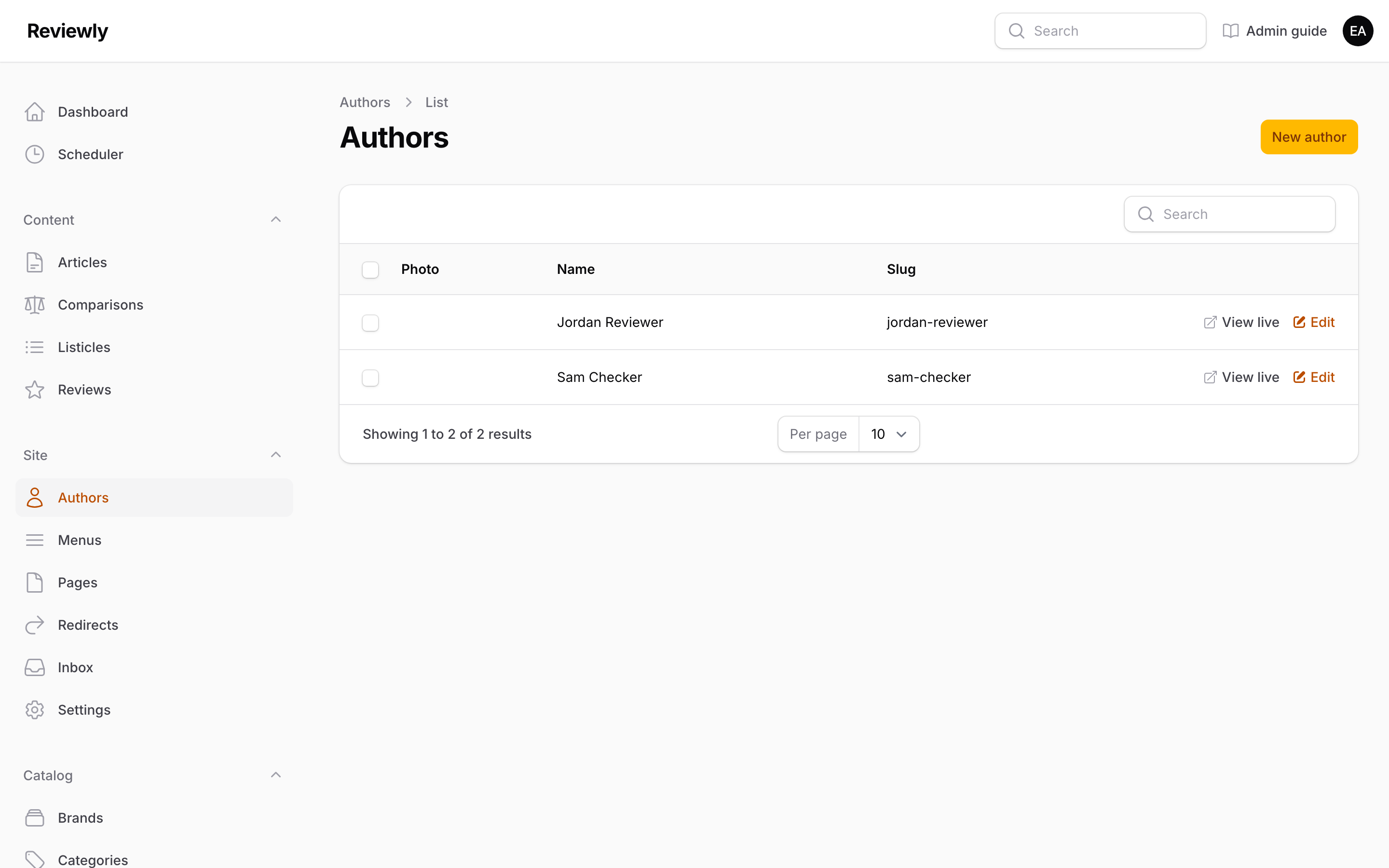
The public byline readers see. An Author is not a login. A User is someone who can sign in; an Author is a name, photo and biography attached to content. They can be linked, but a guest contributor needs an Author and no User, and a developer needs a User and no Author.
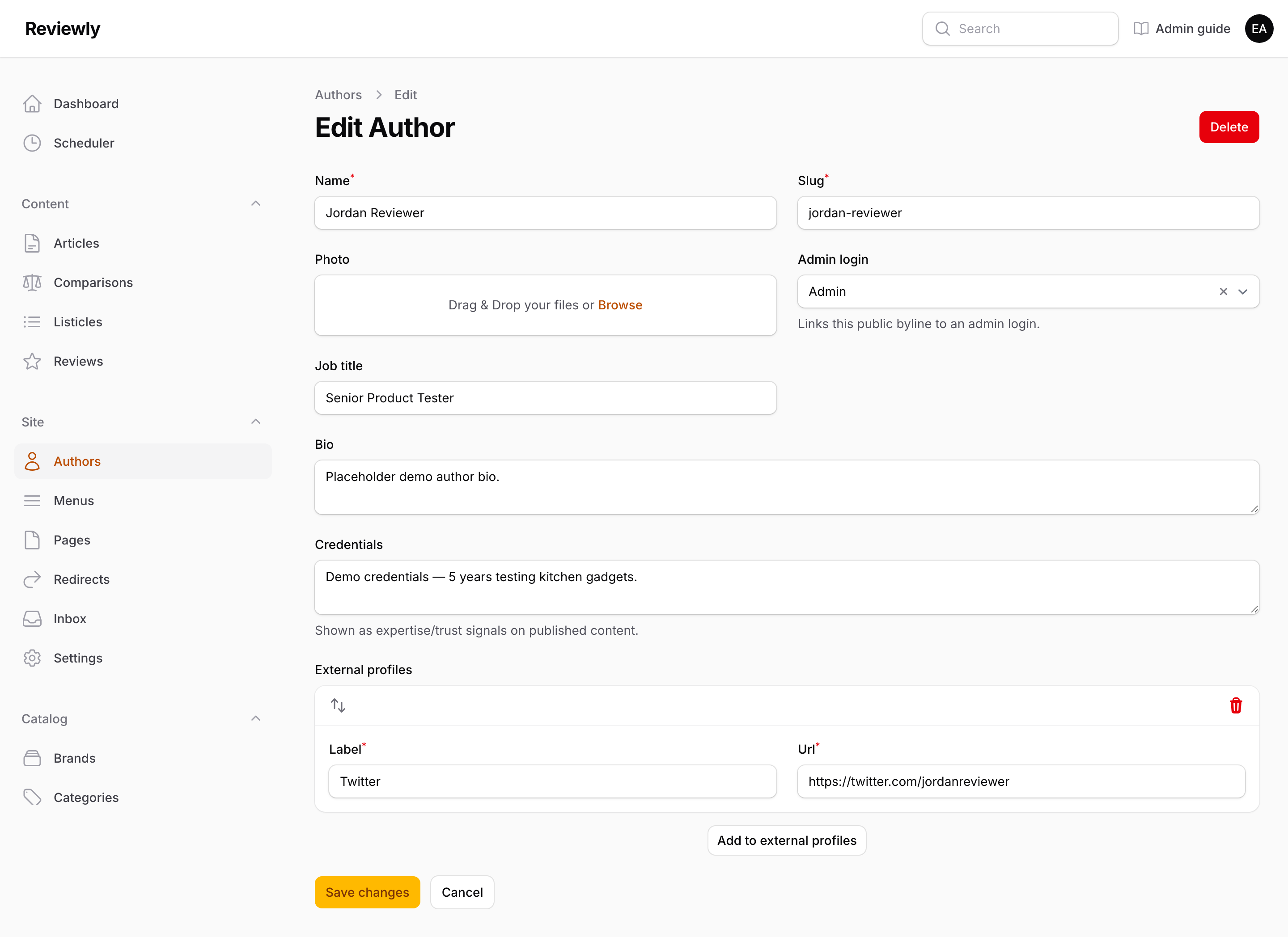
| Field | What it does |
|---|---|
| Name | Byline name. Auto-fills the slug. |
| Slug | URL segment for the author's page. |
| Photo | Headshot shown beside the byline. |
| Admin login | Optionally links this byline to a User account. Leave blank for contributors who don't sign in. |
| Job title | Shown under the name, e.g. "Senior Kitchen Editor". |
| Bio | Short biography. |
| Credentials | Qualifications and relevant experience, shown as expertise signals on published content. |
| External profiles | Repeatable label / URL rows — a personal site, professional profiles. |
Menus
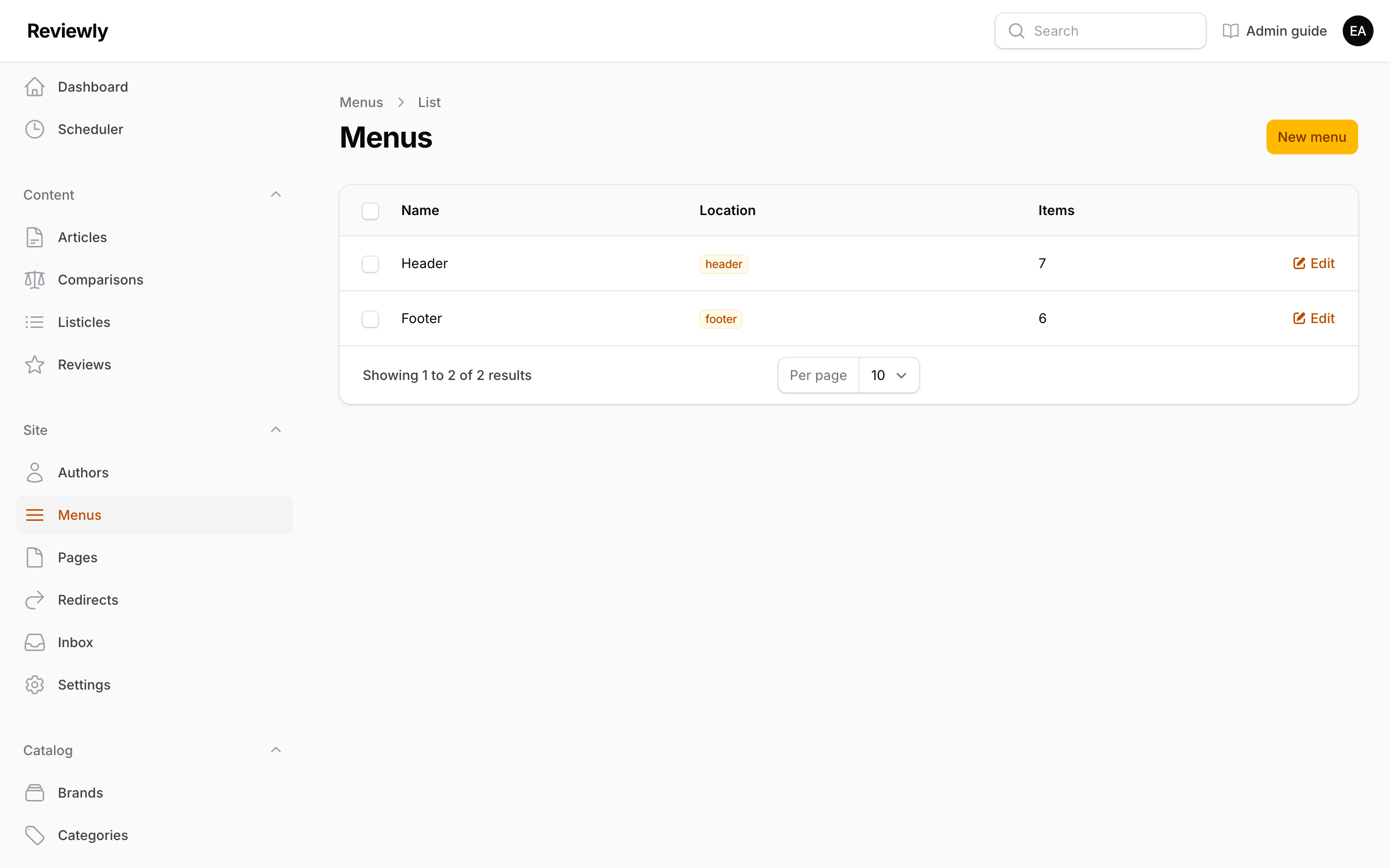
Site navigation. Each menu is identified by a Location — a stable key the front-end layout looks for, such as header or footer. The index shows how many Items each holds.
| Field | What it does |
|---|---|
| Name | A human label for this menu in the admin. |
| Location | The key the layout uses. Must be unique. Changing it on an existing menu will make that menu disappear from the site until the layout is updated to match — rename the Name instead if you just want a clearer label. |
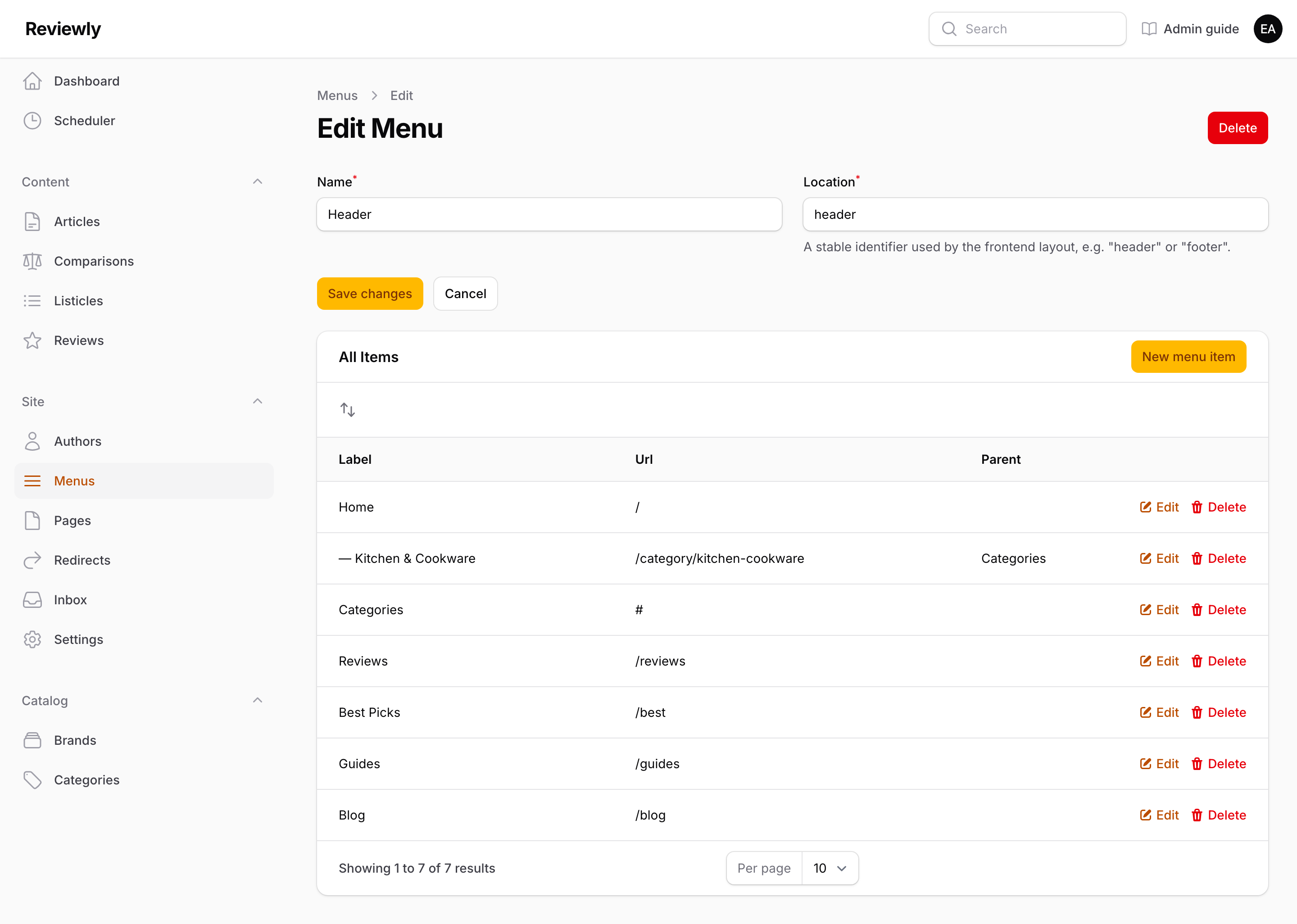
The Items table below the form holds the actual links. Drag rows to reorder.
| Item field | What it does |
|---|---|
| Label | The link text. |
| Url | Any URL — an internal path like /category/kitchen, or a full external link. |
| Parent item | Leave blank for a top-level item. Selecting a parent nests this item into a dropdown. One level of nesting only — a child cannot have children. |
Nested items are shown in the table with a leading dash.
The footer menu fills the footer's Quick links column — About, Contact, the policy pages. While it has no items, that column shows links to the site's sections (All reviews, Best picks, Comparisons, Guides, Blog) instead, so the footer is never empty. Once you add items, those section links go, so make sure the header menu links the sections.
Pages
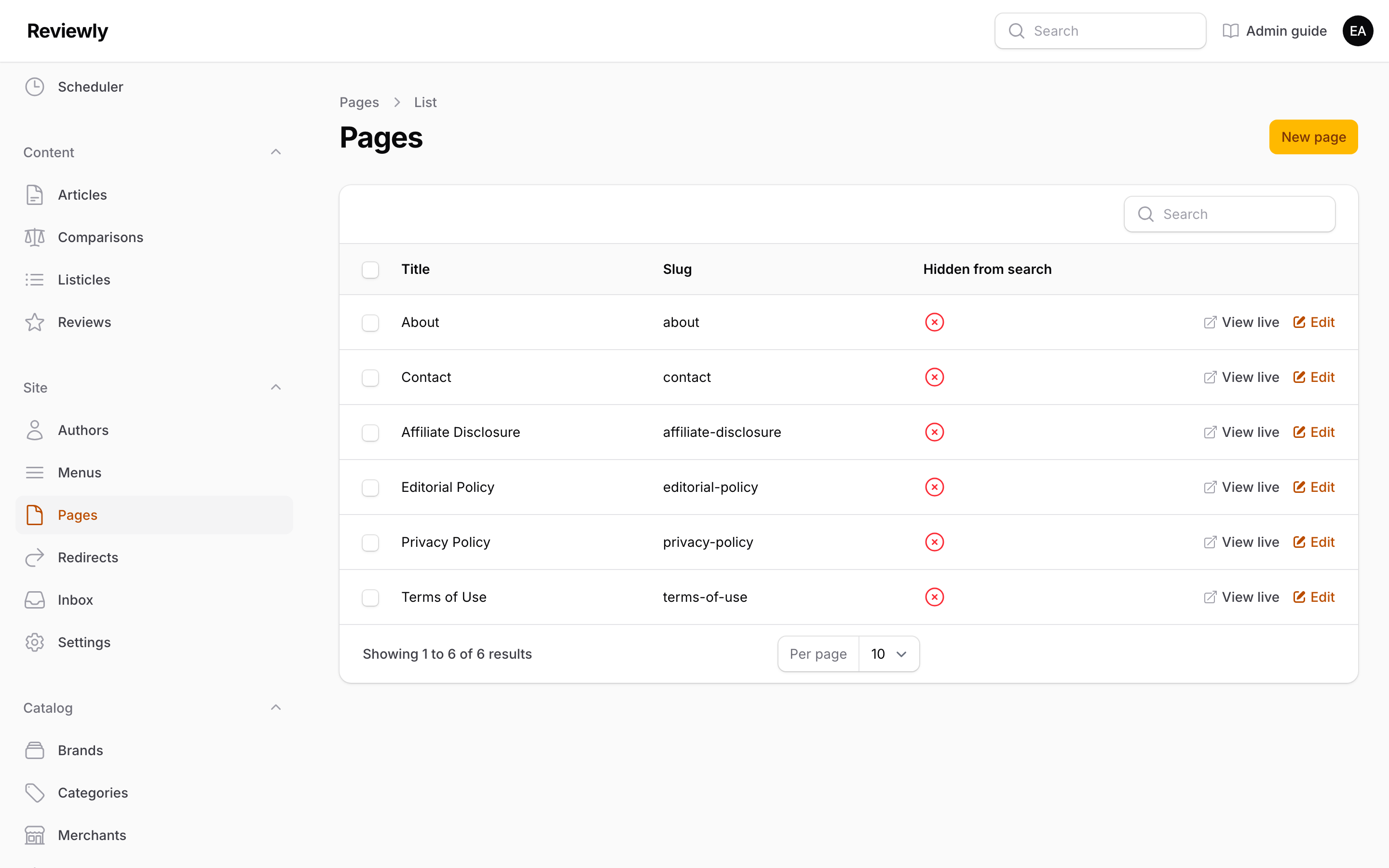
Standalone pages that aren't editorial: About, Contact, Affiliate Disclosure, Privacy Policy, Terms. They exist as records rather than in code so the wording — particularly the legally required wording — can change without a deploy.
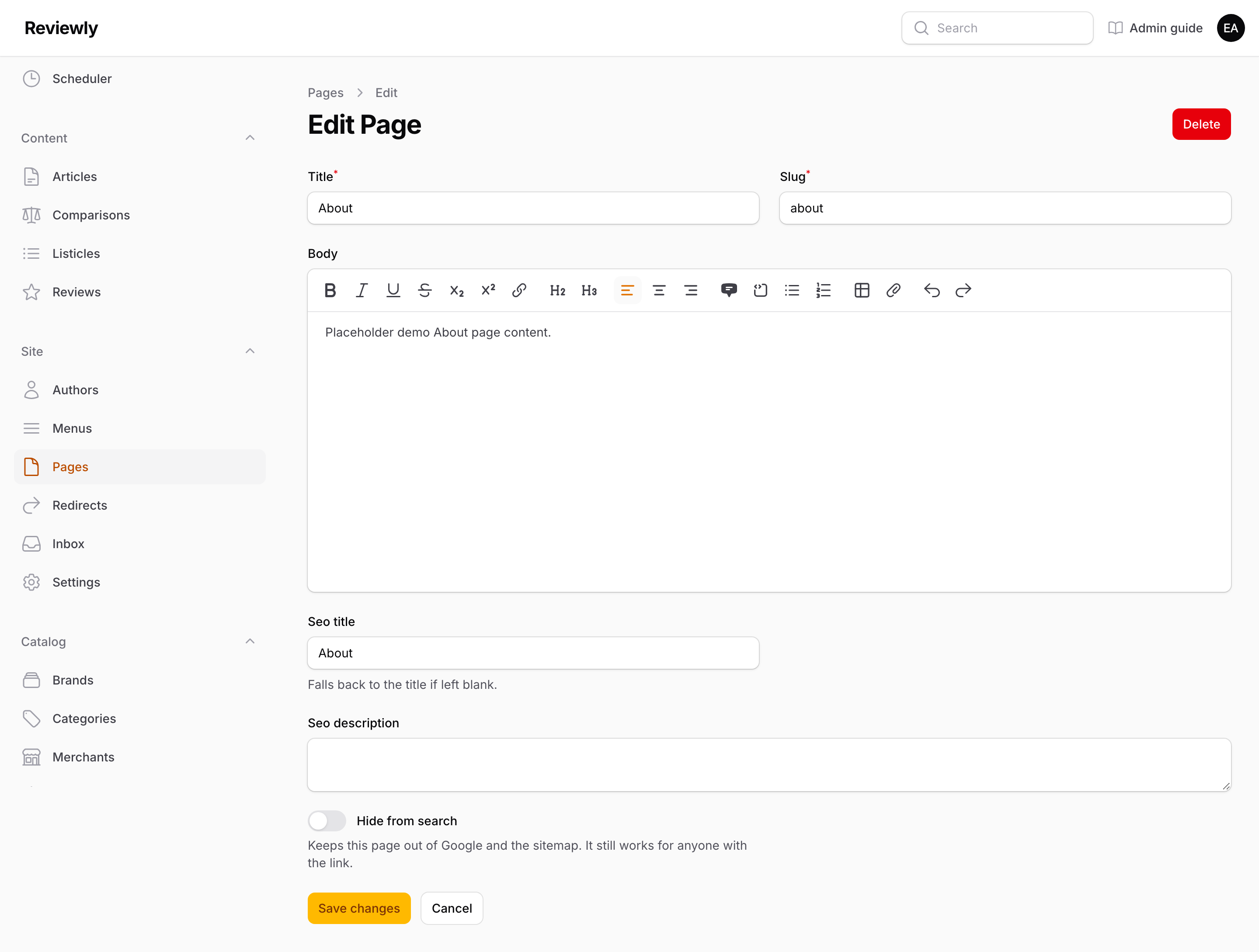
| Field | What it does |
|---|---|
| Title | Page heading. Auto-fills the slug. |
| Slug | URL segment. Do not change the slug of a policy page that is already linked from the footer or from a disclosure notice. The site's own links to it are built from that exact slug. A redirect would keep them working, but only for as long as nobody deletes it. |
| Body | The page content, in the rich editor. |
| SEO title / SEO description | As for content; the title falls back to the page title. |
| Hide from search | Keeps the page out of Google and out of the sitemap, while it still works for anyone who has the link. Use it for pages with nothing to find in search, such as a thank-you page. The Pages list shows which pages are hidden. It is off for new pages. Leave it off for the policy pages: people do search for a site's privacy policy or affiliate disclosure. |
The Contact page is special. /contact always shows the contact form. If a page with the slug contact exists, its title, body and SEO fields appear above the form, so the copy stays editable here; if not, the form still works under the heading "Contact us". Keep the slug contact for that page — under any other slug it becomes an ordinary page with no form. Messages people send arrive in the Inbox.
Redirects
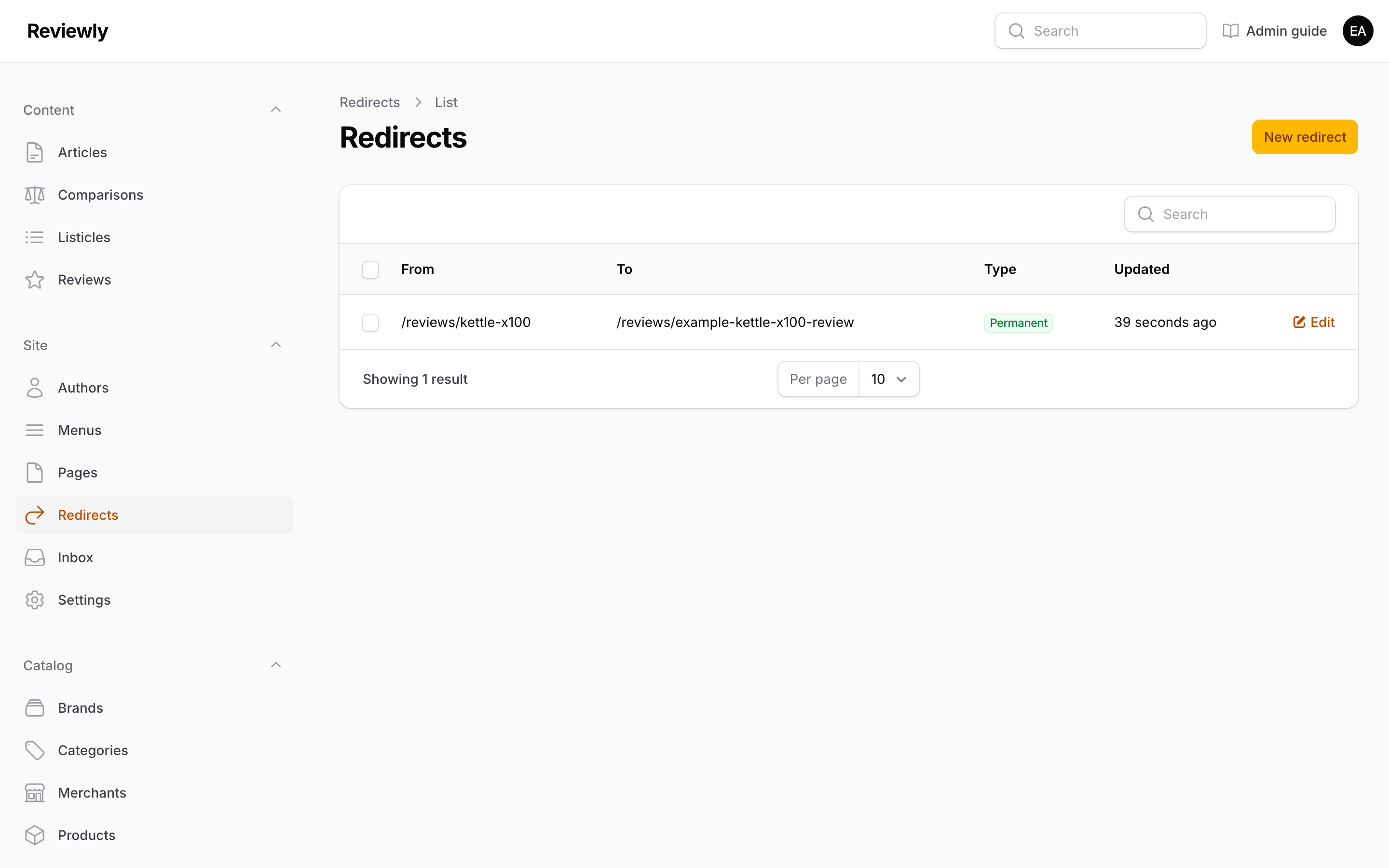
A redirect sends anyone who asks for an old address on to its new one. Search engines follow a permanent redirect too, and move the old page's ranking to the new address, which is the main reason to have them: a renamed review that 404s loses the search traffic it had earned.
Most redirects write themselves. Change the slug of a review, comparison, listicle, article, page, category or author while it is live, and a permanent redirect from the old address to the new one is added here automatically. Rename it again and the older redirects are updated to point straight at the newest address, so a reader never hops through a chain. Rename it back to an old slug, and the redirect from that address is removed, because the page lives there again. A draft's slug can change freely, since nobody has its address yet.
Add one by hand when an address outside the admin's control needs to go somewhere: a page removed for good that has a natural replacement, or a short link printed on packaging.
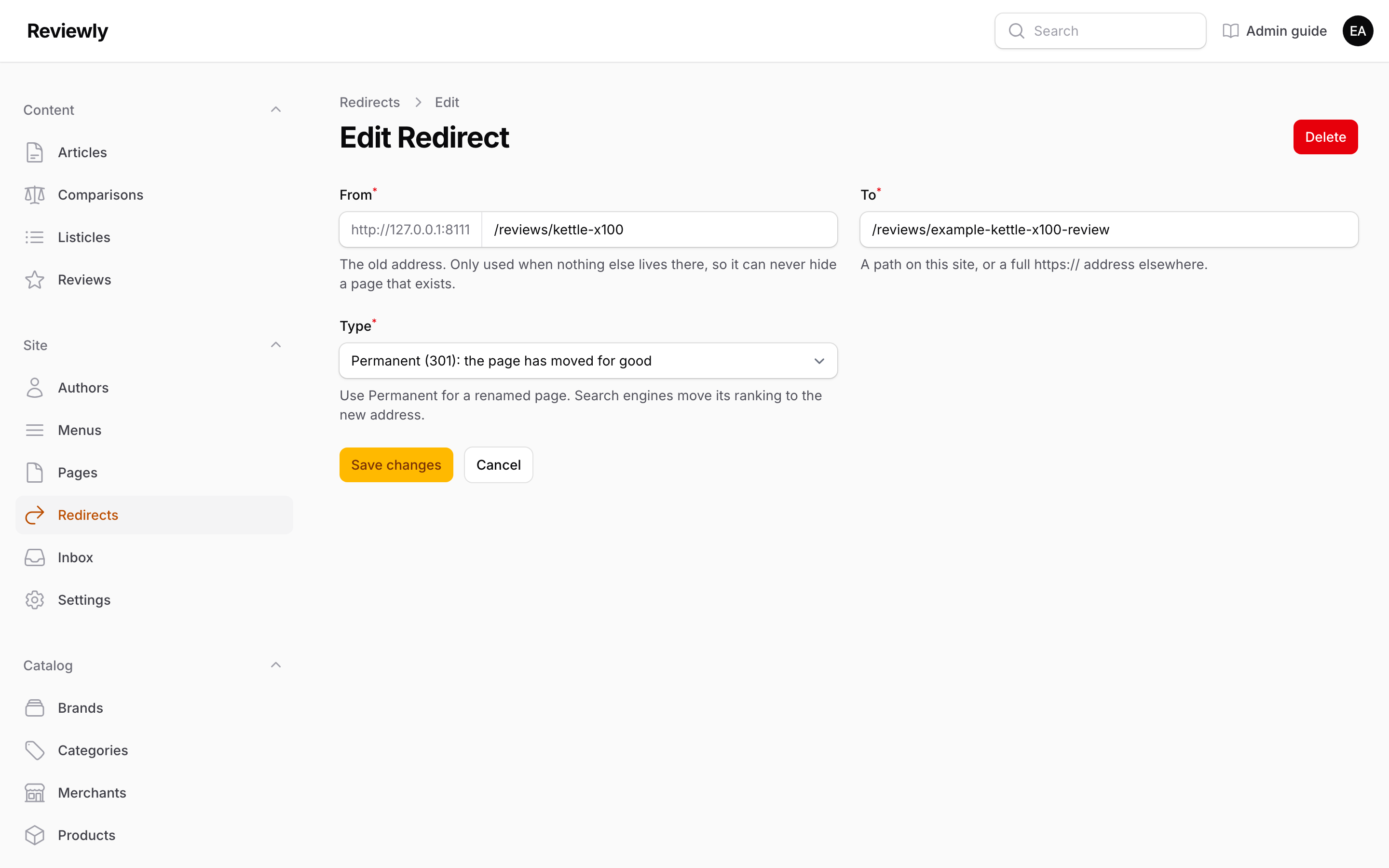
| Field | What it does |
|---|---|
| From | The old address on this site, such as /reviews/old-slug. A full address pasted from the browser is fine: it is trimmed to the path. It can't be the home page, or anything under /admin or /go/. |
| To | Where to send people: a path on this site, or a full https:// address elsewhere. Anything after ? in the visitor's address, such as newsletter tracking, is carried across. |
| Type | Permanent (301) for a page that has moved for good, which is almost always the right choice. Temporary (302) for something that will come back, like a seasonal page. |
A redirect never hides a live page. It is only used when nothing else answers at that address. So a redirect from a page that still exists does nothing until that page is deleted or renamed.
Loops are refused. Saving a redirect that points at its own address, or at an address that already leads back to it, fails with the reason under To.
Inbox
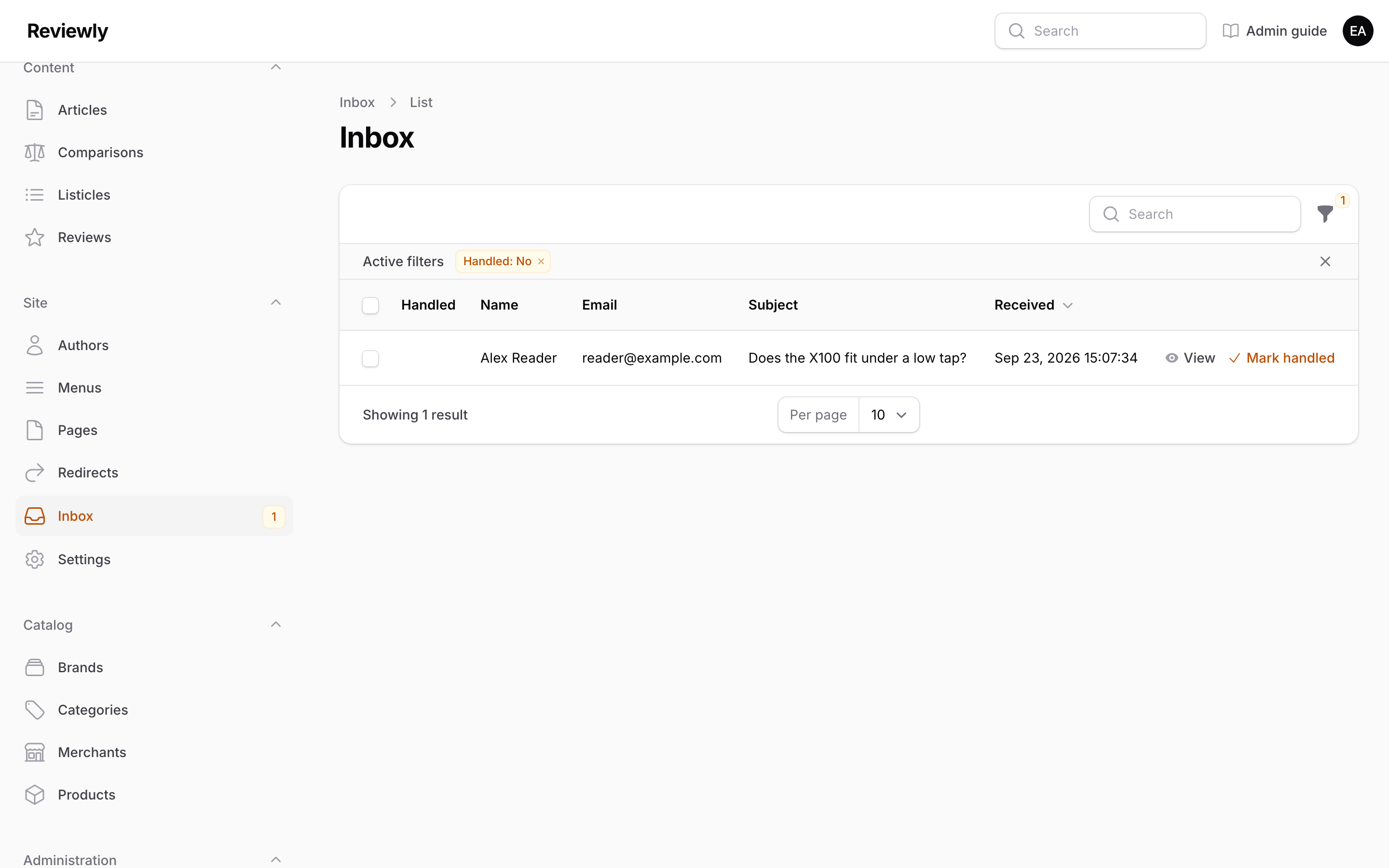
Messages readers send through the contact form at /contact. The sidebar shows how many are waiting — the number beside Inbox — and the list opens on those, the ones not yet handled. Use the Handled filter to see the rest, or everything.
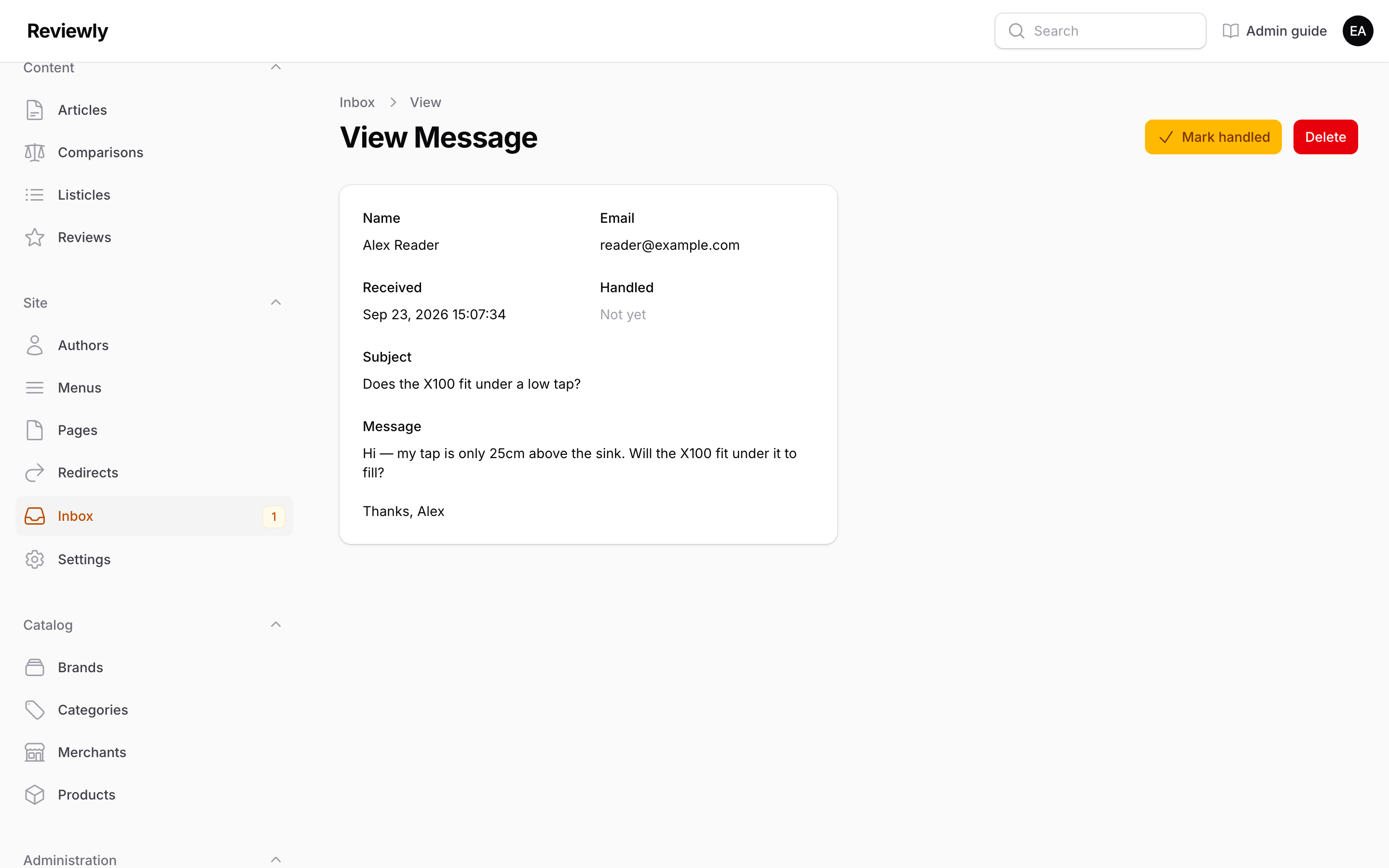
View opens a message in full: who sent it, their email, when, the subject and the message, with the reader's line breaks kept.
- Reply by email, not from here. Each message is also emailed to the address in Settings, and replying to that email goes straight to the reader. The email address on the message is a link that does the same.
- Mark handled once it is dealt with, from the message or from its row. It drops out of the default list and the sidebar count. Mark not handled puts it back. To mark several at once, tick them and use the bulk action.
- Messages cannot be edited. They are a record of what the reader said. Delete is there for spam and for anyone who asks for their message to be removed.
What the form collects, and for how long. Name, email, subject and message, and nothing else: no IP address, no browser details. Messages are deleted automatically 12 months after they arrive, and the form tells readers so.
Spam protection is invisible to readers. The form carries a hidden field that people never see and bots tend to fill; a message with it filled is thrown away, though the sender is shown the usual thank-you so the bot learns nothing. Each visitor can also send at most five messages an hour.
Settings
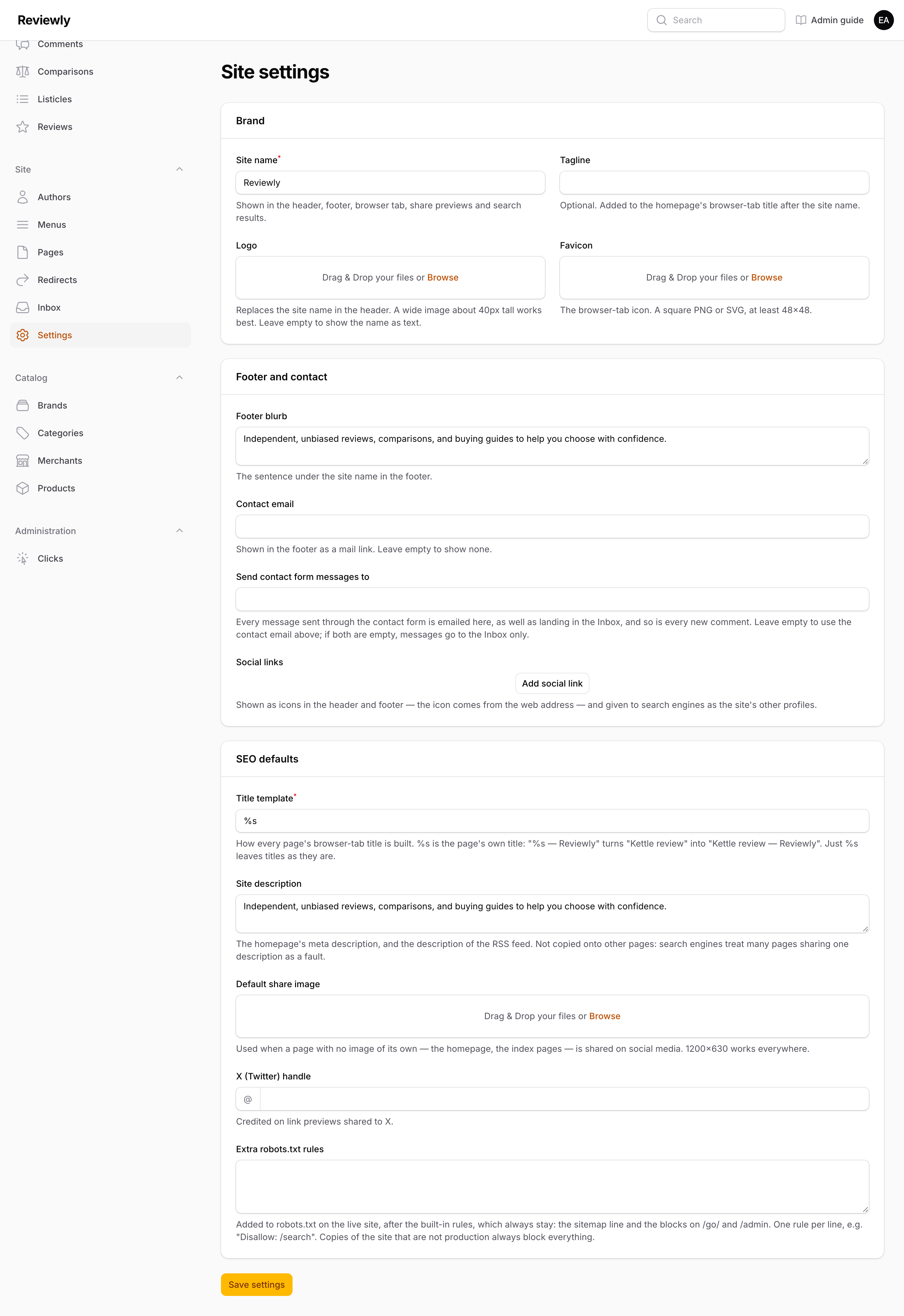
The site's name, footer and search defaults, in one place. Every change shows on the public site as soon as you press Save settings — no developer and no deploy. The form is in three sections.
Brand
| Field | What it does |
|---|---|
| Site name | Required. Shown in the header, the footer, the browser tab, share previews and search results. |
| Tagline | Optional. Added after the site name in the homepage's browser-tab title: "Reviewly — Honest kettle reviews". |
| Logo | Replaces the site name in the header with an image. A wide image about 40 pixels tall works best. Leave it empty and the name shows as text. To remove one, press the × on the image, then save. |
| Favicon | The small icon in the browser tab. A square PNG or SVG, at least 48×48. Leave it empty for the default. |
Footer and contact
| Field | What it does |
|---|---|
| Footer blurb | The sentence under the site name in the footer. Clear it and the footer shows the name alone. |
| Contact email | Shown in the footer as a link that opens the reader's email app. Leave it empty to show none. |
| Send contact form messages to | Every message sent through the contact form is emailed here, as well as landing in the Inbox. New comments are emailed here too. Leave it empty to use the Contact email; if both are empty, messages reach the Inbox only and nobody is emailed. It is never shown on the site. |
| Social links | Rows of label / URL, e.g. "Instagram / https://instagram.com/…". Shown as icons in the header, in the phone menu, and in a Follow row at the bottom of the footer. The icon is picked from the web address — Facebook, Instagram, X, YouTube, TikTok, Pinterest, Threads, Bluesky, LinkedIn and Reddit each get their own; any other address gets a plain link icon. The label is what screen readers announce, so name the network. Also handed to search engines as the site's other profiles, which helps them connect the accounts to the site. |
The footer has four columns: the site name and blurb, Quick links, Popular categories and Trending reviews. Only Quick links is set by hand, from the footer menu. The other two fill themselves: Popular categories lists the categories with the most published content, and Trending reviews lists the reviews whose buy buttons readers clicked most in the last 30 days. While too few reviews have clicks, the newest reviews fill the gaps, and until any review has a click the column is headed Latest reviews instead. A category with nothing published, or a review that is not published, never appears. Both columns catch up within an hour on their own, and straight away when content is saved.
SEO defaults
| Field | What it does |
|---|---|
| Title template | Required. How every page's browser-tab title is built. %s stands for the page's own title (its SEO title, or its title when that is blank). %s — Reviewly turns "Kettle review" into "Kettle review — Reviewly". The default, just %s, leaves titles as they are. It must contain %s. If you add the brand here, take it out of any SEO title that already has it, or it will appear twice. |
| Site description | The homepage's meta description, and the description of the RSS feed. It is not copied onto other pages: search engines treat many pages sharing one description as a fault, so a page with no description of its own is better left without. See Publishing status for how each content page gets one. |
| Default share image | Used when a page that has no image of its own is shared on social media: the homepage and the index pages such as All reviews. Content pages keep their own images. 1200×630 pixels suits every network. |
| X (Twitter) handle | Credited on link previews shared to X. Type it with or without the @. |
| Extra robots.txt rules | Lines added to robots.txt, the file that tells search engines what not to crawl — e.g. Disallow: /search. One rule per line. They only ever add to the built-in rules: the sitemap line and the blocks on /go/ and /admin always stay, so nothing typed here can undo them. Only the live site uses them; copies of the site that are not production always block everything. Changes can take up to four hours to reach search engines, because the file is cached. |
Not on this page, on purpose: the Google Tag Manager ID and the newsletter settings stay with the developer, in the server's configuration, because they are account IDs rather than copy. There is also no box for pasting code into the page head or body. Anything pasted there would run on every page for every reader, so it is a change for a developer to review, not a setting.
Administration
Users
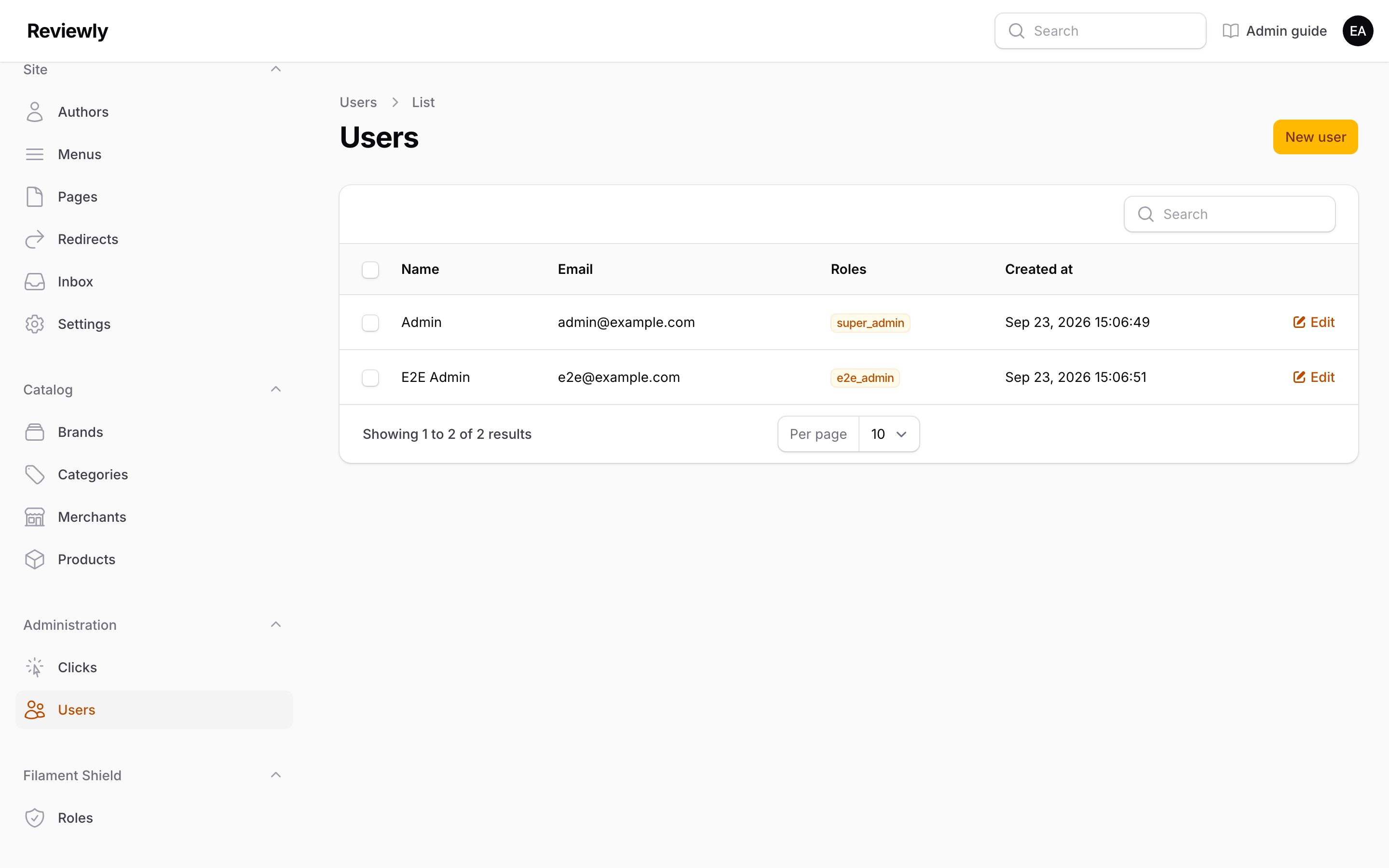
Accounts that can sign in to this panel. The index lists name, email, assigned Roles, and when the account was created.
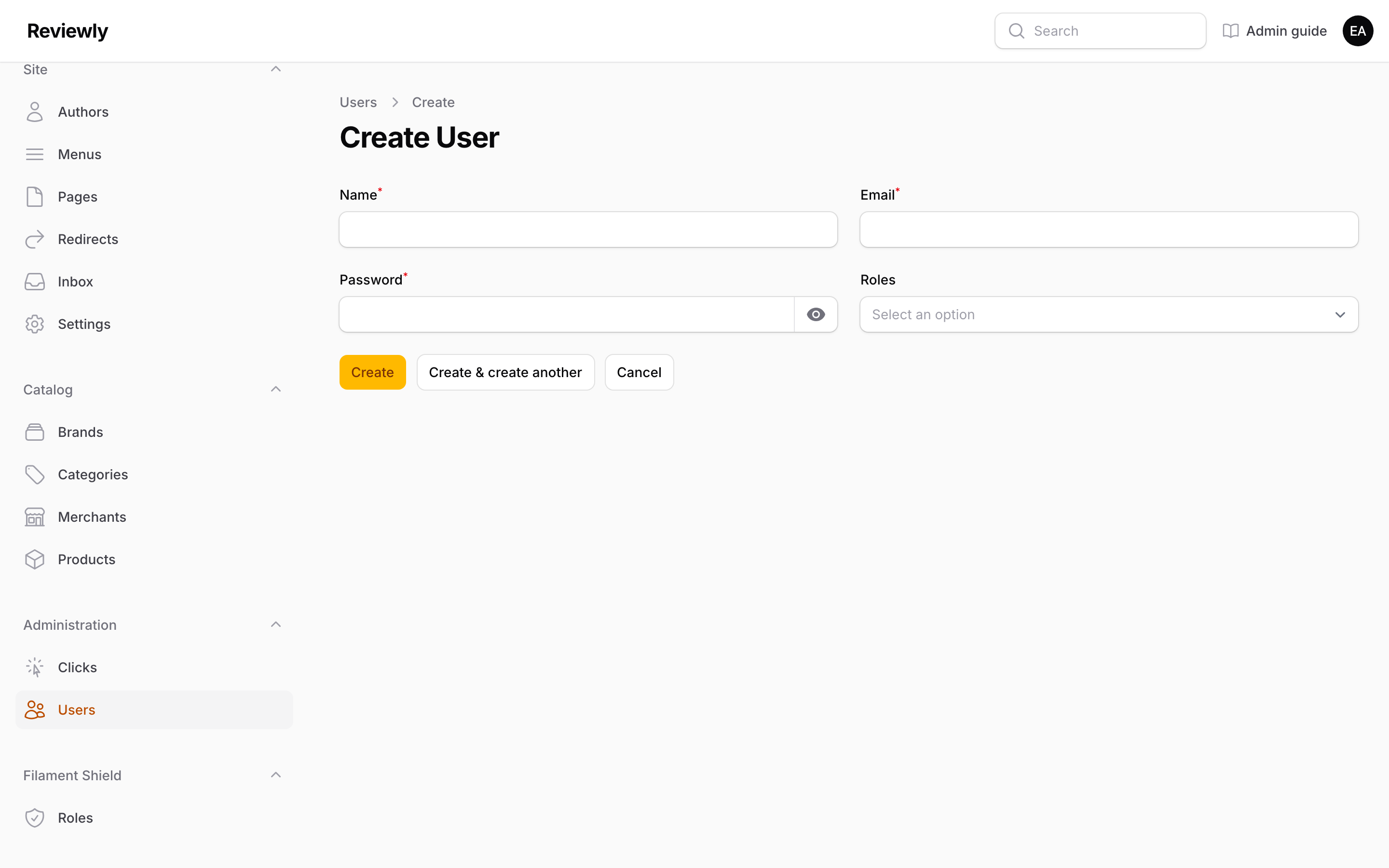
| Field | What it does |
|---|---|
| Name | Display name, shown in the panel's top-right menu. |
| The sign-in identifier. Must be unique. | |
| Password | Required when creating. When editing, leave it blank to keep the current password — filling it in replaces the password. Use the eye icon to check what you typed. |
| Roles | Which Roles this account holds. A user with no role can sign in but will see an empty panel, because every section is permission-gated. |
Deleting a user removes the login only. Any content they wrote keeps its Author byline.
A note on
super_admin: accounts with this role are forced through two-factor setup on sign-in. If you are creating an account for someone who cannot use an authenticator app, give them a different role with the permissions they need.
Roles
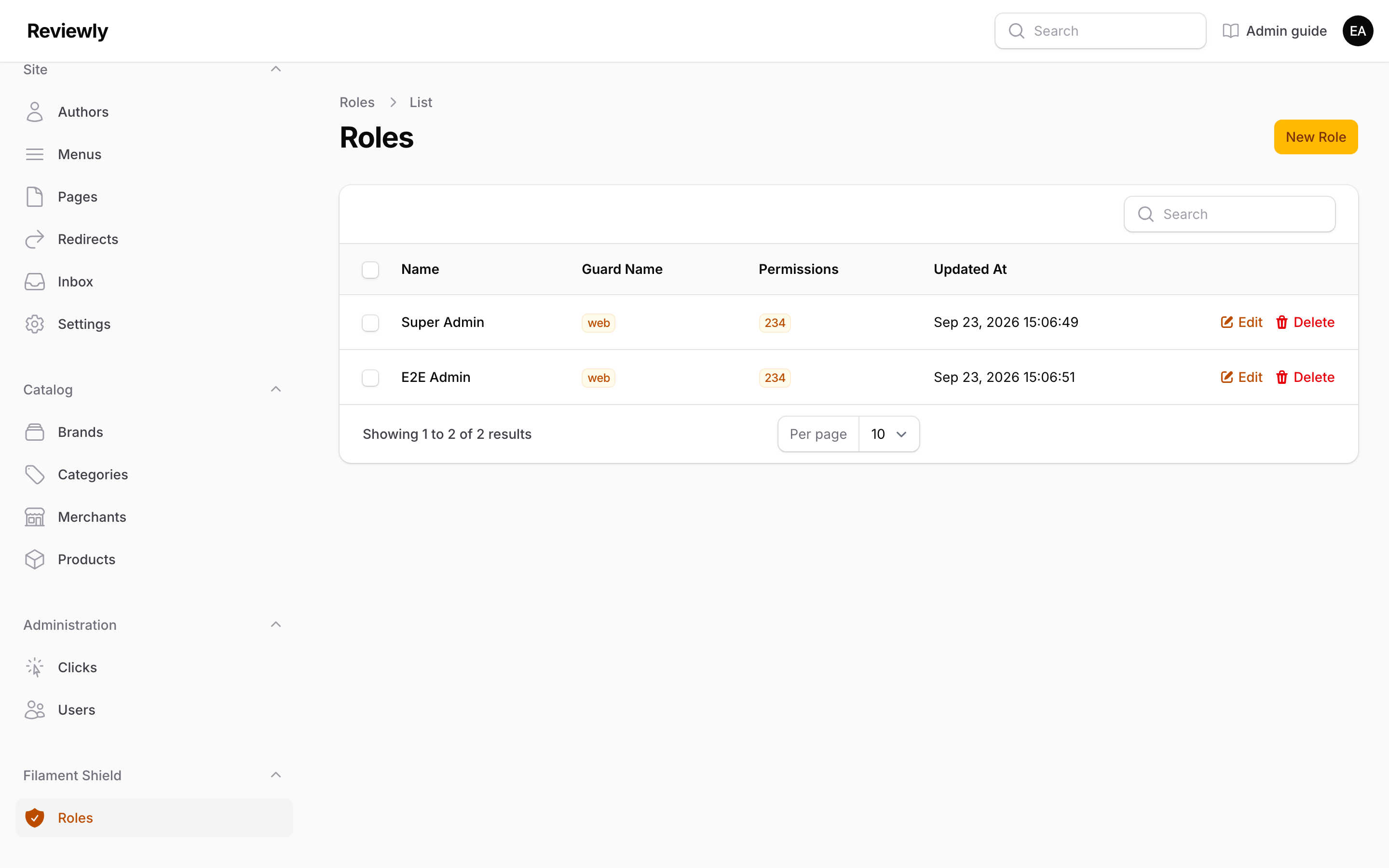
Roles are bundles of permissions; users hold roles rather than individual permissions.
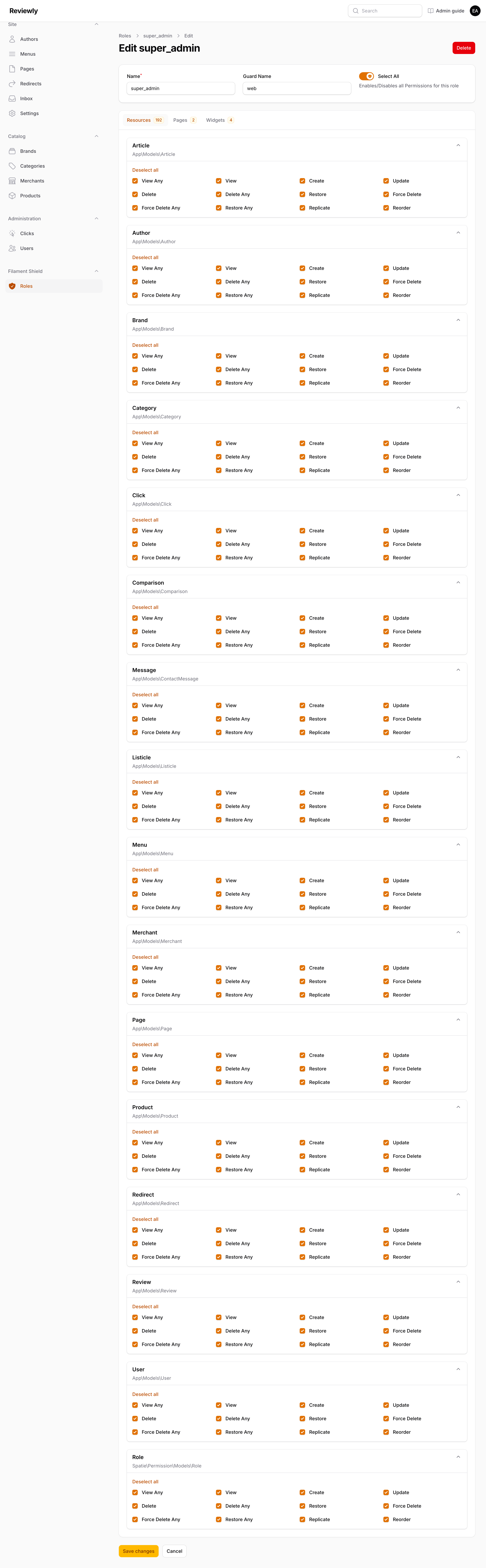
Each role's edit screen has a permission matrix, tabbed by Resources, Pages and Widgets. Every resource gets its own set of toggles — View, ViewAny, Create, Update, Delete, and so on.
Two things worth knowing:
ViewAnyis what makes a section appear in the sidebar. Without it, the resource is hidden completely rather than shown as a locked link. If someone reports that a section "disappeared", this is almost always why.- New resources don't grant themselves permissions. When a developer adds a new section to the panel, its permissions have to be generated and assigned before anyone — including
super_admin— can see it. If a newly built section is invisible to everyone, that is the cause.
Clicks
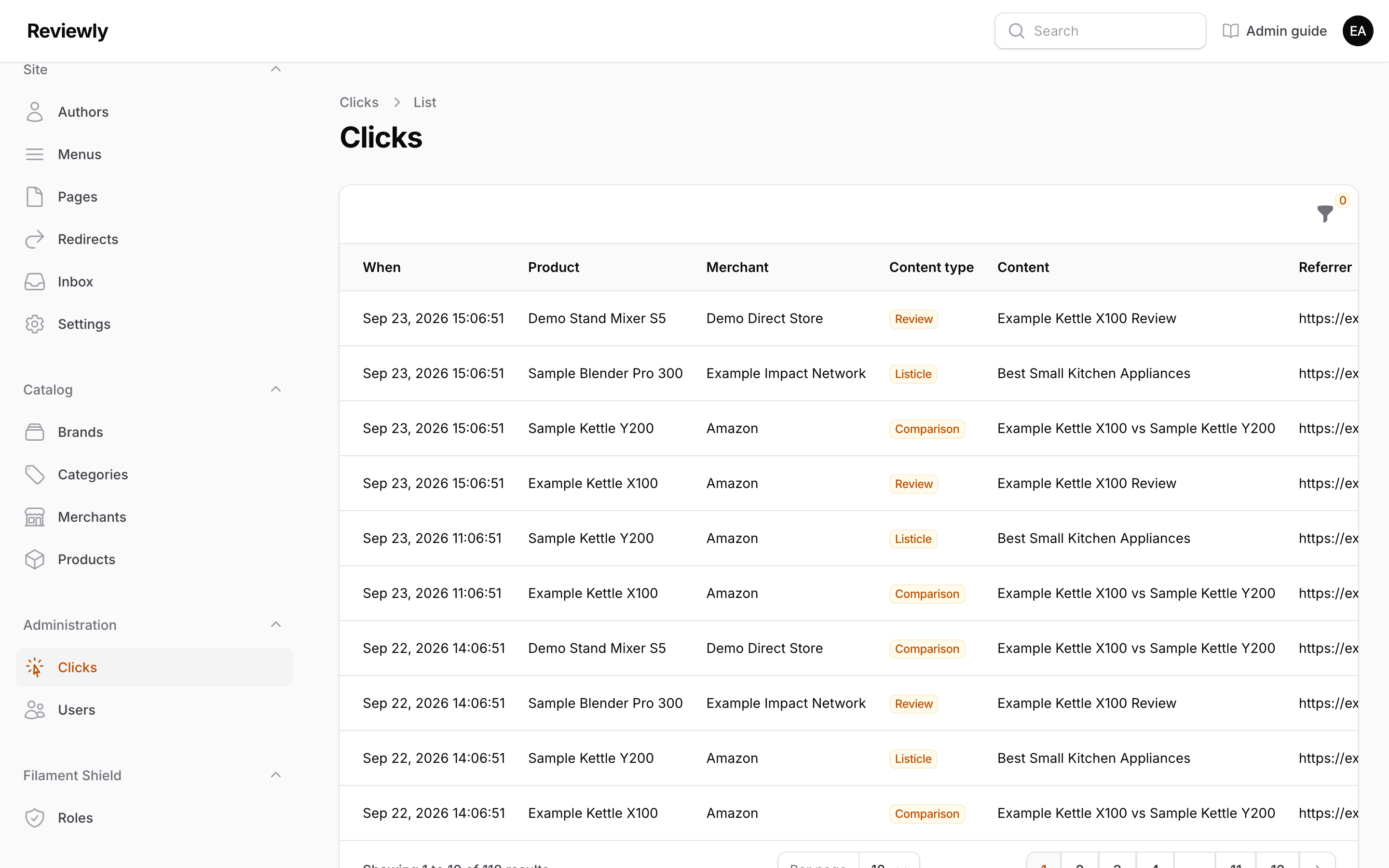
A first-party log of every affiliate-link click, recorded in our own database alongside the analytics event. That independence is the point: this data survives ad blockers and analytics outages.
Clicks are read-only. There is no create, edit or delete — it is an append-only record.
| Column | What it shows |
|---|---|
| When | Click timestamp. Newest first by default. |
| Product | Which product was clicked through to. |
| Merchant | Which merchant received the click. |
| Content type | Whether the click came from a Review, Comparison, Listicle or Article. |
| Content | The specific page it came from. |
| Referrer | Where the reader arrived from. |
| User agent | The browser string. Truncated; hover for the full value. |
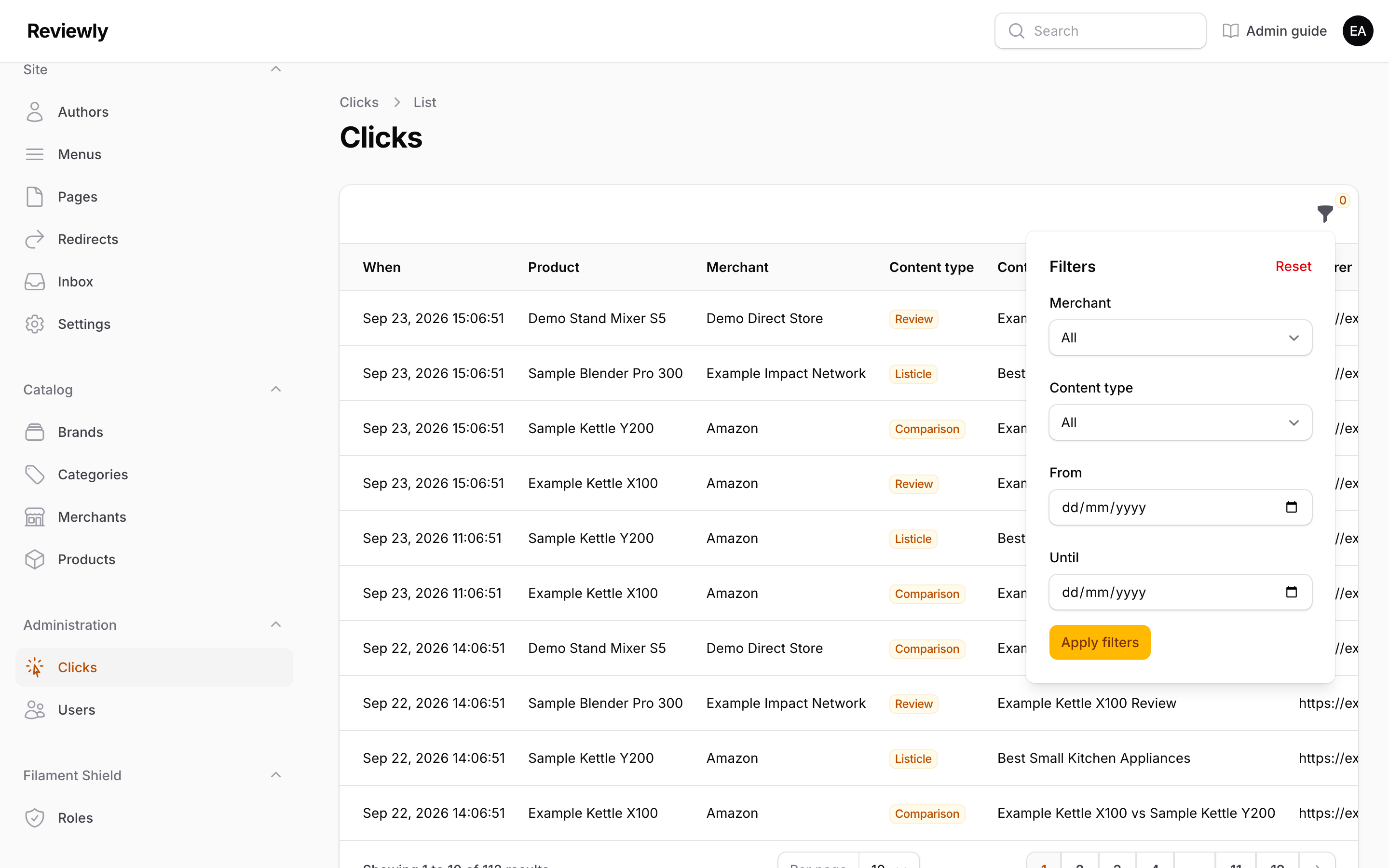
Filter by Merchant, by Content type, or by a date range (from / until).
No personal data is stored on this table — sessions are recorded as a one-way hash, and IP addresses are not kept.
Scheduler
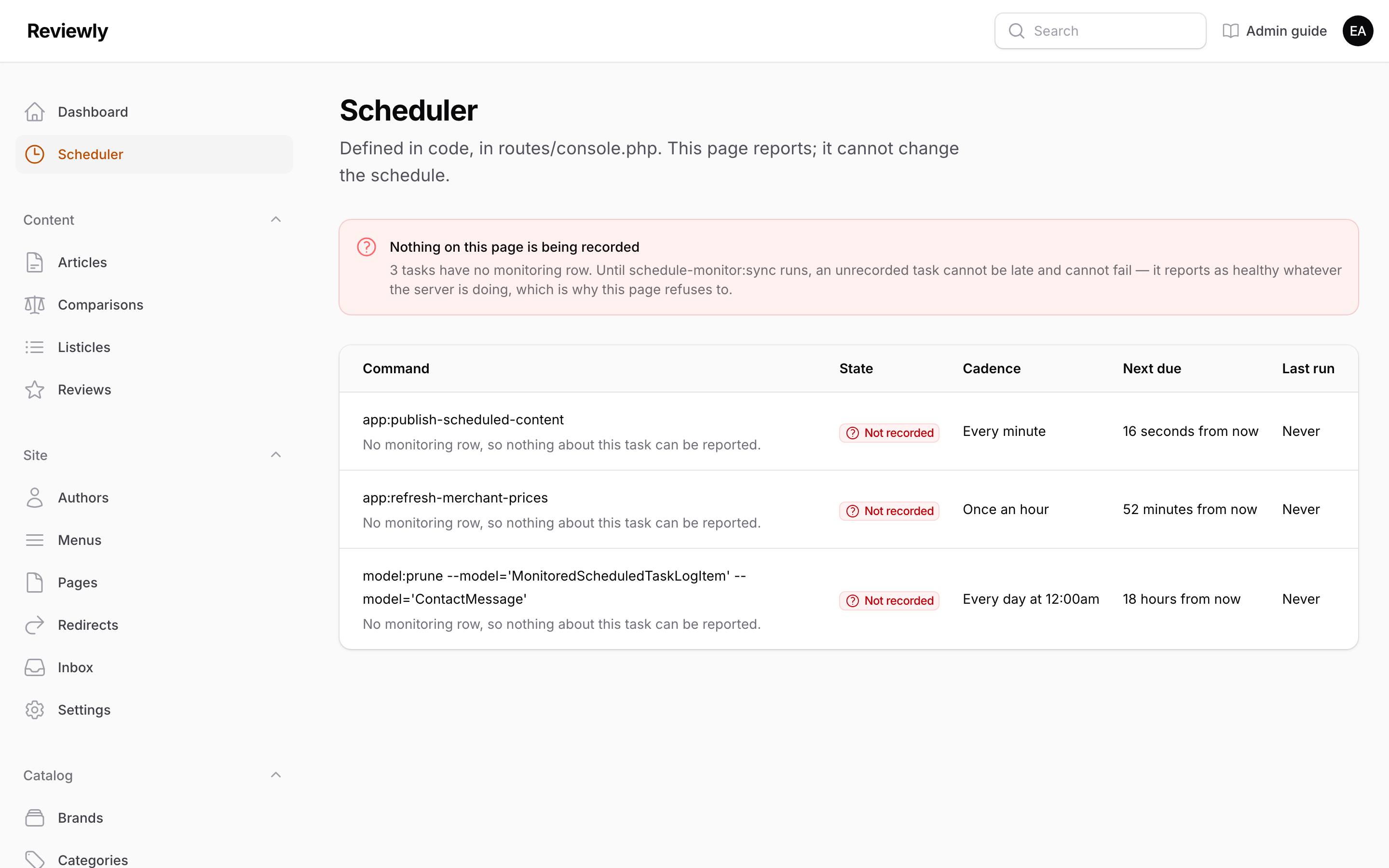
Some of the site runs without anyone pressing anything: scheduled content goes live on its own, and affiliate prices refresh on their own (see Automatic price updates). This page is where you check that those jobs are actually running.
It is read-only. The schedule lives in the site's code, so there is nothing here to switch on, off or reschedule. What it gives you is the answer to one question — is this happening or not — without needing anyone technical to look at the server.
Read the coloured banner first. It is the whole page in one sentence, and the rest of the table only elaborates on it.
| Banner | What it means | What to do |
|---|---|---|
| Everything ran on time (green) | Every job ran when it should have. | Nothing. |
| Nothing on this page is being recorded (red) | The site is not keeping a record of these jobs, so this page cannot tell you whether they run. It is not a report that they failed — it is a report that nobody is watching. | Send it to whoever maintains the server: a step is missing from the deployment. |
| A scheduled task has not run on time (red) | A job missed its slot by more than the allowed margin. Usually the server's own timer isn't running, in which case nothing scheduled is happening. | Send it to whoever maintains the server. |
| A scheduled task failed (red) | The job ran and reported an error. | Send it to whoever maintains the server. |
| Work was queued and nothing drained it (red) | The price refresh handed its work over, and nothing picked it up. Prices will quietly stop updating while this says so. | Send it to whoever maintains the server. |
| A scheduled task has never run (amber) | Normal on a site that has just been set up, until the job's first slot comes round. | Nothing, unless it persists past the cadence shown. |
| Column | What it shows |
|---|---|
| Command | The job's name, with a plain-English note underneath when there is something to say about it. |
| State | The same verdict as the banner, for that one job. |
| Cadence | How often it is meant to run — "Every minute", "Once an hour". |
| Next due | When it is next expected to run. |
| Last run | When it last ran, and how long it took. |
Why one row reads differently. app:refresh-merchant-prices says Dispatched, not Finished, because that job only hands the work to a background worker. "It ran" would be true of it even if every price update since had silently gone nowhere — so its row reports what became of the work as well, in the note under the command.
The page refreshes itself every minute, so it can be left open.
Conventions that apply everywhere
Slugs auto-fill, then stop. Typing a name or title generates the slug when you leave the field. Once a record is saved, editing the name will not rewrite the slug — deliberately, so published URLs don't change under anyone. You can still change a slug by hand. If the record is live, the old address keeps working through a redirect written for you.
Required fields carry an asterisk. Saving with one empty shows the error inline beneath the field. On a tabbed form like Reviews, an error may be on a tab you aren't looking at.
Repeatable rows (Specs, Sub-scores, Pros/Cons, Measurements, FAQ, Changelog, External profiles) share the same controls: + Add at the bottom, a drag handle to reorder, and a delete icon per row.
Drag to reorder wherever order is meaningful — listicle rankings, comparison product order, menu items, affiliate links, product images.
View live sits beside Edit on every row of Reviews, Comparisons, Listicles, Articles, Pages, Categories and Authors. It opens the record's public page in a new tab, and the admin stays where it was. It only appears when that page is actually live: a Draft, a Scheduled item that hasn't gone out yet, an Archived one, or a Published item dated in the future shows no View live, because the link would only lead to "Page not found".
Searching and filtering. Index tables search on the main text column. Where filters exist, the Filter button is at the top right of the table. Choosing a filter value does not apply it on its own — press Apply filters at the bottom of the panel, or nothing in the table changes. Reset clears them again.
Deleting. Delete asks for confirmation, then removes the record permanently — there is no undo. To take content off the site while keeping it, set its status to Archived instead.
Relation managers load on scroll. The tables attached to a record — a Product's affiliate links, a Listicle's entries, a Menu's items — sit below the form and only load once you scroll to them. A brief "Loading…" is expected, not a fault.
Bulk actions. Tick the checkbox on several rows to reveal bulk delete. It applies immediately to every selected record.
Related documentation
- CONTEXT.md — the domain model and vocabulary
- docs/adr/ — why the system is built the way it is, including Merchants as an entity and per-cluster disclosure
- tests/e2e/ — the browser tests that exercise these screens and generate this guide's screenshots